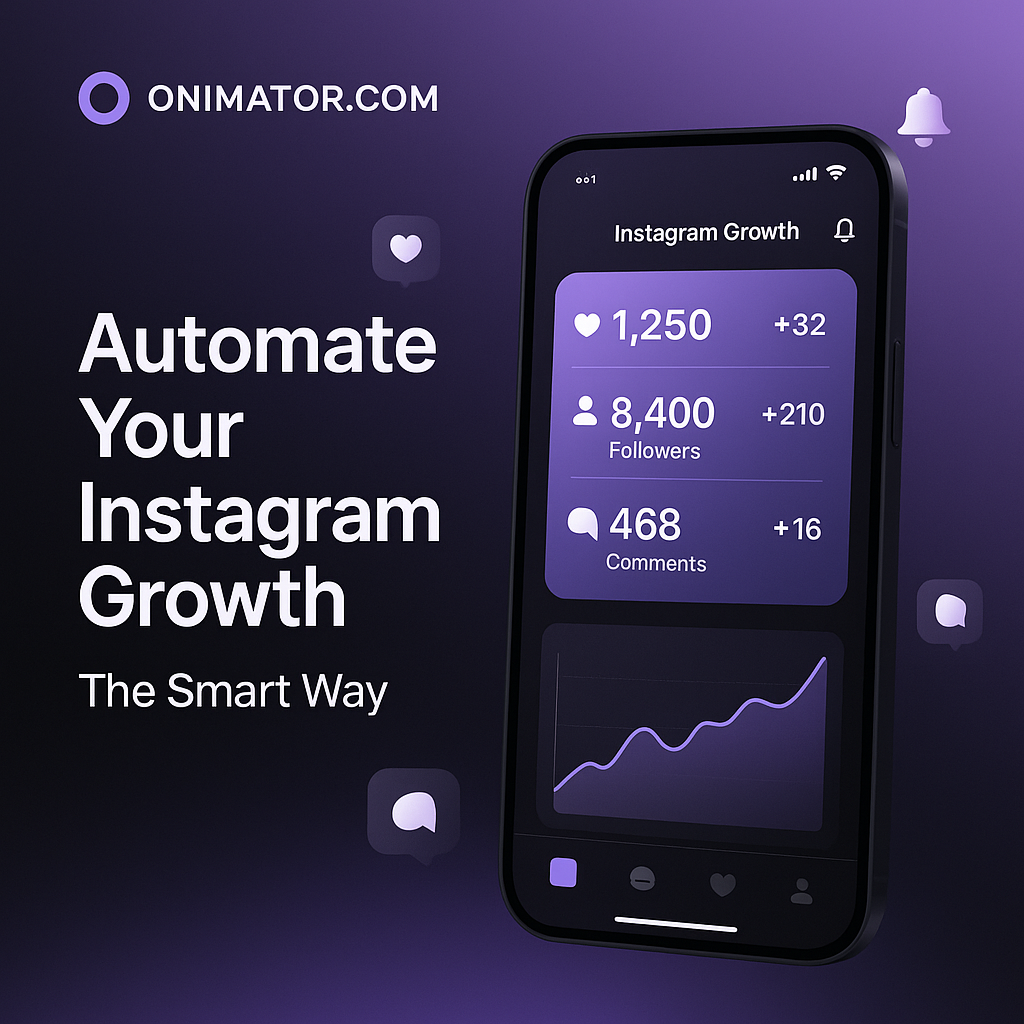
If you want to grow Instagram with Onimator, you normally need real Android devices (or emulators). That’s what makes Onimator high-trust compared to most browser bots: your actions come from the real Instagram app on real devices.
But what if you don’t want to:
- buy physical phones,
- cable them to your PC,
- deal with USB hubs, drivers, routers, power, and uptime?
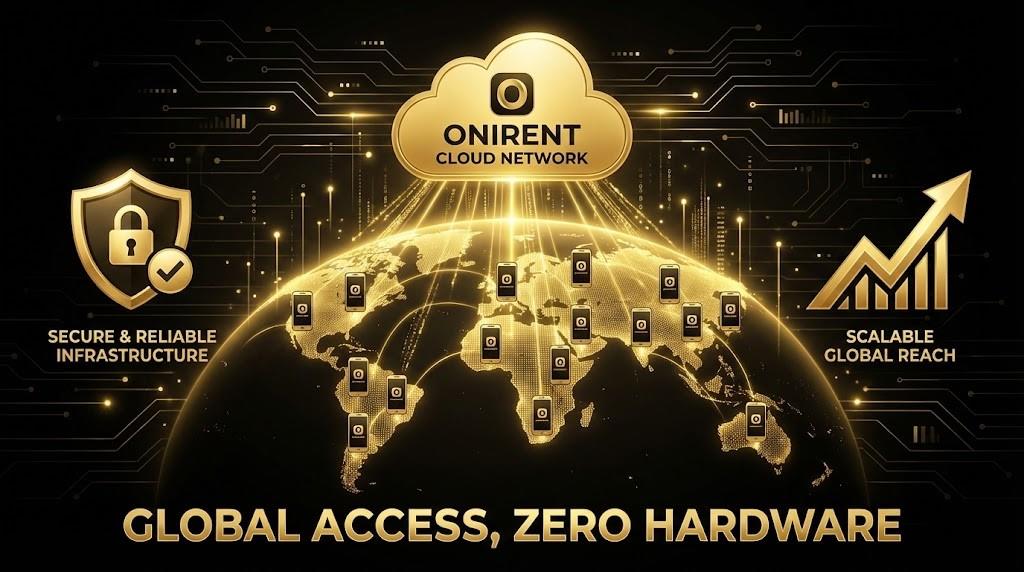
This is exactly where Onirent comes in. It gives you cloud phones—Android devices hosted remotely—that you can fully control from your computer or VPS. Onimator then runs on top of those phones as if they were sitting on your desk.
TL;DR: Use a Windows VPS as your always-on “control center.” Run Onirent + Onimator on the VPS, connect rented cloud phones, install Instagram, log in once, then run Onimator tasks 24/7—without owning hardware.
What is Onirent (simple explanation)
Onirent is a platform for connecting and managing Android phones from your computer:
- screen mirroring (you see each phone’s screen on your PC/VPS),
- remote control (mouse/keyboard/touch input),
- multi-device operations (install apps, open apps, basic maintenance across many phones).
For Onimator users, the simplest way to think about Onirent is:
Onirent gives you real Android phones in the cloud, so Onimator can automate tasks without physical hardware.
You don’t need advanced features to get value. Most users only need: cloud phones + stable control + reliable connectivity.
Why this is better than classic browser bots
Most “Instagram bots” are browser-based. They often rely on brittle scripts, suspicious environments, and patterns that are easier to detect.
Onimator + Onirent is different because:
- actions come from real Android devices, not temporary browser sessions,
- you use the real Instagram app,
- your workflow is operationally closer to genuine device usage than generic web automation.
Result: you keep the benefits of real-device execution, while removing the hardware headaches.
How the setup works (architecture overview)
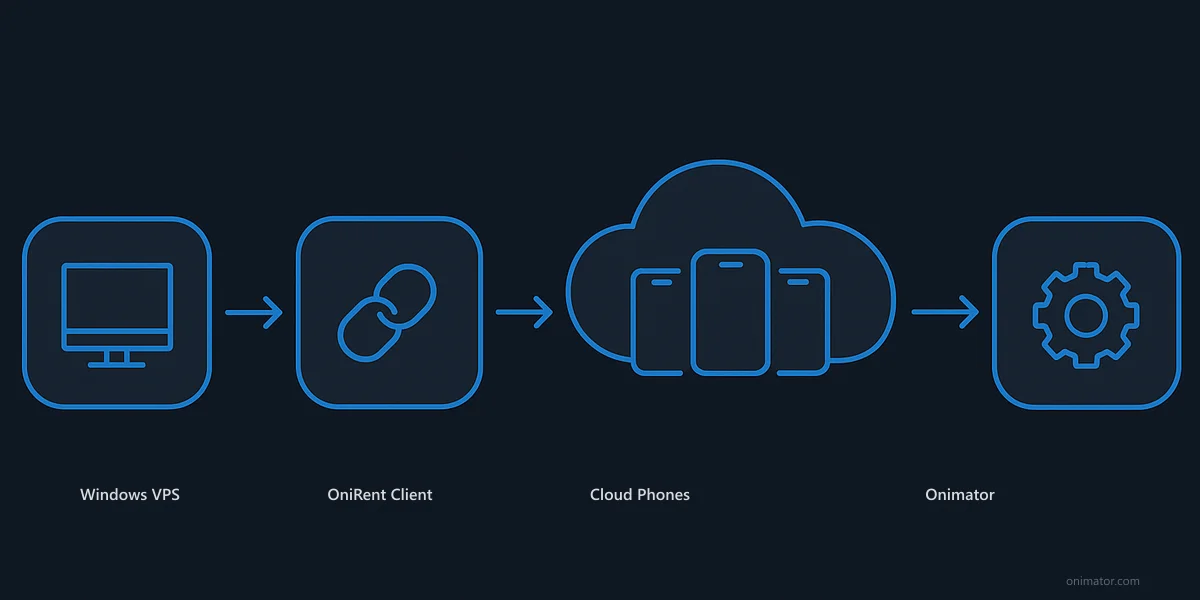
At a high level, the stack looks like this:
- Windows VPS (control center)
- Install and run Onirent here.
- Install and run Onimator here.
- Onirent cloud phones
- Real Android devices hosted remotely.
- Visible in Onirent as controllable devices (like phones on USB—just remote).
- Instagram + your workflows
- Install Instagram on each cloud phone.
- Log in once and confirm any prompts.
- Connect devices to Onimator and run tasks.
End result: you control everything remotely, but to Instagram it still looks like real phones doing real actions.
What you need before you start
- A Windows VPS (recommended for always-on operation).
- Onirent account + cloud phones available to you.
- Onimator installed on the same VPS.
- Instagram accounts ready for login (access to email/SMS for verification).
Tip: If you’re migrating from local devices, start with 1–2 accounts first. Validate stability, then scale.
Step-by-step: run Onimator on a VPS with Onirent
Step 1: Get a Windows VPS
Pick a Windows VPS with stable connectivity. This machine becomes your 24/7 “control center.”
Step 2: Install Onirent on the VPS
- Install the Onirent client on the VPS.
- Log in to your Onirent account.
- Confirm your rented cloud phones appear and can be mirrored/controlled.
Step 3: Prepare the phones
On each cloud phone (via Onirent):
- install Instagram (Play Store or APK, depending on your process),
- log in to the target Instagram account,
- complete any one-time prompts (verification codes, security checks).
Step 4: Install & connect Onimator
- Install Onimator on the same VPS.
- Connect Onimator to the cloud phones you see in Onirent (per your device-connection flow).
- Assign devices/accounts to your Onimator projects so operations stay organized.
Step 5: Run a small test first
Before going live:
- open Instagram on each device,
- confirm sessions are stable,
- run a tiny test task with conservative limits (a few actions only).
If you want a ready-made growth workflow after you complete the cloud-phone setup, this guide pairs well:
How to Grow Your Personal Brand on Instagram with Onimator (No Hardware Needed If You Use Onirent)
Onirent features you actually need for Onimator
Onirent can do a lot, but for standard Onimator usage, these are the essentials:
- Screen mirroring & remote control (login, checks, occasional manual actions)
- Multi-device management (grid view, batch selection)
- App installation (Instagram + helper tools across devices)
- Stable connectivity (so devices stay online and controllable)
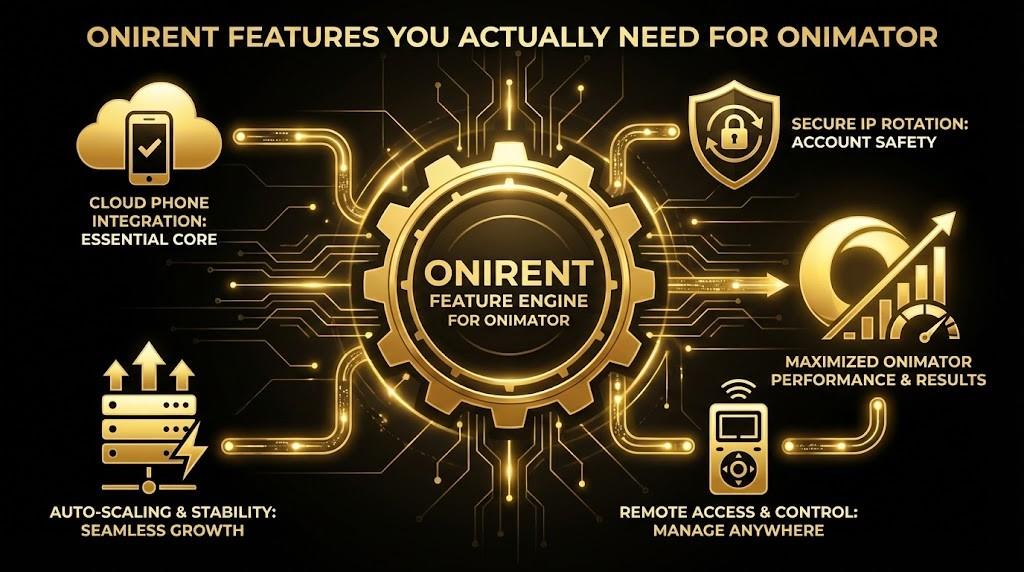
Everything beyond this (advanced scripts, deeper device tooling) is optional for most workflows.
What you can run on cloud phones
Once connected, you can run core Onimator tools on cloud phones the same way you would on physical devices:
- Follow / Unfollow (target competitor followers; clean up non-followers)
- Post likes (add warm touchpoints)
- Story likes / views (additional visibility)
- Filtering (exclude low-quality accounts)
- Welcome messages / DMs (use conservative limits and non-spammy copy)
Nothing changes feature-wise. The only difference is where the phones are physically located (Onirent infrastructure instead of your desk).
Operate safely: limits, monitoring, maintenance
Cloud phones remove hardware friction, but account safety still depends on behavior. Practical guardrails:
- Start conservative, then increase gradually after stable performance.
- Use delays between actions to avoid unnatural patterns.
- Monitor early: login prompts, app updates, unexpected popups.
- Stagger heavy tasks across devices instead of spiking one account.
- Keep targeting clean: relevant sources outperform brute volume.
Note: Always operate in line with platform rules and prioritize authentic engagement. Automation should support your workflow—not replace relationship-building.
FAQ
Do I need to buy phones to run Onimator?
No. With Onirent cloud phones, you can operate real Android devices remotely.
Can I run Onimator 24/7 without my own PC?
Yes—use a Windows VPS as your always-on control center, then run Onirent + Onimator there.
What should I automate first?
Start with low-volume Follow + Like, validate stability for a few days, then add Unfollow cleanup and (optionally) welcome DMs.
Where do I find step-by-step setup instructions?
Use the Knowledge Base link below for device connection, safe limits, task setup, and troubleshooting.
Get started (strong CTAs)
Fastest path to “no hardware”: get Onimator for automation, add Onirent for cloud phones, then run both from a Windows VPS.
1) Get Onimator (pricing & checkout)
Start here if you want to run automation workflows on real devices:
- Buy / view pricing: Onimator Pricing & Checkout
- Create your account: Sign up (7-day trial)
- Product overview: Onimator.com
2) Add Onirent cloud phones (rent without hardware)
Use Onirent to rent real Android devices hosted remotely and control them from your VPS:
- Rent a phone / start billing: Onirent “Rent a Phone” (login)
- Create an Onirent account: Register on Onirent
- Learn more: Onirent.com
3) Setup help and best practices
Use these resources to launch faster and avoid common mistakes:
Recommendation: start with 1–2 cloud phones, validate stability and limits for a few days, then scale gradually.