
Overview
The Scroll Feed tool for Threads passively scrolls the home feed and occasionally likes posts. It performs no direct outreach (no follows, no DMs), it just browses, the way a real user does when casually checking Threads.
This is pure camouflage. Think of it as the Threads equivalent of HBE (Human Behavior Emulation) on IGBot. It improves the ratio of activity vs. actions that platforms use to flag bots, making everything else you run on the account look more human.
Key Features
- Passive Feed Browsing — Scrolls the Threads home feed like a real user, no direct outreach.
- Probabilistic Liking — Likes posts at a configurable percentage rate as it scrolls.
- Per-Post Pause Randomization — Lingers on each post for a random duration.
- Per-Operation Volume Randomization — Random number of posts scrolled per session.
- Lowest-Risk Tool in the Stack — Passive consumption is rarely flagged.
Strategic Purpose: Fix the action-to-activity ratio. Accounts that only perform actions (follow, like targeted posts) without ever just using the app are easy to flag. Scroll Feed is the activity baseline that makes everything else safer.
When to Use It
- Always-on baseline — Run alongside every other tool, all the time.
- Warm-up companion — Run alone for the first few days on a new account before turning on Follow.
- Cool-down recovery — If an account gets restricted, switch to Scroll-Feed-only for a day or two to rebuild trust.
- Practically free — Passive consumption is rarely blocked, so the risk cost is near zero.
Access the Scroll Feed Tool
- In Onimator, open the Devices screen and select your Threads phone.
- Click Manage next to your Threads phone.
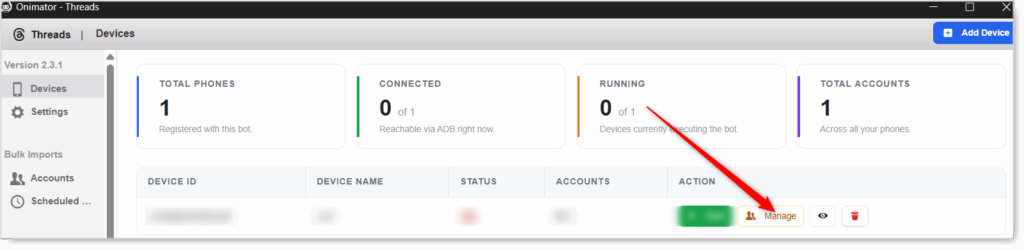
- Click the Settings button next to your Threads account.

- Click the Scroll Feed tab at the top (the last tab in the row).

Scroll Feed Configuration
Master Toggle

- Scroll Feed — Master toggle. When ON, the bot passively scrolls the home feed and occasionally likes posts. When OFF, no scrolling activity happens.
- Status badge at the right: SCROLL FEED ON / SCROLL FEED OFF.
Almost no downside to running this. The recommendation is to leave it ON across all account tiers.
Scroll Feed Action (per-operation volume and pacing)
Three settings control how much the bot scrolls, how long it lingers, and how often it likes.
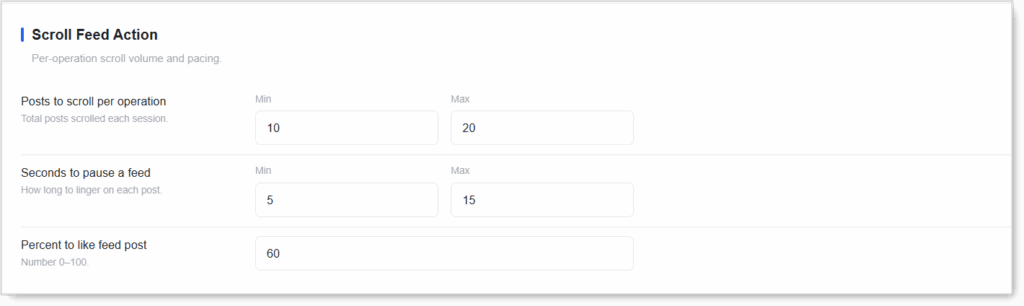
Posts to Scroll per Operation (Min / Max)
Total posts scrolled each session. The bot picks a random number between Min and Max.
- Lighter (very new accounts): Min 5 / Max 12.
- Standard: Min 10 / Max 20.
- Never set Min = Max. Randomization is the human signal.
Seconds to Pause a Feed (Min / Max)
How long to linger on each post, simulating reading, watching a clip, or just pausing before scrolling on.
- Realistic baseline: Min 5 / Max 15 seconds.
- Vary widely. A 5-to-15s spread looks far more human than a tight 5-to-7.
Percent to Like Feed Post
Number 0–100. The percent probability the bot likes each post it scrolls past.
20→ likes ~1 in 5 posts.40→ likes ~2 in 5 posts.60→ likes most posts (the app default; on the heavy side).100→ likes every post (obvious bot signal, don’t do this).
20–40% is a more natural look. Real users don’t like 60% of everything they scroll past. Drop to 10–20% for new accounts.
These feed likes count toward your overall daily like activity. If you’re also running targeted Like campaigns, keep the Scroll Feed like percentage modest so the totals stay reasonable.
Setup by Account Tier
New / Warm-Up Account
- Scroll Feed: ON
- Posts to scroll per operation: Min 5 / Max 12
- Seconds to pause a feed: Min 5 / Max 15
- Percent to like feed post: 15
Warmed / Aged Account
- Scroll Feed: ON
- Posts to scroll per operation: Min 10 / Max 20
- Seconds to pause a feed: Min 5 / Max 15
- Percent to like feed post: 30–40
Safety & Best Practices
Run Scroll Feed Alongside Every Other Tool
It’s the activity baseline that makes Follow / Unfollow / messaging safer by improving the action-to-activity ratio. Pure-action behavior with no browsing activity is easy to flag.
Scroll-Feed-Only Is the Warm-Up Mode
For a brand-new account, run Scroll Feed alone for a few days before enabling Follow. The account builds an activity history before you start performing direct actions.
Scroll-Feed-Only Is Also the Cool-Down Mode
If an account gets restricted, switch every other tool OFF and let Scroll Feed run alone for a day or two to rebuild trust.
Keep the Like Percentage Modest
20–40% looks natural; 60% (the app default) is on the heavy side; 100% is an obvious bot signal. Lower is safer.
Vary Every Min / Max Pair
Equal values defeat the human-pattern purpose. Always randomize.
Conclusion
- Pure camouflage — Makes the account look like a real user browsing.
- Three settings — Posts per operation, pause duration, like percentage.
- Always-on baseline — Run alongside every other tool.
- Modest like rate (20–40%) — More natural than the 60% default.
- Warm-up and cool-down mode — Scroll-Feed-only is the safe state for new or restricted accounts.
Implementation Tip: Enable Scroll Feed on every Threads account from day one and leave it on permanently. On new accounts, run it alone for the first few days before turning Follow on. Lower the like percentage to 15% during warm-up and step up to 30–40% as the account matures.
Tutorials & Support
- Need help? Watch the Threads Scroll Feed tutorial (coming soon).
- Telegram Support: Join Onimator Support