
The Job Orders feature in Onimator allows you to automate like actions using the Instagram accounts you’ve added. You can distribute likes across multiple real mobile devices for safe, natural-looking engagement.
This guide walks you through setting up a like campaign using your own Instagram accounts.
How to Navigate to Job Orders
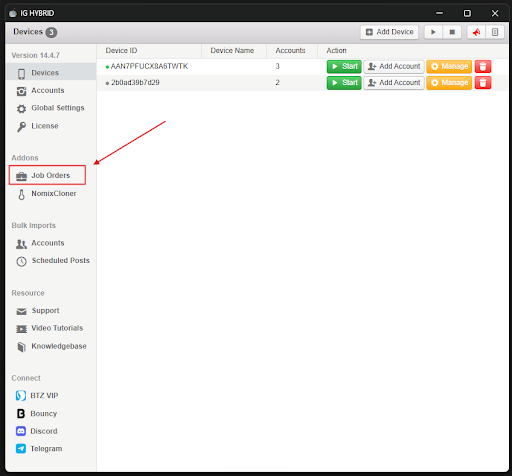
- Launch the Onimator software
- Click the Job Order button located on the left-side panel
**
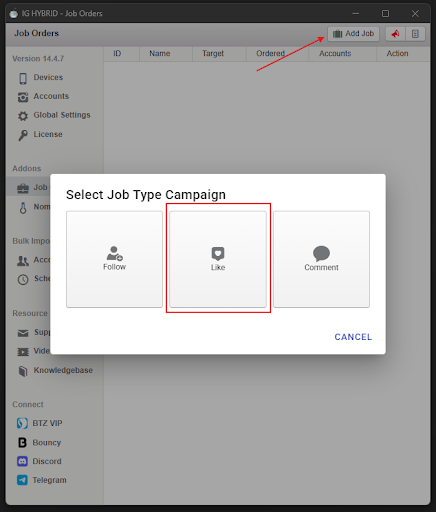
Click the Add Job button to open the Job setup popup and click the Like Job Order button
**
Job Fields and What They Mean
**
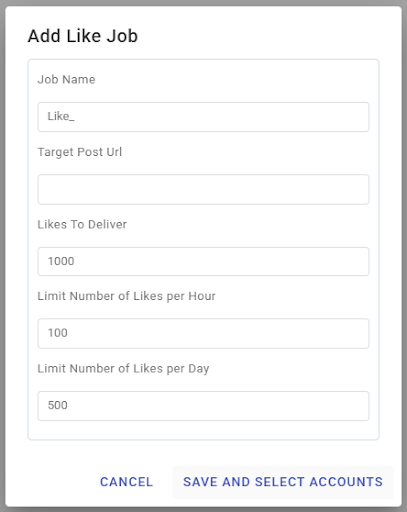
When the Add Job popup appears, you’ll need to fill in several fields. Here’s what each one does:
Job Name
Give your job a descriptive name to help organize your campaigns (example: Like Boost for Summer Promo).
Target Post URL
Paste the URL of the exact Instagram post you want your selected accounts to like. This ensures that the like action goes to a specific post, not just the latest one.
Example format:
https://www.instagram.com/p/xxxxxxxxxxx/
Likes to Deliver
This is the total number of likes you want to send to the target account. The bot will divide this among the accounts you choose to participate in the job.
Limit Likes per Hour
This controls the number of likes the target account can receive per hour. For example, if you set this to 15, then only 15 of your selected accounts will be allowed to like the target post each hour. This prevents unnatural spikes and keeps engagement steady.
Limit Likes per Day
This sets the maximum number of likes the target account can receive in a day. If this limit is reached, Onimator will pause the job until the next day. This is another safeguard to maintain realistic activity levels and avoid triggering Instagram’s spam filters.
Saving and Selecting Accounts
After filling in the job fields:
- Click Save and Select Accounts
- A new popup will display all eligible accounts
- Use the search box to filter or find specific accounts
- Select the accounts you want to use for sending likes
- Click Save
Reminder: Only accounts with Participate Job Orders enabled in their account settings will appear here. If you don’t see an account you expect, go to its settings and turn on this option.
Running the Devices
To activate the like job, the physical devices associated with your selected accounts must be running.
Here’s how:
- Go to the Devices Page
- Start all devices linked to the accounts you selected for this job
- Confirm the devices are online and connected to Onimator
If devices are offline, the job will not be processed for those accounts.
Timer Setup for Accounts
You do not need to enable the Like Button inside the account settings for the job to work.
However, you must configure the timer in each account’s settings. The timer tells Onimator when to run each account and perform the job actions, keeping everything organized and smooth.
Why Use Like Job Orders?
- Boost engagement naturally using your own Instagram accounts
- Safe and human-like actions using real mobile phones
- Fully customizable delivery speed (hourly and daily limits)
- Great for marketing campaigns, client promotions, or viral pushes
- No API risk — all actions are performed as if by a human
Pro Tips
- Combine hourly and daily limits for extra realism
- Run jobs during peak Instagram activity hours for better results
- Use older or warm accounts for higher trust
- Always double-check that your devices are active
- Mix this with follow, like or comment jobs for complete engagement packages