
Overview
The Messaging tool for Snapchat sends messages to new friends based on a queue you build. It’s a drip-conversation system: the bot sends your first message to a new friend, then advances to your next message each time they reply, walking through a scripted conversation automatically.
Highest-risk action on Snapchat. Automated messaging to strangers is the most heavily monitored behavior on any platform. Keep volumes low, always personalize with spintax or
[AI], and never send identical cold messages. Done well, it converts new friends into real conversations; done carelessly, it’s an instant ban.
Key Features
- Drip Message Queue — One message per reply through a scripted funnel.
- Spintax +
[USERNAME]+[AI]— Personalize every send to avoid spam patterns. - Per-Session Pacing — Random volume and per-message delay.
- Daily Cap — Hard ceiling on messages per day.
- First-Message Limit — Separate cap on new-conversation openers (the risky half).
- Only-on-Start-Date Warm-Up — Delay messaging until a future calendar date.
- AI GPT Settings — Per-account city / age / language + Custom GPT Prompt for
[AI]generations.
Strategic Purpose: Convert new friends into real conversations through a natural, personalized funnel, without crossing into spam patterns. Messaging is the last tool you turn on, only after Quick Adds and Accept Friends have built a friend base.
How the Drip Queue Works
- A new friend is added → the bot sends your 1st message during the next messaging session.
- When they reply → the bot sends your 2nd message the next session.
- And so on, one message per reply, until the queue runs out or they stop replying.
You’re not blasting one message, you’re scripting a back-and-forth. The bot only advances when the other person engages, so your messages stay in sync with the conversation.
Access the Messaging Tool
- In Onimator, open the Devices tab.
- Click Manage next to your Snapchat phone.

- Click the Settings button next to your Snapchat account.

- Click the Messaging tab at the top.

Messaging Configuration
Master Toggle

- Messaging — When ON, the bot works through your queue and sends messages to new friends. When OFF, no messages send.
- Status badge at the right: MESSAGING ON / MESSAGING OFF.
Build your message queue first, then flip it ON.
Messages (The Queue)
 The top message is sent first. The bot rotates through the queue for each new friend.
1st Message to Be Sent
The opening message every new friend receives. Supports three personalization tools:
- Spintax
{a|b|c}— picks one option at random per send. Example:{Hi|Hey|Hello}. [USERNAME]— inserts the friend’s username so the message feels personal.[AI]— generates a GPT-written line using your AI GPT settings (below).- Example from the UI:
{Hi|Hello} [USERNAME] [AI]→"Hey jordan_22 [AI-generated opener]".
Use the “Test Spintax Message” link to preview how your message renders before going live.
Add Message (Building the Queue)
 Click “Add Message” to add the next message in the sequence. Each one is a step in the drip: message 2 sends after the first reply, message 3 after the next, and so on.
- Start with 2–4 messages. A short, natural opener sequence beats a long scripted funnel.
- Each message supports spintax,
[USERNAME], and[AI]. - Keep it conversational. Open casual, build rapport, save any ask for later.
Messaging Action (per-session volume and pacing)
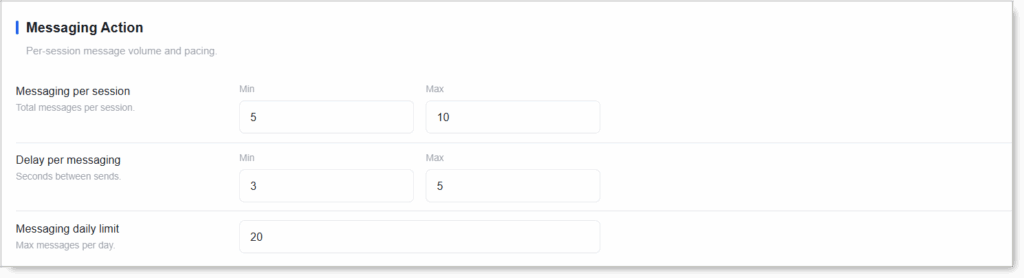
Messaging per Session (Min / Max)
Total messages per session.
- New accounts: Min 3 / Max 5.
- Warmed accounts: Min 5 / Max 10.
- Don’t set Min = Max.
Delay per Messaging (Min / Max seconds)
Seconds between sends.
- Recommended: Min 5 / Max 15. Real people take a moment to type a message; the default
Min 3 / Max 5is too fast. - Never below 3 seconds.
Messaging Daily Limit
Max messages per day (across all conversations, openers + replies combined).
- New accounts: 10–15/day.
- Warmed accounts: 20–30/day.
- Keep messaging the lowest-volume tool. It’s the highest-risk action on Snapchat.
Additional Settings 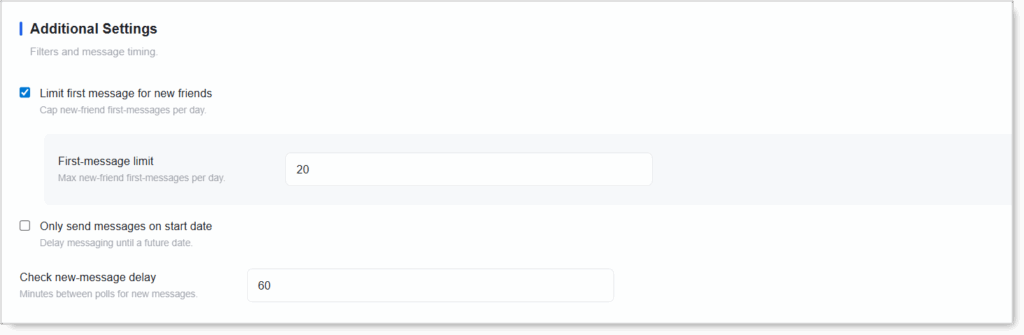
Limit First Message for New Friends (+ First-Message Limit)
Checkbox. Cap new-friend first-messages per day. When ON, a First-message limit field appears to set the daily cap on opening messages to brand-new friends.
- Recommended: ON. First-messages to strangers are the riskiest part of messaging; capping them protects the account.
- First-message limit: 10–20/day. This is your new-conversation throttle, separate from the overall daily message limit (which also counts replies).
- Why it matters: Replying to existing conversations is low-risk; opening new ones is high-risk. This setting caps just the risky part.
Only Send Messages on Start Date
Checkbox. Delay messaging until a future date. Useful if you want to add friends now (Quick Adds) but hold off on messaging until the account is warmer.
- Use for warm-up: add friends for a week or two first, then let messaging kick in on a set date once the account has history.
Check New-Message Delay
Minutes between polls for new messages. How often the bot checks whether friends have replied (so it can advance the drip queue).
- Default: 60 minutes. Hourly catches replies promptly without constant app activity.
- Lower (30): more responsive conversations, more app activity.
- Higher (120+): less responsive but lighter footprint.
AI GPT Settings
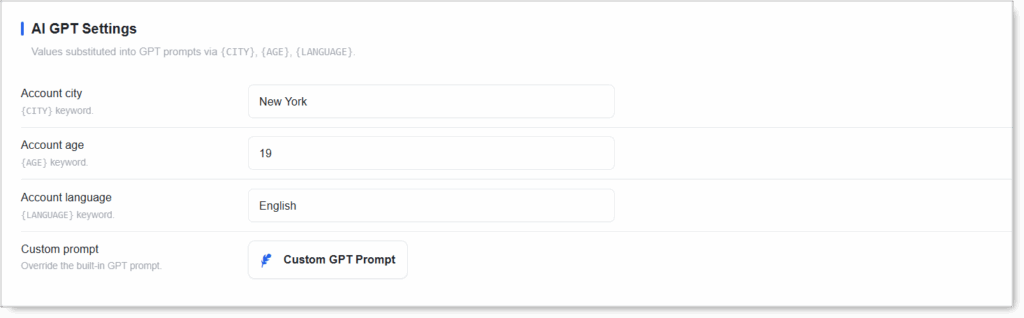 When you use the
 [AI] tag in a message, the bot generates a line via GPT. These settings feed context into the GPT prompt so the AI sounds like your account’s persona. Values are substituted via {CITY}, {AGE}, {LANGUAGE}.
- Account city — fills
{CITY}(e.g.New York). Lets the AI reference your location naturally. - Account age — fills
{AGE}(e.g.19). Shapes the AI’s tone and references. - Account language — fills
{LANGUAGE}(e.g.English). The AI writes in this language.
Custom GPT Prompt
Click “Custom GPT Prompt” to override the built-in GPT prompt. This is your persona control: define the AI’s tone, personality, what it should and shouldn’t say, and how it uses the {CITY} / {AGE} / {LANGUAGE} keywords.
- Requires OpenAI integration enabled in Settings.
- Example prompt: “You’re a friendly {AGE}-year-old from {CITY}. Write a short, casual Snapchat opener in {LANGUAGE}. Keep it under 12 words, no emojis, sound like a real teenager.”
- Keep it casual and human. The whole point of AI here is messages that don’t read like a script.
Setup by Account Tier
New Account (only after warm-up with friends and history)
- Messaging: ON
- Queue: 2–3 messages, spintax +
[USERNAME]+[AI] - Messaging per session: Min 3 / Max 5
- Delay per messaging: Min 5 / Max 15
- Messaging daily limit: 10
- Limit first message for new friends: ON, First-message limit 10
- Check new-message delay: 60
- AI GPT: set city / age / language + a casual custom prompt
Warmed / Aged Account
- Messaging: ON
- Queue: 3–4 messages
- Messaging per session: Min 5 / Max 10
- Delay per messaging: Min 5 / Max 15
- Messaging daily limit: 25–30
- First-message limit: 15–20
- Check new-message delay: 60
Safety & Best Practices
Always Personalize
Use spintax + [USERNAME] + [AI] in every message. Identical cold messages are an instant Snapchat ban.
Keep the Opener Casual and Short
"Hey [USERNAME], what's up?" beats anything salesy. Build rapport before any ask.
Keep Messaging the Lowest-Volume Tool
It’s the highest-risk action. Daily cap should sit well under Quick Adds and Accept Friends caps.
Use the First-Message Limit
Throttles new conversations separately from replies. New-conversation volume is the risky half.
Warm Up Before Messaging
Add friends for a week or two first (Quick Adds + Accept Friends). Use “Only send on start date” to delay messaging until a set date.
Test Your Spintax
Use the Test Spintax Message link before going live. Catch broken brackets or weird combos.
Write a Strong Custom GPT Prompt
So [AI] messages sound human, not robotic. Generic AI prompts produce generic AI text, which gets flagged.
Conclusion
- Drip-conversation system — One message per reply through your queue.
- Highest-risk action on Snapchat — Keep volumes low and always personalize.
- Spintax +
[USERNAME]+[AI]— Keep messages human; never send identical cold text. - First-message limit — Throttles new conversations separately from replies.
- AI GPT settings —
{CITY}/{AGE}/{LANGUAGE}+ custom prompt make AI messages sound like your persona. - Warm up before messaging — Optionally use “Only send on start date” to delay it.
Implementation Tip: Don’t enable Messaging on a brand-new account. Run Quick Adds + Accept Friends for at least 1–2 weeks to build a friend base, then turn Messaging on with daily cap 10, First-message limit 10, Min 5 / Max 15 delay, and a strong custom GPT prompt. Step up only after a clean week of running. On Snapchat, messaging is the tool that gets accounts banned, treat its caps as ceilings, not starting points.
Tutorials & Support
- Need help? Watch the Snapchat Messaging tutorial (coming soon).
- Telegram Support: Join Onimator Support