
Overview
The Timer Tab controls two things on the Snapchat bot: when the bot is allowed to run on this account (your active hours window), and how long it pauses between sessions. Together they shape how human the bot’s activity pattern looks.
Snapchat is sensitive, pace it slowly. Friend adds and messages on Snapchat draw more scrutiny than feed scrolling on TikTok or Threads. Longer session delays (minutes, not seconds) are the safe default here.
Key Features
- Daily Activity Window — Set the hours the bot is allowed to run (HH or HH:MM).
- Visual Schedule Bar — A 24-hour map shows active (green), sleeping (gray), and the current hour.
- Randomized Session Delays — A random pause between Min and Max after every session.
- Status Badge — Live indicator:
Running/Sleeping (until HH:MM).
Strategic Purpose: Snapchat’s core actions (friend adds, messages) are higher-risk than feed scrolling on other platforms. Minutes-level spacing between sessions is the cheapest, most effective humanization layer you can apply.
Access the Timer Tab
- In Onimator, open the Devices tab.
- Click Manage next to your Snapchat phone.
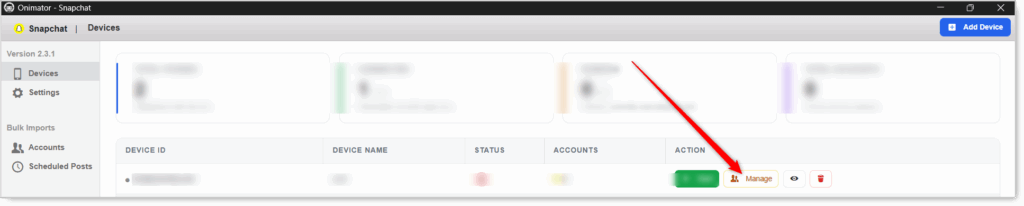
- Click the Settings button next to your Snapchat account.

- Click the Timer tab at the top.

Timer Configuration
Section 1: Account Schedule
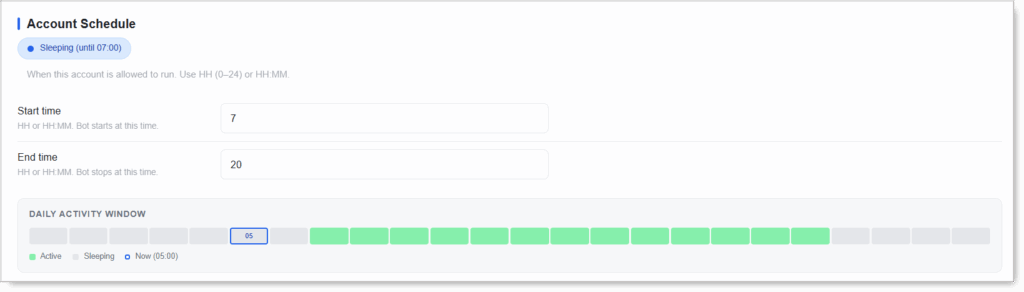 When this account is allowed to run. Two fields, both accepting either HH (hour only, 0–24) or HH:MM (hour and minutes).
The status badge (
Sleeping (until 05:00)/Running) reflects your current window. The Daily Activity Window bar below shows a visual map of the 24-hour day with Active (green) and Sleeping (gray) hours, plus a Now marker at the current hour.
Start Time
HH or HH:MM. The bot starts at this time each day.
- Human-like setup: Start = 7, 8, or 9 (matches when a real user wakes up and checks Snapchat).
- Match your audience timezone: set the window to overlap when your audience is awake.
End Time
HH or HH:MM. The bot stops at this time each day.
- Human-like setup: End = 22 or 23 (matches a real user’s bedtime).
- Must be greater than Start. The window can’t cross midnight.
- Active window = End − Start. E.g. Start 5, End 23 = 18-hour active window.
Don’t run 24/7 on Snapchat, especially new accounts. A realistic awake window (e.g. 8–23) looks far more human.
Section 2: Delay After Every Session
 How long the bot pauses between sessions. A “session” is one continuous burst of activity. This field is blank by default, so you must set it. For Snapchat, longer is better.
Seconds Delay (Min / Max)
Two numbers. The bot picks a random delay between Min and Max after every session.
- Recommended baseline: Min 120 / Max 360 seconds (2–6 minutes).
- New accounts: Min 180 / Max 600 (3–10 minutes). Slower is safer while warming up.
- Aged accounts: Min 90 / Max 240 (1.5–4 minutes) if running clean.
- Never set Min and Max equal. Randomization is the human signal.
- Don’t go below 60 seconds on Snapchat. Rapid-fire sessions are a fast way to get flagged.
Why so much longer than TikTok? TikTok’s feed scrolling is low-risk so seconds-level delays are fine. Snapchat’s core actions (friend adds, messages) are higher-risk and benefit from minutes-level spacing between sessions.
Setup by Account Tier
New / Warm-Up Account
- Start time: 8
- End time: 23 (15-hour awake window)
- Seconds delay: Min 180 / Max 600
Warmed / Aged Account
- Start time: 5–8
- End time: 23
- Seconds delay: Min 120 / Max 360
Safety & Best Practices
Always Set the Seconds Delay
It’s blank by default. Snapchat won’t pace itself without it, sessions may run back-to-back, which looks robotic on this platform.
Use Minutes-Level Delays (2–10 min)
Snapchat is more sensitive than feed-based platforms. Seconds-level delays (like 30–60) are too fast and a known bot signature.
Use Realistic Awake Hours
e.g. 8–23. Avoid 24/7, a constant always-on pattern is the easiest bot signature.
Always Randomize Min / Max
Fixed gaps are detectable. Never set Min = Max.
Match the Window to Your Audience Timezone
Not your own. Bot running on US-Pacific time but targeting Europe is a near-miss every day.
Stagger Windows Across Accounts on One Device
Two Snapchat accounts on the same phone both running 09:00–22:00 is the same fingerprint twice. Offset them.
Conclusion
- Two settings shape the bot’s rhythm — Account Schedule (when) and Delay After Every Session (how often).
- Seconds delay is blank by default — You must set it. Use Min 120 / Max 360 as the baseline.
- Snapchat needs minutes-level delays — Not seconds. It’s more sensitive than feed platforms.
- Don’t run 24/7 — Use a realistic awake window.
- Always randomize Min / Max delays.
Implementation Tip: Start new accounts with the cautious Min 180 / Max 600 delay and a tighter window (e.g. 08:00–23:00). After 2–3 clean weeks, drop the delay to Min 120 / Max 360 (the baseline). For aged accounts running clean, you can step down to Min 90 / Max 240, but no further.
Tutorials & Support
- Need help? Watch the Snapchat Timer tutorial (coming soon).
- Telegram Support: Join Onimator Support