
Video Tutotial
The Posts Tab in the Onimator Threads Bot is your dedicated hub for scheduling, managing, and optimizing content for Threads’ conversation-centric platform. From planning text-based posts to enhancing them with multimedia and AI-powered captions, this tool helps maintain a strong and consistent presence on Threads.
🗓️ Introduction
💬 Threads prioritizes authentic engagement, not just content volume. Success comes from strategic, thoughtful posting.
📌 Core Features of the Posts Tab
– Content Scheduling: Plan and automate text, image, or multimedia posts tailored for Threads.
- AI Content Creation: Use customizable GPT prompts to auto-generate engaging, conversation-starting content.
- Strategic Timing: Choose optimal post times based on your audience’s online behavior.
- Content Management: Track, edit, and search scheduled content through an intuitive dashboard.
🧠 Conversation-First Platform: Threads thrives on meaningful interactions. Every post should spark a reply, a thought, or a connection.
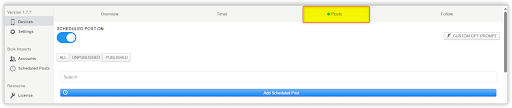
🧭 Accessing the Threads Posts Tab
To begin creating and managing content:
- Open your configured Threads bot account in Onimator.
- Click the Posts Tab (3rd tab, after Overview and Timer).
- You’ll be taken to your content dashboard, where you can view, create, and schedule posts.
- Use the “Add Scheduled Post” button to begin a new post.
📋 Post Scheduling Dashboard
This dashboard offers total control over your Threads content strategy.
Scheduling Control
SCHEDULED POST ON/OFF Toggle
- A global switch to pause/resume scheduled posts.
OFF: Pauses all scheduled activity.ON: Enables posts to publish according to their set times.- Ideal for maintenance, testing, or strategic pauses.
Custom GPT Prompt
- Create personalized instructions for the AI.
- Maintain brand voice, tone, and content goals.
- Generate discussion-based content with minimal manual input.
Content Organization Tools
Status Filters
ALL: View all content.UNPUBLISHED: Pending content.PUBLISHED: Already posted.
Search Function
- Search posts by keywords, phrases, or locations.
- Helps manage large content libraries.
- Useful for repurposing or editing past posts.
Add Scheduled Post Button
- Your main tool to add content.
- Easy-access blue button opens post creation interface.
✍️ Creating Scheduled Threads Posts
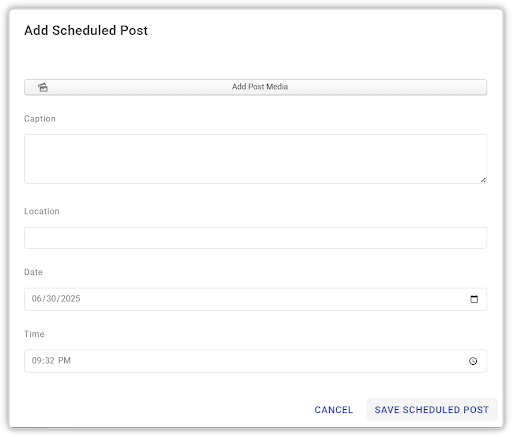
Clicking “Add Scheduled Post” opens a full-featured editor optimized for Threads.
Content Creation Tools
Add Post Media
- Upload images (JPG, PNG) or videos to support your post.
- Threads is mobile-first – ensure media is clean, clear, and complements your text.
Caption Field
- Write the main content of your post.
- Use a tone that invites replies.
- Add hashtags and mentions to boost visibility.
- Focus on discussion, not just promotion.
Post Enhancement
Location Tagging
- Optional field to geotag your post.
- Boosts local discoverability.
- Valuable for local businesses or event-based Threads content.
Date and Time Scheduling
- Use the date picker to choose your post date.
- Time Selection: Select an exact time (e.g., 06/30/2025 at 08:53 PM).
- Align with your audience’s peak engagement hours.
✅ Conclusion
The Posts Tab is a vital tool for transforming your Threads automation from random posting into a strategic content engine that drives real engagement and community growth.
🚀 Key Takeaways:
-
Strategic Content Scheduling
Plan content ahead of time for optimal exposure and engagement.
-
AI-Enhanced Creativity
Use GPT-driven content prompts to save time while staying on-brand.
-
Community-First Approach
Threads is all about authenticity—your posts should start conversations, not just fill space.
-
Professional Management Tools
Manage large content calendars efficiently with filters, search, and status tracking.
🧩 With the Posts tab, your Threads presence evolves from reactive posting to a cohesive conversation strategy that grows your community and your results.
🎥 Need Help?
Watch the video tutorial here:
📺 Threads Automation: Post Tool Explained (PART 2)