
The Post tool schedules TikTok videos and photos ahead of time. You add the file, write a caption or let AI write it, and pick a date and time. When the time comes and the account's Timer window is open, the bot copies the file to the phone and posts it through the TikTok app. Line up a week of content in one sitting and let it go out on its own.
Onimator is the software that drives the real TikTok app on Android phones, cloud phones and emulators. The Post tool is one tab in each TikTok account's settings, next to Follow, Like, Comment and Scroll Feed.
Overview
Following, liking and scrolling make an account look active. Posting is what makes it look like someone actually runs it. An account that engages for weeks but never uploads anything is easy to spot.
The Post tool handles the uploading for you. Each scheduled post pairs one video or photo with a caption and a time. Nothing is posted until that time arrives and the account is inside its Timer window, so posts land in the hours the account is normally active.
Strategic Purpose: Consistent posting is the part most operators skip because it's manual. Scheduling a week at once turns it into a ten-minute job, and the account keeps a steady rhythm without anyone opening the app.
Key Features
Videos and photos. MP4 or MOV videos, and JPG, PNG or WebP photos.
Scheduled date and time for every post.
AI captions. Type [AI] in the caption and it's replaced by a caption written from the account's own GPT prompt.
Hashtags in the caption, written the same way you would in the app.
Timer-aware posting. A post goes out at its time only if the Timer window is open, otherwise as soon as the window next opens.
Per-account switch to pause or resume all of an account's scheduled posts at once.
Access the Post Tool
- In Onimator, select TikTok from the platform tabs at the bottom.
- Open the Devices tab.
- Click Manage next to your TikTok phone.
- Click the Settings button next to your TikTok account.
- Click the Post tab at the top.
Post Configuration
Master Toggle

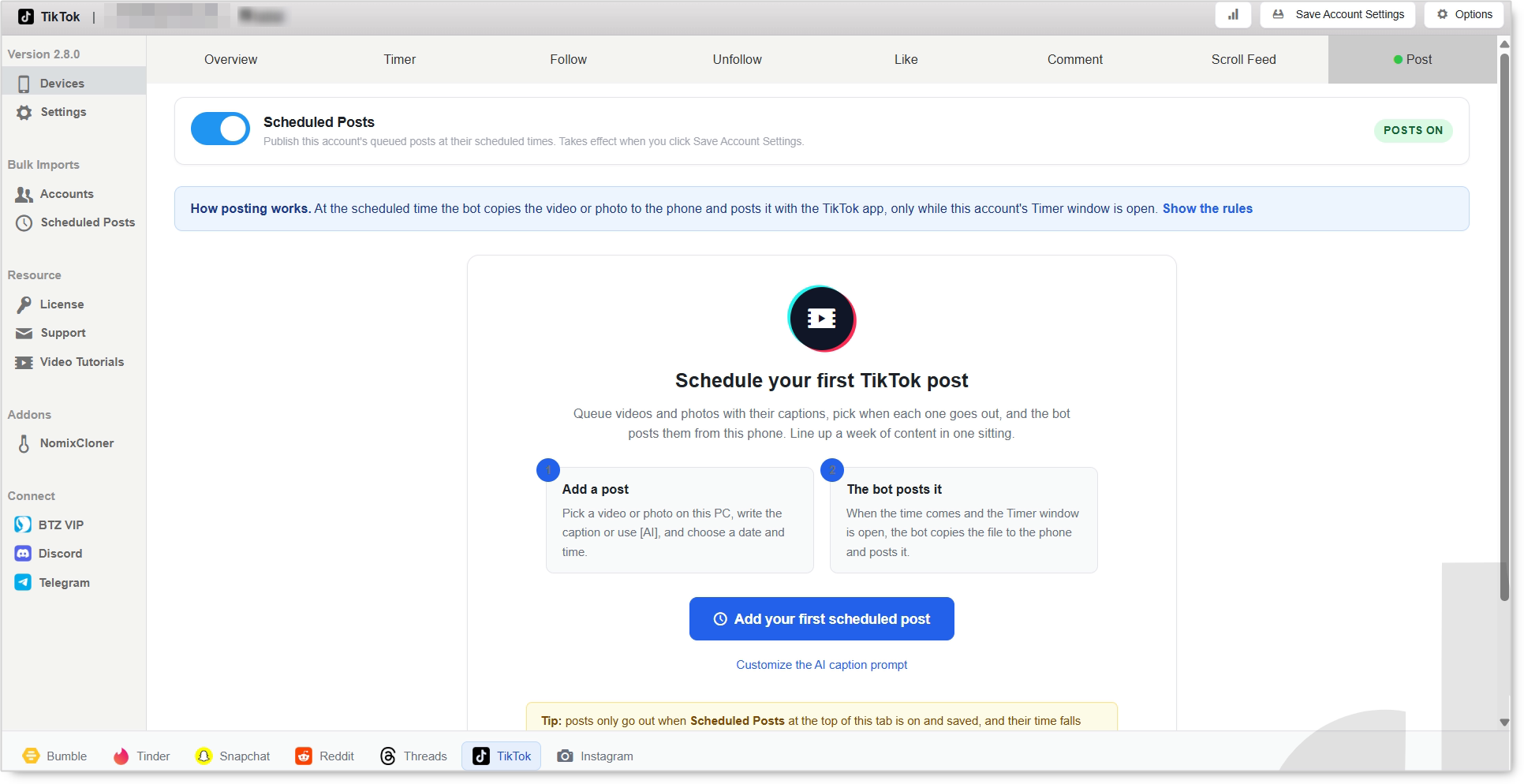
Scheduled Posts. When on, the bot publishes this account's queued posts at their scheduled times. When off, posts stay in the queue and nothing goes out. The badge on the right reads POSTS ON while it's enabled.
The switch takes effect only after you click Save Account Settings at the top of the window. Turning it on without saving does nothing.
How Posting Works
At the scheduled time the bot copies the video or photo to the phone and posts it with the TikTok app, but only while the account's Timer window is open. Click Show the rules on the tab for the full list of conditions.
The Timer decides when posting can happen. A post scheduled for 01:00 on an account whose window is 9:00 to 22:00 waits until 9:00. Set the window first in the Timer tab.
Add a Scheduled Post
Click Add your first scheduled post to open the composer.
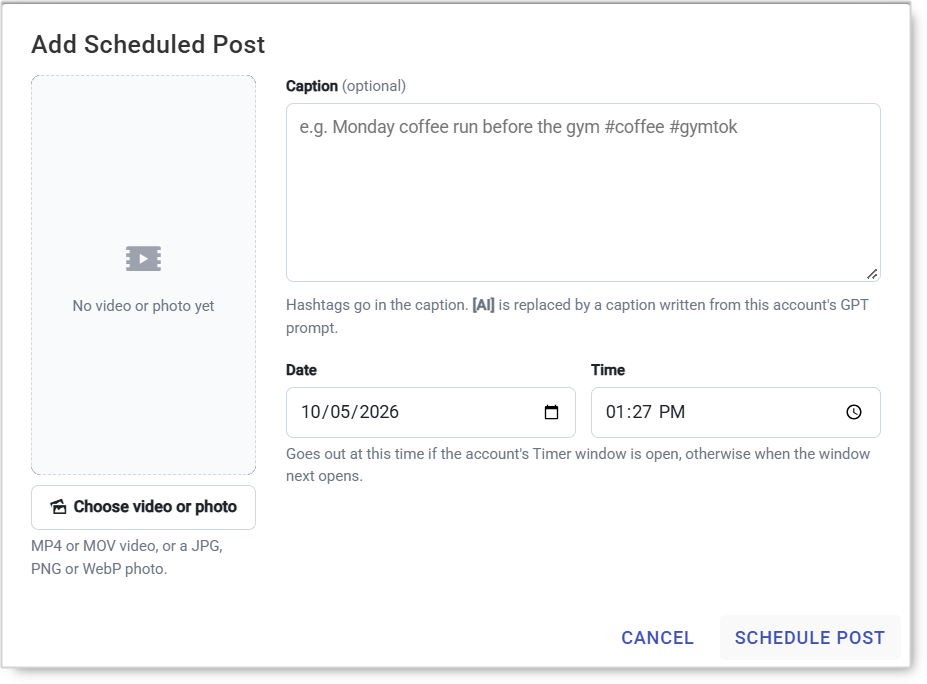
Choose video or photo. Pick the file on your PC. MP4 or MOV for video, JPG, PNG or WebP for photos. The bot copies it to the phone when it's time to post.
Caption (optional). The text that goes out with the post. Put hashtags here. Type [AI] and it's replaced by a caption written from this account's GPT prompt.
Date and Time. When the post should go out. If the Timer window is closed at that moment, it goes out when the window next opens.
Click Schedule Post to add it to the queue.
Customize the AI Caption Prompt
Below the add button, Customize the AI caption prompt sets the instructions [AI] captions are written from: tone, length, hashtag style and language. Each account has its own prompt, so different accounts can sound different.
Setup by Account Tier
These are starting points, not rules. Adjust to how each account responds.
New Account
- Scheduled Posts: On, once the account has a Timer window.
- Volume: About one post a day while the account is new.
- Captions: Short and natural. Use
[AI]with a simple prompt. - Timing: Spread posts to different times inside the window.
Warmed / Aged Account
- Scheduled Posts: On.
- Volume: Raise gradually once the account has a few weeks of steady activity.
- Captions: Use the account's custom AI prompt so its voice stays consistent.
- Timing: Keep posts inside the account's active hours.
Safety & Best Practices
Don't Post the Same File on Many Accounts
Identical videos uploaded across several accounts are easy to link back to one operator. Edit or re-export shared clips so each account posts its own version.
Vary the Captions
The same caption on every post, or on every account, is a pattern. [AI] captions written from each account's own prompt solve this without extra work.
Keep Posts Inside Real Hours
Let the Timer window do its job. Posting at 4am every night looks automated, however good the content is.
Pair Posting with Activity
An account that only uploads looks as odd as one that never does. Run Scroll Feed alongside posting so the account also watches and engages.
Check the Switch After Changes
If posts stop going out, the first thing to check is that Scheduled Posts is on and saved.
Common Issues
Nothing is posting. Scheduled Posts is off, or it was switched on without clicking Save Account Settings.
A post went out later than scheduled. The Timer window was closed at the scheduled time, so it waited for the window to open.
The caption came out as [AI]-written text I didn't expect. Check the account's AI caption prompt with Customize the AI caption prompt.
The file won't attach. Use MP4 or MOV for video, and JPG, PNG or WebP for photos.
Conclusion
Turn on Scheduled Posts and save, set a sensible Timer window, then queue a week of videos and photos with their captions. The bot posts each one from the phone at its time, inside the account's active hours, and you don't have to open TikTok at all.
Tutorials & Support
- TikTok Bot – Timer Tab Guide
- TikTok Bot – Overview Tab Guide
- TiktokBot – Scroll Feed Action
- Why your TikTok videos aren't hitting the FYP
- Glossary: For You Page (FYP)