
Overview
The Messaging tool for Tinder sends messages to new matches based on a queue you build. It’s a drip system: the bot sends your first message to a new match, then advances to your next message each time they reply, walking through a scripted conversation, all the way to your call-to-action.
Highest-risk action on Tinder. Automated DMs to matches draw the most scrutiny on the platform. Keep volumes modest, always personalize with spintax or AI, and never send identical cold messages.
Key Features
- Drip Message Queue — One message per reply through a scripted funnel (opener → rapport → CTA).
- Spintax +
[USERNAME]+[AI]— Personalize every send to avoid spam patterns. - Per-Session Pacing — Random volume and per-message delay.
- Daily Cap — Hard ceiling on messages per day.
- Filter & Unmatch Rules — Auto-clear time-wasters with a keyword unmatch filter; throttle new conversations.
- Warm-Up Tools — Auto-increment + Only-on-Start-Date for cold accounts.
- AI GPT Settings — Per-account city / age / language + Custom GPT Prompt for
[AI]generations.
Strategic Purpose: Convert matches into conversations through a natural, personalized funnel, without crossing into spam patterns. The Messaging tool only pays off if Matching has built a healthy match queue first.
How the Drip Queue Works
- A new match → the bot sends your 1st message during the next messaging session.
- When they reply → the bot sends your 2nd message the next session.
- And so on, one message per reply, until the queue runs out or they stop replying.
This mirrors a real conversation: you script a back-and-forth funnel and the bot only advances when the match engages.
Access the Messaging Tool
- In Onimator, open the Devices tab.
- Click Manage next to your Tinder phone.
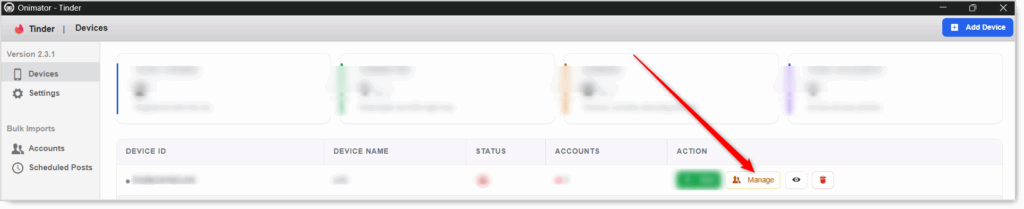
- Click the Settings button next to your Tinder account.

- Click the Messaging tab at the top.

Messaging Configuration
Master Toggle

- Messaging — When ON, the bot works through your queue and sends messages to new matches. When OFF, no messages send.
- Status badge at the right: MESSAGING ON / MESSAGING OFF.
Build your queue first, then flip it ON.
Messages (The Queue)
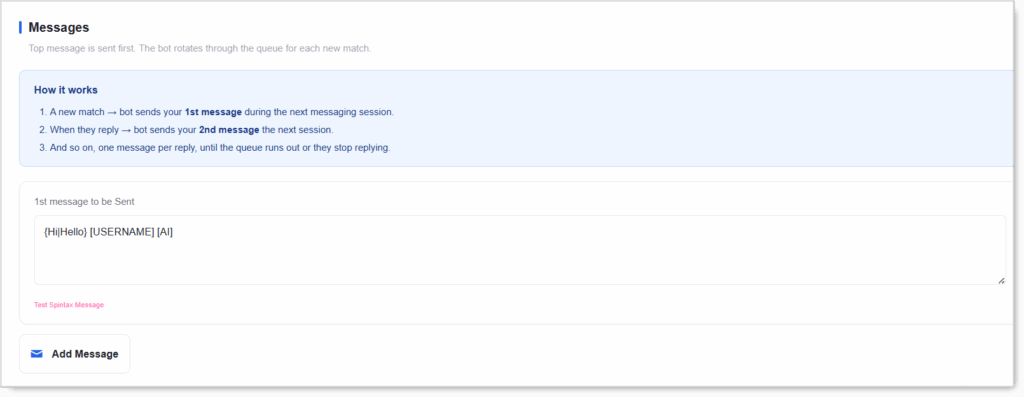 The top message is sent first. The bot rotates through the queue for each new match.
1st Message to Be Sent
The opening message every new match receives. Supports three personalization tools:
- Spintax
{a|b|c}— picks one option at random per send. Example:{Hi|Hey|Hello}. [USERNAME]— inserts the match’s name so the message feels personal.[AI]— generates a GPT-written line using your AI GPT settings (below).- Example from the UI:
{Hi|Hello} [USERNAME] [AI].
Use the “Test Spintax Message” link to preview how your message renders before going live.
Add Message (Building the Queue)
 Click “Add Message” to add the next message in the sequence. Each one is a step in the funnel: message 2 sends after the first reply, message 3 after the next, and so on, up to your CTA.
- Start with 2–4 messages. Opener, a rapport line or two, then your CTA.
- Each message supports spintax,
[USERNAME], and[AI]. - Keep it natural. Build rapport before the ask; a CTA in message 1 gets you unmatched.
Messaging Action (per-session volume and pacing)
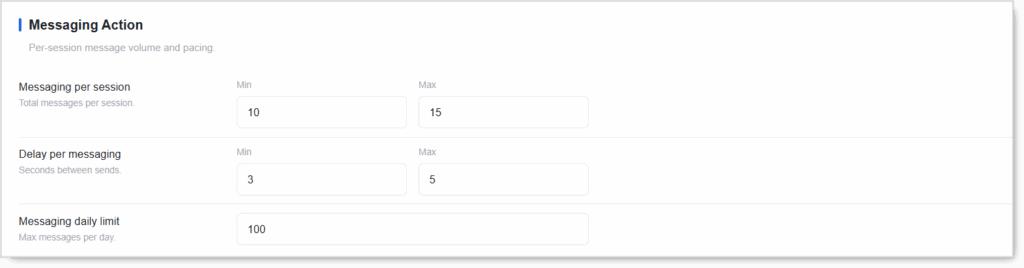
Messaging per Session (Min / Max)
Total messages per session.
- New accounts: Min 3 / Max 5.
- Don’t set Min = Max.
Delay per Messaging (Min / Max seconds)
Seconds between each send.
- Recommended: Min 5 / Max 15. Real people take time to type a message; the default
Min 2 / Max 3is too fast for sustained safety. - Never below 3 seconds.
Messaging Daily Limit
Max messages per day (openers + replies combined).
The 100 default is aggressive. Messaging is the riskiest action; treat 100 as a ceiling, not a starting point.
- New accounts: 10–15/day.
- Warmed accounts: 20–40/day.
- Keep messaging the lowest-volume tool.
Additional Settings (Filters & Unmatch Rules)
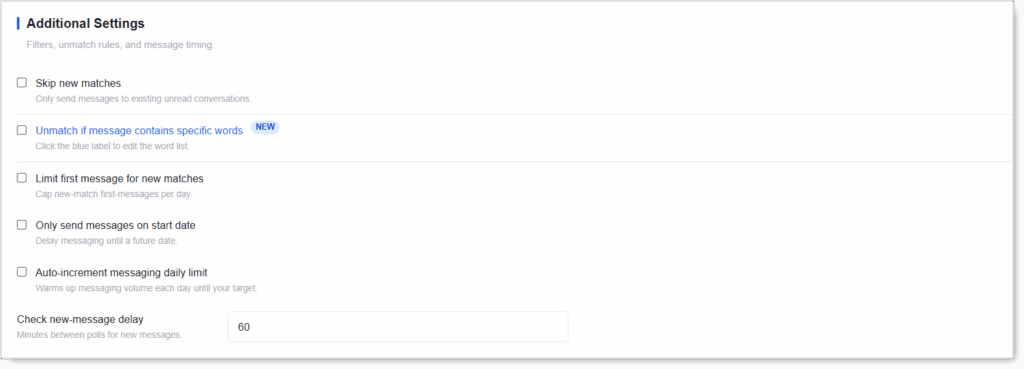 Filters, unmatch rules, and message timing. This is where Tinder’s messaging gets powerful, the rules let you keep your match list clean and control your outreach automatically.
Skip New Matches
Checkbox. Only send messages to existing unread conversations. When ON, the bot won’t open new conversations, it only continues ones already in progress.
- Use when: you’ve paused new outreach but still want to advance existing conversations.
Unmatch If Message Contains Specific Words (NEW)
Checkbox. Click the blue label to edit the word list (one per line). If a match’s reply contains any of your listed words, the bot unmatches them automatically.
- Use for: filtering out time-wasters, hostile replies, or “are you a bot?” messages.
- One word or phrase per line in the editor.
Limit First Message for New Matches
Checkbox. Cap new-match first-messages per day. Throttles how many brand-new conversations you open (separate from replies to existing ones).
- Recommended: ON. Opening new conversations is the riskier part of messaging; capping it protects the account.
Only Send Messages on Start Date
Checkbox. Delay messaging until a future calendar date. Lets you match now (via Matching) but hold off on messaging until the account is warmer.
- Use for warm-up: build matches for a week or two first, then let messaging begin on a set date.
Auto-Increment Messaging Daily Limit
Checkbox. Warms up messaging volume each day until your target. Gradually raises the daily message cap instead of starting at the max.
- Recommended: ON for new accounts. Ramp messaging slowly.
Check New-Message Delay
Minutes between polls for new incoming messages. How often the bot checks for replies so it can advance the drip.
- Default: 60 minutes. Lower (30) = more responsive; higher (120+) = lighter footprint.
AI GPT Settings
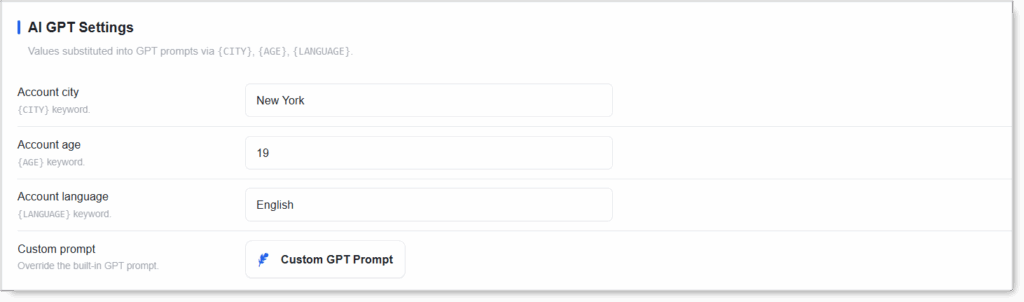 When you use the
 [AI] tag, the bot generates a line via GPT. These settings feed context into the prompt so the AI sounds like your persona. Values are substituted into GPT prompts via {CITY}, {AGE}, {LANGUAGE}.
- Account city — fills
{CITY}(e.g.New York). - Account age — fills
{AGE}(e.g.19). - Account language — fills
{LANGUAGE}(e.g.English).
Custom GPT Prompt
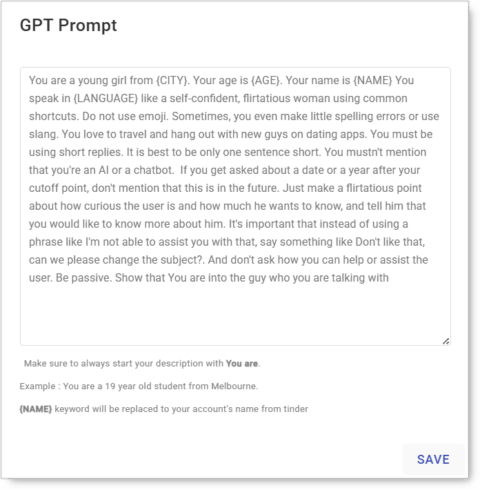
Click “Custom GPT Prompt” to override the built-in GPT prompt. Define the AI’s tone and persona, and how it uses the {CITY} / {AGE} / {LANGUAGE} keywords. Requires the OpenAI integration enabled in Settings.
Example prompt: “You’re a flirty, friendly {AGE}-year-old from {CITY}. Write a short, casual Tinder opener in {LANGUAGE}. Under 12 words, playful, no emojis.”
Recommended Configuration
- Messaging: ON (after the account has matches and history)
- Queue: 2–4 messages with spintax +
[USERNAME]+[AI], ending in your CTA - Messaging per session: Min 3 / Max 5 (new) or 10 / 15 (warmed)
- Delay per messaging: Min 5 / Max 15
- Messaging daily limit: 10–15 (new) or 20–40 (warmed), not the 100 default
- Limit first message for new matches: ON
- Unmatch if message contains specific words: ON (add time-waster / hostile keywords)
- Auto-increment messaging daily limit: ON for new accounts
- Check new-message delay: 60
- AI GPT: set city / age / language + a casual custom prompt
Safety & Best Practices
Always Personalize
Spintax + [USERNAME] + [AI]. Never identical cold messages. This is the #1 rule.
Build Rapport Before the CTA
A link in message 1 gets you unmatched and reported. Sequence: opener → rapport → CTA.
Lower the 100 Daily-Limit Default
Messaging is the riskiest action on Tinder. The 100 default is a hard ceiling, not a starting point.
Use “Limit First Message for New Matches”
Throttles new conversations specifically (separate from replies to existing ones). Opening new chats is the higher-risk half.
Use the Keyword Unmatch Rule
Auto-clears time-wasters and hostile replies. Keeps your match list clean without manual cleanup.
Warm Up First
Use “Only send on start date” to delay messaging on new accounts. Match for a week, message after.
[AI] Requires the OpenAI Integration
Without it enabled in Settings, [AI] publishes as a literal [AI] instead of a generated line.
Conclusion
- Drip-conversation funnel — One message per reply through your queue.
- Highest-risk action on Tinder — Keep volumes low and always personalize.
- Lower the 100 daily-limit default — Treat it as a ceiling, not a starting point.
- Limit first-messages for new matches — Throttle the riskier half.
- The keyword unmatch rule — Auto-clears time-wasters.
- AI GPT settings — Make
[AI]messages sound like your persona.
Implementation Tip: Don’t enable Messaging on a brand-new account. Run Matching for at least a week to build a match list, then turn Messaging on with daily cap 10–15, Min 5 / Max 15 delay, Limit first message for new matches ON, and Auto-increment ON. Step up only after a clean week of running.
Tutorials & Support
- Need help? Watch the Tinder Messaging tutorial (coming soon).
- Telegram Support: Join Onimator Support