
Overview
The Overview Tab is the gateway to everything else in the Tinder bot. It tells Onimator which Tinder account this phone runs and whether it uses a cloned app. Every other tab (Timer, Matching, Messaging) depends on the Overview Tab being set correctly first.
Same two-section layout as the Bumble bot: Login Credentials + App Cloner. No password field (the bot automates the already-logged-in account), and no Account Tags section.
Key Features
- Account Identity — Binds this device to a specific Tinder username.
- App Cloner Support — Run multiple Tinder accounts on one phone via NomixCloner-cloned app instances.
- Manual Login Model — The bot doesn’t log you in; it automates whatever account is already open in the Tinder app.
Strategic Purpose: Get the Overview right first. Username binds settings to the account; App Cloner unlocks multi-account-per-device setups. Everything else in the bot depends on this being correct.
Access the Overview Tab
- In Onimator, open the Devices tab.
- Click Manage next to your Tinder phone.
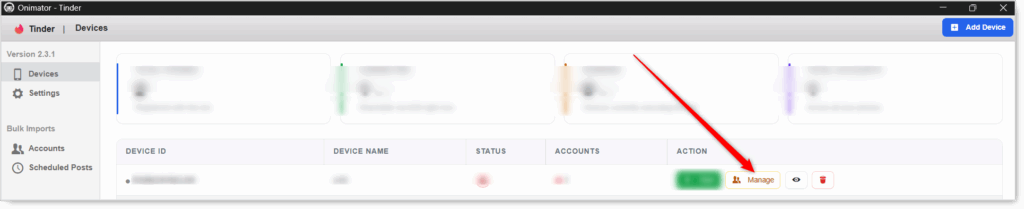
- Click the Settings button next to your Tinder account.

- The Overview tab opens by default (it’s the first tab in the row).
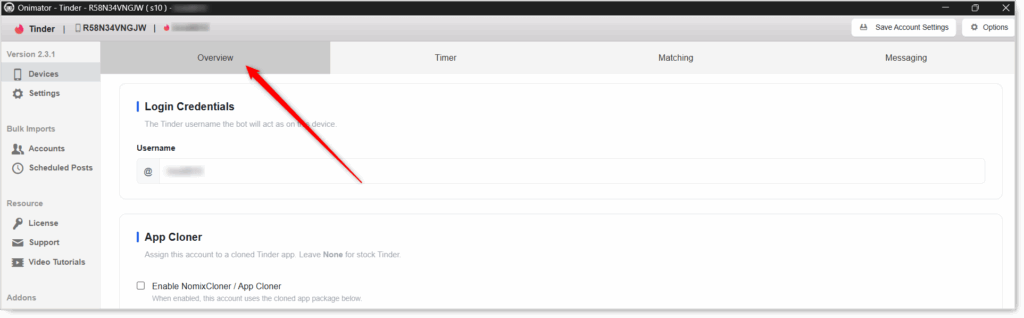
Overview Configuration
Section 1: Login Credentials
 Sets the Tinder username the bot will act as on this device.
Username
Enter the Tinder username the bot will run (without the @, the field already shows it). This links the bot to the correct Tinder account.
- Enter the exact username. A typo means the bot’s settings won’t line up with the real account.
- It must match the account logged into the Tinder app on the device. The bot does not log in for you; it automates whatever account is already open.
- Treat the username as the account’s permanent ID, changing it later re-keys the account’s settings.
Username mismatch is the #1 setup mistake. If the username here doesn’t match the logged-in Tinder account, settings get applied to the wrong profile.
Section 2: App Cloner

Assign this account to a cloned Tinder app. Leave None for stock Tinder. App cloning lets you run multiple Tinder accounts on one physical phone, each in its own isolated app instance.
Enable NomixCloner / App Cloner
Checkbox. When enabled, this account uses the cloned app package specified below it. NomixCloner is the Onimator addon that creates these isolated app clones.
- One account per phone: leave OFF. The stock Tinder app is all you need.
- Multiple accounts per phone: turn ON, then assign the cloned Tinder app package (created via the NomixCloner addon in the sidebar).
Wrong package = bot can’t launch the app. If you enable App Cloner but point at the wrong package, the bot won’t open the correct Tinder app.
Setup by Scenario
Single Tinder Account on a Dedicated Phone
- Username: the exact handle logged into the Tinder app on this phone
- Enable NomixCloner / App Cloner: OFF
Multiple Tinder Accounts on One Phone
- Each account has its own Overview entry with the correct username.
- App Cloner: ON for each, pointing at that account’s cloned Tinder app package (set up first via NomixCloner).
Safety & Best Practices
Set the Overview Tab First
Every other tab depends on it. Configure Timer / Matching / Messaging before Overview and the settings have nothing to attach to.
Double-Check the Username
A typo means settings get keyed to the wrong account. The username here must match what’s actually logged into the Tinder app on the phone.
Treat the Username as Permanent
Changing it later re-keys all the account’s settings; effectively a fresh start.
App Cloner = Multi-Account Only
For a single account on a dedicated phone, leave App Cloner OFF. Enabling it without a real clone in NomixCloner causes the bot to fail to launch.
Conclusion
- The Overview Tab is the foundation — Set it before any other tab.
- Username must exactly match — The Tinder account logged into the app on this phone.
- App Cloner / NomixCloner — Runs multiple accounts on one phone via isolated app clones.
- Single account on a dedicated phone? Leave App Cloner OFF.
Implementation Tip: Save the Overview the moment you provision a phone, before configuring any other tab. If you’re scaling multi-account-per-device, create your NomixCloner clones first, then come back to set each account’s App Cloner package, easier than going back and forth.
Tutorials & Support
- Need help? Watch the Tinder Overview tutorial (coming soon).
- Telegram Support: Join Onimator Support