
Overview
The Timer Tab controls two things on the Tinder bot: when the bot is allowed to run on this account (your active hours window), and how long it pauses between sessions. Together they shape how human the bot’s activity pattern looks.
Dating apps reward human-like timing. Real people check Tinder in bursts, mornings, lunch, evenings, not 24/7. A realistic window plus randomized session delays keeps the account looking like a genuine dater.
Key Features
- Daily Activity Window — Set the hours the bot is allowed to run (HH or HH:MM).
- Visual Schedule Bar — A 24-hour map shows active (green), sleeping (gray), and the current hour.
- Randomized Session Delays — A random pause between Min and Max after every session.
- Status Badge — Live indicator:
Running now (until HH:MM)/Sleeping (until HH:MM).
Strategic Purpose: A dating account that’s “always on” at 4 AM looks automated. A realistic awake window that covers the evening dating peak, plus randomized delays, is the cheapest, simplest humanization layer you can apply.
Access the Timer Tab
- In Onimator, open the Devices tab.
- Click Manage next to your Tinder phone.
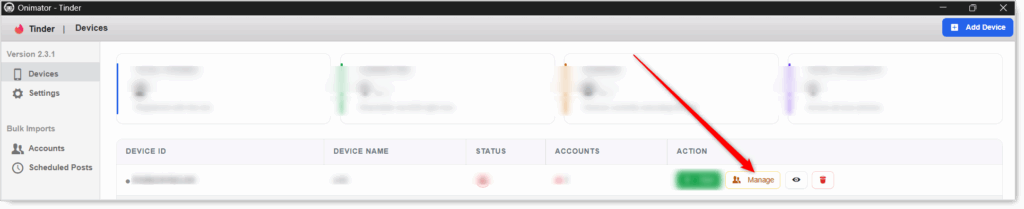
- Click the Settings button next to your Tinder account.

- Click the Timer tab at the top.

Timer Configuration
Section 1: Account Schedule
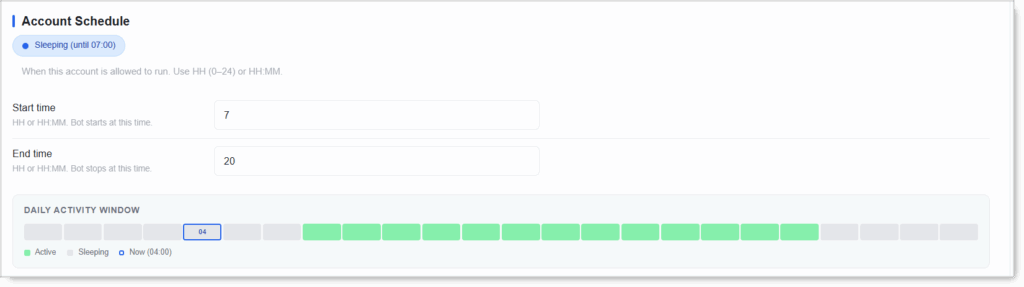 When this account is allowed to run. Two fields, both accepting either HH (hour only, 0–24) or HH:MM (hour and minutes).
The status badge (
Running now (until 20:00)/Sleeping) reflects your current window. The Daily Activity Window bar below shows a visual map of the 24-hour day with Active (green) and Sleeping (gray) hours, plus a Now marker at the current hour.
Start Time
HH or HH:MM. The bot starts at this time each day.
- Human-like setup: Start = 7 or 8 (matches a real user’s morning check).
- Dating peak hours: evenings see the most Tinder activity, so make sure your window covers them.
End Time
HH or HH:MM. The bot stops at this time each day.
- Human-like setup: End = 22 or 23 (covers the busy evening dating window).
- Must be greater than Start. The window can’t cross midnight.
- Active window = End − Start. E.g. Start 7, End 22 = 15-hour window.
Avoid 24/7. A dating account that’s active at 4 AM every night looks automated. Stick to realistic awake hours.
Section 2: Delay After Every Session
 How long the bot pauses between sessions on this account. A “session” is one continuous burst of activity. The delay between sessions makes the rhythm look less mechanical.
Seconds Delay (Min / Max)
Two numbers. The bot picks a random delay between Min and Max after every session.
- Realistic baseline: Min 60 / Max 120 seconds (1–2 minutes) — default and a solid fit for Tinder.
- Cautious (new accounts): Min 120 / Max 240.
- Never set Min = Max. Randomization is the human signal.
Setup by Account Tier
New / Warm-Up Account
- Start time: 9
- End time: 22 (covers daytime + evening)
- Seconds delay: Min 120 / Max 240
Warmed / Aged Account
- Start time: 7
- End time: 23
- Seconds delay: Min 60 / Max 120
Safety & Best Practices
Use Realistic Awake Hours
7–22 (or similar) looks human. Avoid 24/7, dating accounts active overnight look automated immediately.
Cover Evening Peak Hours
The busiest time on dating apps. If your window doesn’t include 19:00–22:00 in your audience’s timezone, you’re missing most of the matchable activity.
Match the Window to Your Target Audience’s Timezone
Bot running on US-Pacific time but targeting Europe is a near-miss every day. Align hours with where the matches actually live.
Stagger Windows Across Accounts on One Device
Two Tinder accounts on the same phone both running 09:00–22:00 is the same fingerprint twice. Offset them.
Always Randomize Delays
Min ≠ Max on session delays. Fixed cadence = obvious automation.
Conclusion
- Two settings shape the bot’s rhythm — Account Schedule (when) and Delay After Every Session (how often).
- 24-hour HH format — No midnight-crossing windows.
- Don’t run 24/7 — Dating accounts active overnight look automated.
- Cover evening peak hours — That’s where most matches happen.
- Default 60/120 delay is a solid Tinder baseline. Always randomize Min / Max.
Implementation Tip: Start new accounts on a tighter window (e.g. 09:00–22:00) with the cautious 120/240 delay. After 2–3 clean weeks, widen the window slightly (07:00–23:00) and drop to the default 60/120 delay. Match the window to the timezone where your matches live, not just yours.
Tutorials & Support
- Need help? Watch the Tinder Timer tutorial (coming soon).
- Telegram Support: Join Onimator Support