
Overview
The Post Scheduler is one of the modules inside the Onimator Helper Suite (alongside Targets Splitter, Settings Copier, Stats Analyzer, Time Manager, Post Monitor, Clone Detector, Tag Manager, Threads Manager, TikTok Manager, and Username Changer). It’s OniHelper’s scheduling tool for posts, instead of typing each row by hand (or adding posts one-by-one through Onimator), you build your content calendar here and either push the rows straight into Onimator or export to CSV for later import.
Two modes inside Post Scheduler:
- Single Post Schedule — Add posts one at a time, useful for one-off content, with optional AI-generated captions.
- Bulk Import — Point the tool at a folder of media files and let it scaffold a whole content calendar in seconds.
Strategic Purpose: Skip the friction of building a scheduled-posts CSV by hand. OniHelper turns a folder of media + a few config choices into a ready-to-import schedule, dramatically faster than per-row entry, and pushes straight into Onimator when you’re ready.
How It Fits with Onimator
OniHelper builds the schedule. Onimator does the actual posting. Two paths to hand off:
Path A (direct):   Post Scheduler  →  [Import to Onimator]  →  Onimator queue  →  Posts go live
Path B (manual):   Post Scheduler  →  [Export to CSV]      →  Onimator Bulk Imports → Scheduled Posts  →  Posts go live
- Path A —
Import to Onimatorbutton: pushes the rows straight into Onimator’s scheduled-posts queue. Fastest if Onimator is already pointed at the right bot folder via Select Bot Folder in the suite’s header. - Path B —
Export to CSVbutton: saves a CSV you can import later through Onimator’s Bulk Imports → Scheduled Posts. Useful for backup, review, or scheduled imports.
Key Features
- Two Build Modes — Single-post entry or folder-based bulk import.
- AI Caption Generation —
AI: Generate Captionbutton drafts the caption for you; configure persona / tone inAI Settings. - Spintax-Capable Captions — Manual or AI captions support spin syntax (
{a|b|c}) for per-send variation. - Post Type Toggle — Radio buttons:
Post/Reels/Story. - Tag People — Add tagged usernames to the post.
- Reel Trial Mode — Optional
Enable Reel Trialcheckbox (Instagram’s “test reels with non-followers first” feature). - Media Folder Scanning (Bulk Import) — Point at a folder; the tool catalogs everything inside.
- Auto-Detect Post Type (Bulk Import) — Videos become reels / stories, images become regular posts.
- Import Filter (Bulk Import) — Highlights media that’s already been imported before, so you don’t double-up.
- Multi-Account / Multi-Device Split (Bulk Import) — Pick which accounts on which devices get the posts; the tool distributes them.
- Bulk Row Editing — Edit times, captions (with spin syntax), and post types across many rows at once.
- Two Hand-Off Paths —
Import to Onimator(direct push) orExport to CSV(manual import later).
Access the Post Scheduler
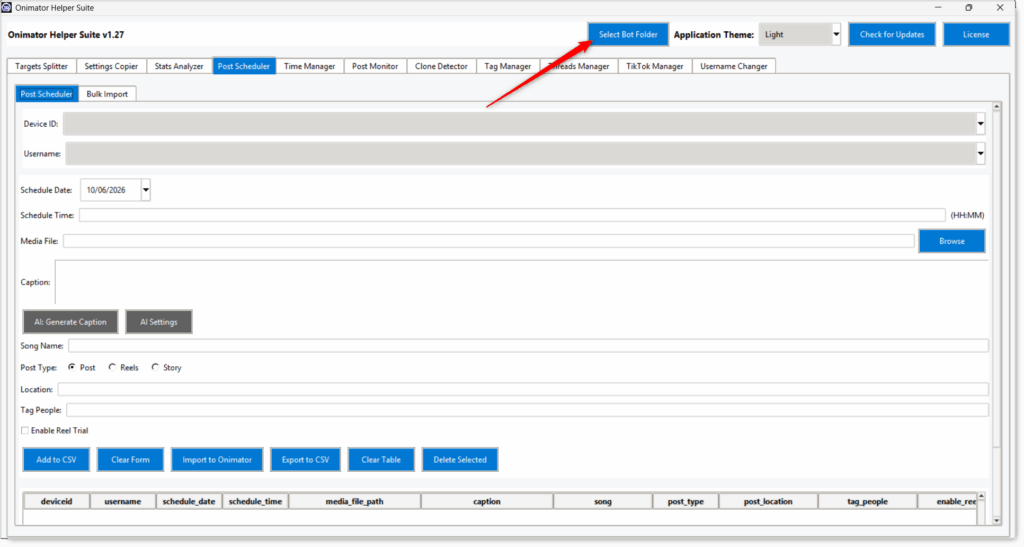
- Open the Onimator Helper Suite (the application).
- In the suite’s header, click Select Bot Folder and point at your Onimator bot folder (required for
Import to Onimatorto work). - Click the Post Scheduler tab in the top tab row (alongside Targets Splitter, Settings Copier, Stats Analyzer, etc.).
- Inside Post Scheduler you’ll see two sub-tabs: Post Scheduler (single-post entry) and Bulk Import.
Tab 1: Single Post Schedule
For adding posts one at a time. Useful for one-off content, sponsored drops, or filling specific gaps in a calendar.
Fields
- Device ID (dropdown) — The phone that will publish this post.
- Username (dropdown) — The account on that device that will post.
- Schedule Date (date picker) — When the post publishes. Format:
DD/MM/YYYY(e.g.08/06/2026). - Schedule Time (text field) —
HH:MM24-hour format (e.g.13:30). - Media File (text + Browse button) — Full path to the image / video. Click Browse to pick the file.
- Caption (text area) — The post’s text body. Spin syntax (
{a|b|c}) supported.- AI: Generate Caption (button) — Auto-drafts a caption for you based on your AI Settings.
- AI Settings (button) — Configure the AI persona / tone / prompt used by Generate Caption.
- Song Name (text field) — Optional. Track to attach (applies to reels / stories).
- Post Type (radio buttons) —
Post·Reels·Story. Pick one. - Location (text field) — Optional location tag.
- Tag People (text field) — Optional. Usernames to tag in the post.
- Enable Reel Trial (checkbox) — Optional. Uses Instagram’s “Reel Trial” mode, the reel is shown to non-followers first to test performance before publishing to your followers.
Action Buttons
Six buttons control the working table at the bottom of the tab.
- Add to CSV — Adds the filled-out form as a new row in the table.
- Clear Form — Empties the form fields without affecting the table.
- Import to Onimator — Pushes every row in the table directly into Onimator’s scheduled-posts queue. (Requires
Select Bot Folderin the suite header to point at your Onimator install.) - Export to CSV — Saves the table as a CSV file for later manual import via Onimator’s Bulk Imports → Scheduled Posts.
- Clear Table — Wipes the entire table. Confirmation recommended before clicking.
- Delete Selected — Removes the rows you’ve highlighted in the table.
Workflow
- Fill out the form (or click AI: Generate Caption to draft the caption).
- Click Add to CSV — the row appears in the table at the bottom.
- Repeat for as many posts as you need (use Clear Form to start fresh between rows).
- Edit / delete rows in the table directly if you spot a mistake.
- When ready, click either:
- Import to Onimator — direct push, or
- Export to CSV — save the file for later import.
Table Columns (bottom of the tab)
The working table mirrors the underlying CSV format:
deviceid · username · schedule_date · schedule_time · media_file_path · caption · song · post_type · post_location · tag_people · enable_reel
Tab 2: Bulk Import
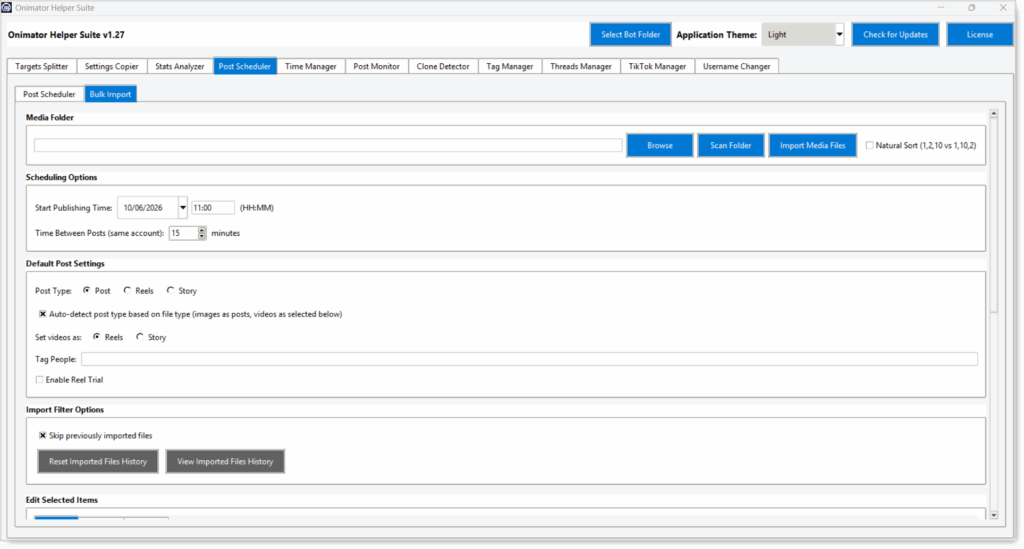 For scheduling many posts at once from a folder of media files. This is the high-leverage mode for content-calendar workflows.
The tab is laid out top-to-bottom in four config sections, an action button to scan and import, an Edit Selected Items panel for bulk-editing rows, Table Selection Controls for the hand-off, and the Imported Media table at the bottom.
Section 1: Media Folder
- Folder path (text field) — populated by the Browse button.
- Browse — pick the folder where your images / videos are stored.
- Scan Folder — catalogs every media file inside.
- Import Media Files — once scanned, kicks off the account-selection popup (covered below in Step 4).
- Natural Sort (1,2,10 vs 1,10,2) (checkbox) — sort filenames the way a human reads them (
1, 2, 10) instead of lexicographic (1, 10, 2). Turn ON if your filenames are numbered.
Section 2: Scheduling Options
- Start Publishing Time: date picker + time field (HH:MM). The first post publishes at this moment; the rest sequence forward from here.
- Time Between Posts (same account): number input, in minutes. Spacing between consecutive posts on the same account, so one account doesn’t blast 10 posts in a row. (e.g.
15= 15 minutes between posts.)
Section 3: Default Post Settings
Controls what type the imported media gets assigned by default.
- Post Type (radio buttons) —
Post·Reels·Story. The fixed default if Auto-detect is OFF. - Auto-detect post type based on file type (checkbox) — “images as posts, videos as selected below”. When ON:
- Images → posts (always).
- Videos → whatever you pick in Set videos as below.
- Set videos as: (radio buttons) —
Reels/Story. Only takes effect when Auto-detect is ON. - Tag People (text field) — usernames to tag in every imported post (bulk default).
- Enable Reel Trial (checkbox) — turns on Instagram’s “Reel Trial” mode for every reel imported (test with non-followers first).
Section 4: Import Filter Options
- Skip previously imported files (checkbox) — when ON, the tool skips media it’s seen in a previous run, so you don’t double-up when you drop new files into the same folder.
- Reset Imported Files History — wipes the “previously imported” record, every file in the folder is treated as fresh on the next import.
- View Imported Files History — opens a viewer showing what’s been imported before (and when).
Step 5: Import the Media (account-selection workflow)
- With the folder scanned and the four sections configured, click Import Media Files.
- A popup appears showing:
- A preview of the media files.
- A list of your devices and accounts.
- Select the accounts you want to use as targets.
- Click Split Media Files.
Step 6: Resolve Skipped Accounts (If Any)
A second popup may appear listing accounts that were skipped. This usually means:
The skipped accounts don’t have their Timer Tab configured in Onimator. The bot can’t post on accounts that don’t have a working schedule. Configure the Timer Tab for those accounts in Onimator and try again, or accept the skip and proceed without them.
Click OK to acknowledge.
Step 7: Split Results
Another popup confirms the split results (how the media was distributed across the chosen accounts). Click Close to finish.
Edit Selected Items (bulk-edit panel)
After the split, every imported row appears in the Imported Media table at the bottom of the tab. Select rows in the table, then use this three-tab panel to apply edits to every selected row at once.
Tab: Schedule
Bulk-change the date / time on selected rows.
- New Date (date picker) — the new schedule date.
- New Time (text field, HH:MM) — the new schedule time.
- Apply Date/Time — writes both fields onto every selected row.
Tab: Content
Bulk-change the caption on selected rows.
- Caption (text field) + Apply Caption — writes the same plain caption onto every selected row.
- Spin Syntax Caption (text area) — enter a caption with spin syntax (
{option1|option2|option3}) and each row gets a fresh random pick when applied. The placeholder example:Hey everyone! Check out my {amazing|awesome|beautiful} {photo|picture|shot}! #instagram. - Current: 0 chars | Max possible: 0 chars — live counter showing your current caption length and the maximum it could expand to (useful for Instagram’s caption limit).
Tab: Settings
Bulk-change post type and location on selected rows.
- Post Type (radio buttons + Apply Type) —
Post·Reels·Story. Writes the chosen type onto every selected row. - Location (text field + Apply Location) — writes the same location tag onto every selected row.
Table Selection Controls (the hand-off row)
Six buttons sit between the Edit Selected Items panel and the table. The first two control selection; the rest are how you ship the rows.
- Select All Posts — selects every row in the table.
- Deselect All — clears the selection.
- Add All to CSV — adds every row to the internal CSV (the in-memory queue).
- Import to Onimator — pushes every row straight into Onimator’s scheduled-posts queue. (Requires
Select Bot Folderin the suite header.) - Export to CSV — saves the rows as a CSV file for later manual import.
- Clear Table — wipes every row from the Imported Media table.
Imported Media Table (bottom of the tab)
Holds the working dataset. Columns mirror the CSV format:
deviceid · username · schedule_date · schedule_time · media_file_path · caption · song · post_type · post_location · tag_people · enable_reel
Recommended Workflow
One-Off Posts (e.g. a sponsored drop)
Use Single Post Schedule → fill the form (or click AI: Generate Caption for the caption) → Add to CSV → Import to Onimator.
Weekly Content Calendar
- Drop the week’s media into one folder (number filenames
01_…,02_…if you want a specific order). - Open Bulk Import → Browse → Scan Folder.
- Tick Natural Sort if your filenames are numbered.
- Set Start Publishing Time to your kick-off moment (e.g. Monday 09:00) and Time Between Posts (same account) to
15minutes (or your preferred spacing). - Tick Auto-detect post type and set Set videos as to
Reels. Add Tag People if it applies across the batch. - Tick Skip previously imported files so repeat runs don’t double-post.
- Click Import Media Files → select accounts in the popup → Split Media Files.
- Resolve any skipped-account warnings (configure Timer Tab in Onimator if needed).
- Bulk-edit in the Edit Selected Items panel:
- Schedule sub-tab to shift dates / times.
- Content sub-tab → paste a Spin Syntax Caption so every row gets a fresh randomized caption.
- Settings sub-tab to fix post types or apply a location.
- Hand off via Table Selection Controls: Import to Onimator (direct push) or Export to CSV (manual import later).
Best Practices
Configure Timer Before Bulk Importing
Every account that should receive posts needs a working Timer Tab in Onimator. Accounts without one get silently skipped in the split step.
Use Auto-Detect Post Type
Saves setup time and prevents type mismatches (image set as reels, video set as regular post).
Use Import Filter on Repeat Runs
If you keep adding new media to the same folder, the filter prevents re-importing files you’ve already scheduled.
Add Spin Syntax in Bulk Editing
After the split, edit captions across rows with spin syntax for variation. Identical captions across many scheduled posts is a low-effort spam pattern.
Verify the CSV Before Importing
Open the exported CSV once to confirm dates, accounts, and media paths look right, especially the first time you use the bulk flow.
Common Issues
Accounts Skipped at Split Step
Cause: Missing or incomplete Timer Tab in Onimator for those accounts. Fix: Open Onimator → Devices → Manage → that account → Settings → Timer → set start / end hours → save. Re-run the split.
Wrong Post Type Assigned
Cause: Auto-detect made a wrong call, or default type doesn’t fit a specific file. Fix: Edit the type in the bulk list after the split, before exporting.
Import to Onimator Does Nothing / Fails
Cause: The suite isn’t pointed at your Onimator install. Fix: Click Select Bot Folder in the suite’s header and pick the folder where Onimator is installed, then re-click Import to Onimator.
Same Media Imported Twice
Cause: Import filter wasn’t enabled. Fix: Turn ON Import filter for subsequent runs on the same folder.
Conclusion
- CSV builder for Onimator’s Scheduled Posts import — Onihelper makes the file; Onimator does the posting.
- Two modes — Single Post (one-off) or Bulk Import (folder-based).
- Auto-detect post type — Videos → reels, images → regular posts.
- Import filter — Skips media you’ve already scheduled.
- Bulk row editing — Times, captions (with spin syntax), post types across many rows.
- Skipped-account warning — Means the Timer Tab isn’t configured in Onimator.
Implementation Tip: Match your folder organization to your posting cadence. One folder per week works great with the Bulk Import flow, drop media, scan, split, bulk-edit captions, export, import to Onimator. Weekly content calendar in under five minutes.
Tutorials & Support
- This article covers Part 4 of the Onihelper tutorial series (Post Scheduler).
- Need help? Watch the Onihelper Post Scheduler tutorial.
- Telegram Support: Join Onimator Support