
Overview
The Post Monitor is the Onimator Helper Suite’s posting dashboard and troubleshooter. It reads from your Onimator bot folder and tells you, across every device and account, which scheduled posts succeeded, which failed, which are still pending, plus tools to reschedule failed posts, export reports, and delete bad rows when needed.
Four sub-tabs:
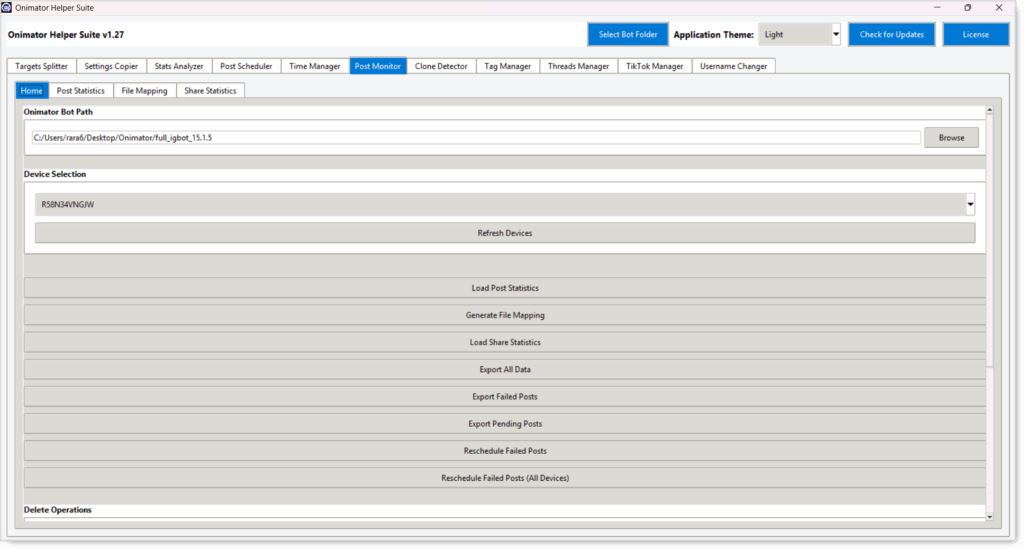
- Home — control panel: select bot folder + device, run load / export / reschedule / delete actions.
- Post Statistics — per-post status table with filters, charts, and summary cards.
- File Mapping — links the timestamp filenames in Onimator’s DB back to the original media files.
- Share Statistics — per-account share counts with summary cards and filters.
Strategic Purpose: The dashboard you check when “is everything posting?” needs an answer. Bulk diagnostics for the scheduled-posts pipeline: spot failures, retry them in one click, or clean them out.
Different from the IGBot Post Monitors Addon
Two different products share almost the same name. Don’t confuse them:
| OniHelper Post Monitor (this article) | IGBot Post Monitors addon | |
|---|---|---|
| What it watches | YOUR posting activity (successful / failed / pending) | OTHER accounts’ new posts |
| What it does | Reports, reschedules, deletes your own scheduled posts | Auto-dispatches likes / comments when a target posts |
| Lives in | Onimator Helper Suite | IGBot (separate app), under Addons |
Key Features
(From the in-app Application Description.)
- View statistics of successful, failed, and pending posts.
- Track posts across all your devices and accounts.
- Map timestamp filenames back to their original paths (so you know which media each DB entry refers to).
- Export detailed reports for troubleshooting.
- Delete failed or pending posts when needed.
- Visualize posting performance with charts.
- Monitor Instagram shares and analyze share statistics.
Access the Post Monitor
- Open the Onimator Helper Suite.
- In the suite’s header, click Select Bot Folder and point at your Onimator bot folder. Required.
- Click the Post Monitor tab in the top tab row.
- You land on the Home sub-tab.
Sub-Tab 1: Home (control panel)
This is where you load data and trigger every action. The other three sub-tabs are views that stay empty until you click a Load button on this tab.
Onimator Bot Path
- Text field showing the bot folder path.
- Browse — opens a folder picker to choose your Onimator install.
Device Selection
- Select Device (dropdown) — pick which phone’s posts you want to load.
- Refresh Devices — re-scans the bot folder for current devices.
Load / Generate Actions
These populate the corresponding view sub-tabs:
- Load Post Statistics — populates the Post Statistics sub-tab.
- Generate File Mapping — populates the File Mapping sub-tab.
- Load Share Statistics — populates the Share Statistics sub-tab.
Export Actions
- Export All Data — exports everything (statistics + mappings + shares) as a report.
- Export Failed Posts — exports only the failed-status rows.
- Export Pending Posts — exports only the pending-status rows.
Reschedule Actions
- Reschedule Failed Posts — re-queues failed posts on the selected device.
- Reschedule Failed Posts (All Devices) — re-queues failed posts across every device in the bot folder. Useful as a batch retry after fixing the root cause.
Delete Operations (red warning box)
Warning: Delete operations cannot be undone! (as displayed in the UI in red).
- Delete Failed Posts — wipes failed-status rows from the DB for the selected device.
- Delete Pending Posts — wipes pending-status rows.
Application Description (read-only info panel)
A box at the bottom of the Home sub-tab restating the module’s purpose and feature list.
Sub-Tab 2: Post Statistics
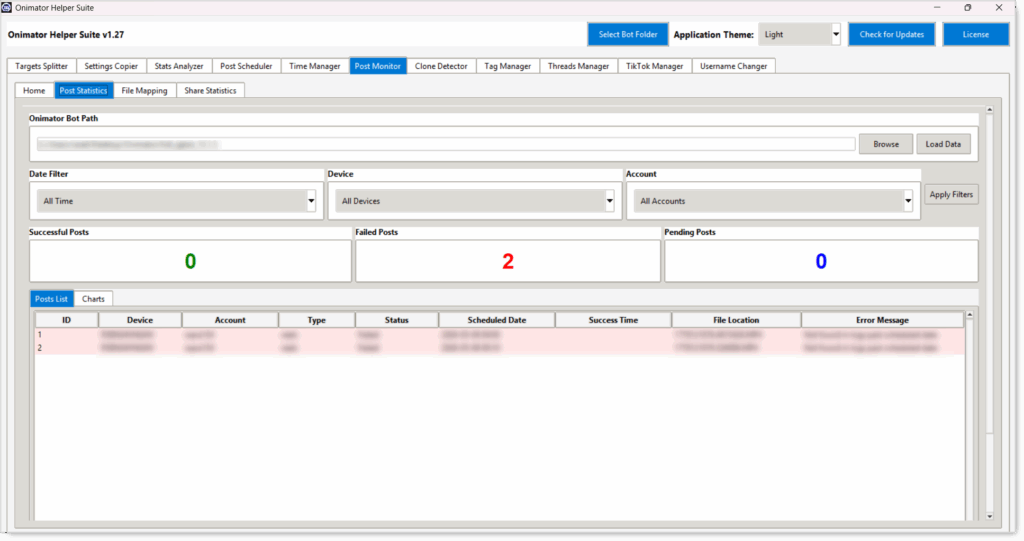
Before you click Load Post Statistics on Home, this sub-tab shows the message: “Select Onimator folder from the Home tab to load statistics.”
Loaded View
Onimator Bot Path (header)
- Path field + Browse + Load Data (reloads the dataset directly from this sub-tab).
Filters
Three dropdowns + an Apply Filters button:
- Date Filter (default
All Time) — narrow the rows to a specific date range. - Device (default
All Devices) — narrow to a specific phone. - Account (default
All Accounts) — narrow to a specific username. - Apply Filters — refreshes the table and the summary cards with the chosen filters.
Summary Cards
Three color-coded counters:
- Successful Posts (green)
- Failed Posts (red)
- Pending Posts (blue)
Posts List / Charts (two sub-sub-tabs)
- Posts List — table of every post matching the current filters.
- Charts — visualization of the same data.
Posts List Columns
| Column | What it shows |
|---|---|
| ID | Row number. |
| Device | Device the post was scheduled on. |
| Account | Username that was set to publish. |
| Type | Post type (reels, post, story). |
| Status | Failed / Successful / Pending. |
| Scheduled Date | When the post was supposed to publish. |
| Success Time | When it actually published (blank if not yet / failed). |
| File Location | The DB-side timestamp filename (e.g. 1778121676.4815428.MP4). |
| Error Message | If failed, why (e.g. Not found in logs past scheduled date). |
Sub-Tab 3: File Mapping
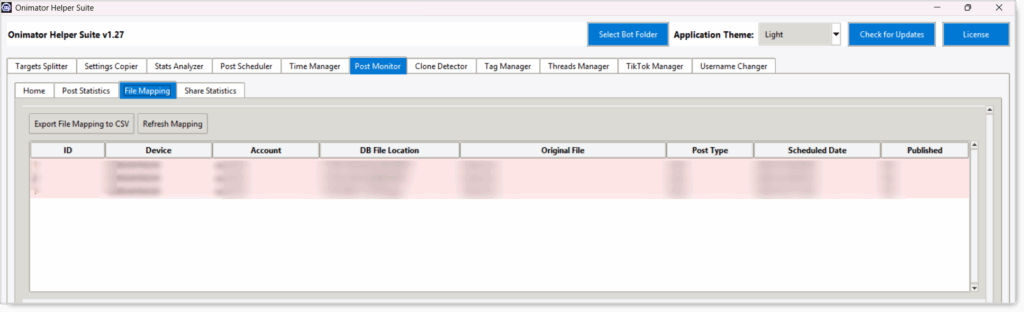
Before you click Generate File Mapping on Home, this sub-tab shows: “Select Onimator folder from the Home tab to load file mapping.”
Loaded View
Two buttons at the top:
- Export File Mapping to CSV — saves the table as a CSV for outside analysis.
- Refresh Mapping — re-runs the mapping against the current bot folder.
Mapping Table Columns
| Column | What it shows |
|---|---|
| ID | Row number. |
| Device | Device the post lives on. |
| Account | Username. |
| DB File Location | The internal timestamp filename (e.g. 1778121676.4815428.MP4). |
| Original File | The recognized source filename if one was identified, otherwise Unknown. |
| Post Type | reels, post, story. |
| Scheduled Date | When the post was set to publish. |
| Published | Yes / No. |
The mapping table is what lets you trace a cryptic DB filename like
1778139017.753795.jpgback to a real piece of media you scheduled. Useful when you’re troubleshooting why a specific post failed.
Sub-Tab 4: Share Statistics
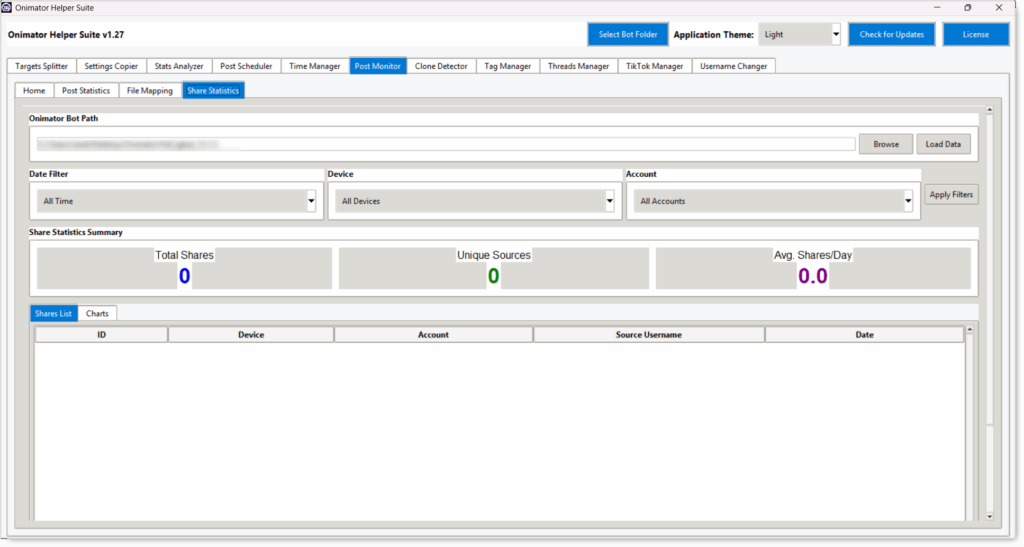
Before you click Load Share Statistics on Home, this sub-tab shows: “Select Onimator folder from the Home tab to load share statistics.”
Loaded View
Same layout as Post Statistics, but for share activity.
Onimator Bot Path (header)
- Path field + Browse + Load Data.
Filters
- Date Filter (default
All Time). - Device (default
All Devices). - Account (default
All Accounts). - Apply Filters button.
Share Statistics Summary
Three color-coded counters:
- Total Shares (blue).
- Unique Sources (green).
- Avg. Shares / Day (purple).
Shares List / Charts (two sub-sub-tabs)
- Shares List — the per-share rows.
- Charts — visualization of the same.
Shares List Columns
| Column | What it shows |
|---|---|
| ID | Row number. |
| Device | Device the share was performed on. |
| Account | Username that shared. |
| Source Username | The account whose post was shared. |
| Date | When the share happened. |
Recommended Workflow
Daily Failure Check
- Home → set Device → click Load Post Statistics.
- Switch to the Post Statistics sub-tab.
- Glance at the Failed Posts summary card. If it’s
0, you’re done. - If it’s not
0, switch to the Posts List, sort / filter to today’s date, read the Error Message column.
Bulk Retry After a Fix
- Diagnose the cause (auth expired, media missing on device, Timer Tab misconfigured, etc.).
- Home → click Reschedule Failed Posts (single device) or Reschedule Failed Posts (All Devices) (batch).
- Load Post Statistics again to confirm the queue moved from
FailedtoPending.
Trace a Mystery DB Filename
- Home → Generate File Mapping.
- File Mapping sub-tab → find the row by DB File Location.
- The Original File column tells you which piece of media it refers to (or
Unknownif the suite can’t trace it).
Clean Up After a Bad Schedule Push
Delete is irreversible, retry first.
- If reschedule won’t save them, Home → Delete Failed Posts or Delete Pending Posts.
- Confirm any warning dialog.
Export for Outside Analysis / Client Report
- Home → Export All Data (or
Failed/Pendingonly if that’s all you want). - Open the CSV in Excel / Google Sheets / your reporting tool.
Best Practices
Always Select Bot Folder First
Without it, every Load button comes back empty. This is the universal precondition across the OniHelper suite.
Load Before Switching Tabs
The three view sub-tabs (Post Statistics, File Mapping, Share Statistics) start empty. Each one says “Select Onimator folder from the Home tab to load…” until you click its Load / Generate button on Home.
Try Reschedule Before Delete
Most failures are recoverable (auth re-login, media transfer, schedule cleanup). Reschedule is reversible by re-failing; delete is gone forever. Reschedule first, delete last.
Use the Filters Before You Read the Table
A 100-row mixed-status table is noise. Filter by Date = today and Status = Failed to find what actually needs attention.
Export Failed Posts for Long Investigations
If a failure category needs root-cause work, Export Failed Posts to CSV and dig in offline rather than scrolling the in-app table.
Common Issues
A View Sub-Tab Just Says “Select Onimator folder from the Home tab to load…”
Cause: You haven’t clicked the corresponding Load button on Home yet. Fix: Switch to Home → click Load Post Statistics / Generate File Mapping / Load Share Statistics.
Every Counter Shows 0 After Loading
Cause: Bot folder is set, but the wrong path (e.g. a stale install), or no posts have run in the date range. Fix: Verify the Onimator Bot Path is your active install, then re-load. Try setting Date Filter to All Time.
“Original File” Column Shows Unknown
Cause: The suite can’t trace the DB-side filename back to a source file, often because the original media has been deleted, renamed, or moved. Fix: Check whether the source file still exists at the path you originally scheduled from. If not, the mapping is genuinely lost; re-schedule the post fresh.
Reschedule Did Nothing
Cause: No posts were in Failed status, or no device was selected. Fix: Confirm the Device Selection dropdown, and confirm there are actually failed posts in the Post Statistics view.
Conclusion
- Dashboard + troubleshooter for YOUR scheduled posting pipeline.
- Four sub-tabs — Home (control), Post Statistics (status table), File Mapping (filename trace), Share Statistics (share counts).
- Always Load on Home first — the view sub-tabs are empty until you do.
- Reschedule before Delete — retries first, irreversible cleanup last.
- Filters + Export — narrow the noise, then ship the CSV.
Implementation Tip: Wire a quick daily ritual: Select Bot Folder → Load Post Statistics → glance at Failed Posts card. If non-zero, filter by today’s date and read the Error Message column. Most days that’s a 30-second check; the days that aren’t, this is the tool you’ll use to triage them.
Tutorials & Support
- No transcript for this module yet — article built from UI screenshots only.
- Telegram Support: Join Onimator Support