
Overview
The Username Changer is the Onimator Helper Suite’s account-rename tool. Pick a bot folder → pick a device → pick an account → type the new username → click Change Username. That’s the whole module.
The simplest module in the suite, but a useful one: when an account’s actual platform username changes (rebrand, fresh start, takeover), you need to update Onimator’s record of it so the bot stops talking to the old name.
Strategic Purpose: Keep Onimator’s stored username in sync with the platform’s current username. The bot keys its work off the username; if it drifts, the bot acts on the wrong account or stops working entirely.
How It Fits with Onimator
Username Changer rewrites the username field on an account in Onimator’s database. It doesn’t change the username on the platform itself, only Onimator’s local record of what to call the account.
Platform username changes → Username Changer updates Onimator's record → Bot keeps working
Use this after you’ve already renamed the account on the platform. Username Changer doesn’t do the platform-side rename for you.
Key Features
- Per-Account Rename — rename one account at a time without re-creating it.
- Two-Pane Filter — pick the device, then the account on it.
- Live “Selected Account” Readout — confirms which account is about to be renamed.
- Status Bar —
Ready(idle) / status messages during a rename.
Access the Username Changer
- Open the Onimator Helper Suite.
- Click Select Bot Folder in the suite’s header.
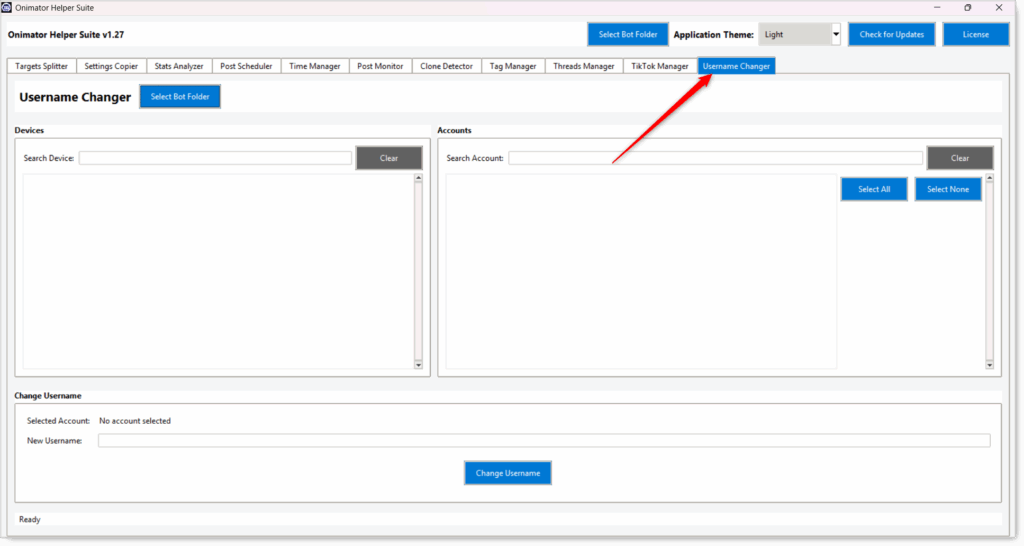
- Click the Username Changer tab in the top tab row.
- There’s also an in-tab
Select Bot Folderbutton (top of the panel) — use it if you want to point Username Changer at a different install from the one chosen in the suite header.
Username Changer Configuration
Left Pane: Devices
- Search Device (text field + Clear button) — filter the device list as you type.
- Device list — the phones in the loaded bot folder. Pick the one whose account you want to rename.
Right Pane: Accounts
- Search Account (text field + Clear button) — filter the account list by username.
- Select All / Select None (buttons, top-right) — bulk-toggle selection in the visible list.
- Account list — the accounts on the selected device(s). Pick the one to rename.
Change Username (bottom section)
- Selected Account — read-only text showing the username currently picked. Shows
No account selectedwhen nothing’s chosen. - New Username (text field) — type the new username here.
- Change Username (blue button, centered) — commits the rename.
Status Bar (very bottom)
Readywhen idle.- Status messages during / after the rename so you know it landed.
Recommended Workflow
Rename a Single Account
- Select Bot Folder (suite header or in-tab button).
- Left pane: pick the device the account lives on.
- Right pane: click the account you want to rename. Selected Account updates to confirm.
- New Username: type the new handle exactly as it now appears on the platform (no
@). - Click Change Username.
- Watch the status bar at the bottom for confirmation.
Rename Several Accounts (One at a Time)
The module renames one account per click. For a batch:
- Rename the first account using the workflow above.
- The selection clears, type the next new username for the next account, click again.
- Repeat per account.
Best Practices
Rename on the Platform First, Then Here
Username Changer updates Onimator’s local record only. The platform username must already match the new value or the bot will look for an account that doesn’t exist.
Type the New Username Exactly
Case usually doesn’t matter on the platform, but Onimator stores it verbatim. Stick to lowercase to avoid confusion, no @, no spaces.
Confirm “Selected Account” Before Clicking
A misclick on the right pane is easy to miss. Glance at the Selected Account readout to make sure you’re renaming the one you intended.
Update Related Records After
If other modules / tools / Notion docs reference the old username (Job Orders, Tag groups, etc.), update them too, the rename here doesn’t propagate to those external references.
Watch the Status Bar
The Ready / status text at the bottom is your confirmation. Don’t trust silent UI; read the bar.
Common Issues
Devices or Accounts Pane Is Empty
Cause: Bot folder isn’t set, or it’s pointed at the wrong install. Fix: Click Select Bot Folder (in-tab or suite header) → re-pick the active install.
Selected Account: No account selected Even Though I Clicked One
Cause: Clicked in the white space of the list, not on the row itself. Fix: Click directly on the username row; the readout should update to the picked username.
Bot Acts on the Old Username After Renaming
Cause: Either the rename didn’t actually save, or the bot was already running with a cached username. Fix: Confirm the status bar showed a success message. Restart the bot session for the affected account so it picks up the new value.
Renamed Here But Bot Says “Account Not Found”
Cause: The platform-side rename hasn’t actually happened (or hasn’t propagated yet), so the platform doesn’t recognize the new username. Fix: Verify the new username works on the platform (just log in or open the profile), then re-run the bot.
Conclusion
- Simplest module in the suite — rename one account at a time.
- Two-pane picker — device on the left, account on the right.
- Local-only edit — updates Onimator’s stored username; doesn’t rename on the platform itself.
- Status bar = your confirmation —
Readyidle, status text on rename. - Rename on the platform first, then here.
Implementation Tip: Username Changer is a sync tool, not a rename tool. The order is always: rename on the platform → confirm the new username works there → open Username Changer → update Onimator’s record → restart the bot session for that account. Skip the platform-side rename and you’ll point Onimator at a username that doesn’t exist.
Tutorials & Support
- No transcript for this module yet — article built from UI screenshots only.
- Telegram Support: Join Onimator Support