
🧠 Overview
The Time Manager is the Onimator Helper Suite’s bulk schedule allocator. Instead of opening every account in Onimator and setting Start / End hours one-by-one in the Timer Tab, you give Time Manager a device-level runtime window and an allocation method, and it works out per-account time slots for you, then writes them straight to Onimator’s database (or exports them to CSV).
It’s the answer to “how do I divide a 24-hour day across 5 accounts on one phone without them stepping on each other?”
💡 Strategic Purpose: Multi-account-per-device setups need staggered schedules so two accounts don’t run simultaneously on the same phone (which is a botnet tell). Time Manager solves the math, you set a daily window and pick an allocation strategy; the tool figures out who runs when.
🔁 How It Fits with Onimator
Time Manager reads from and writes to Onimator’s bot folder. It doesn’t run any sessions itself, it just rewrites the per-account Start / End times that Onimator’s Timer Tab already uses.
Bot Folder ← Time Manager calculates slots → writes new Start/End to each account → Onimator runs to the new schedule
⚠️ Always Select Bot Folder first. Without it Time Manager can’t read your accounts or write the updated schedule.
🚀 Key Features
- Single or Multi-Device Mode — Configure one phone or rewrite schedules across many phones at once.
- Three Allocation Methods — Equal Distribution, Sequential, or Round-Robin.
- Minimum Account Runtime Floor — Prevents tiny unusable slots.
- Calculate Before Applying — Preview the new schedule before committing to the database.
- CSV Export / Import — Backup or migrate schedules between installs.
- Template Save / Load — Reuse a proven configuration across new device sets.
- Live Diff View — Per-account table shows Current vs New Start / End times.
⚙️ Access the Time Manager
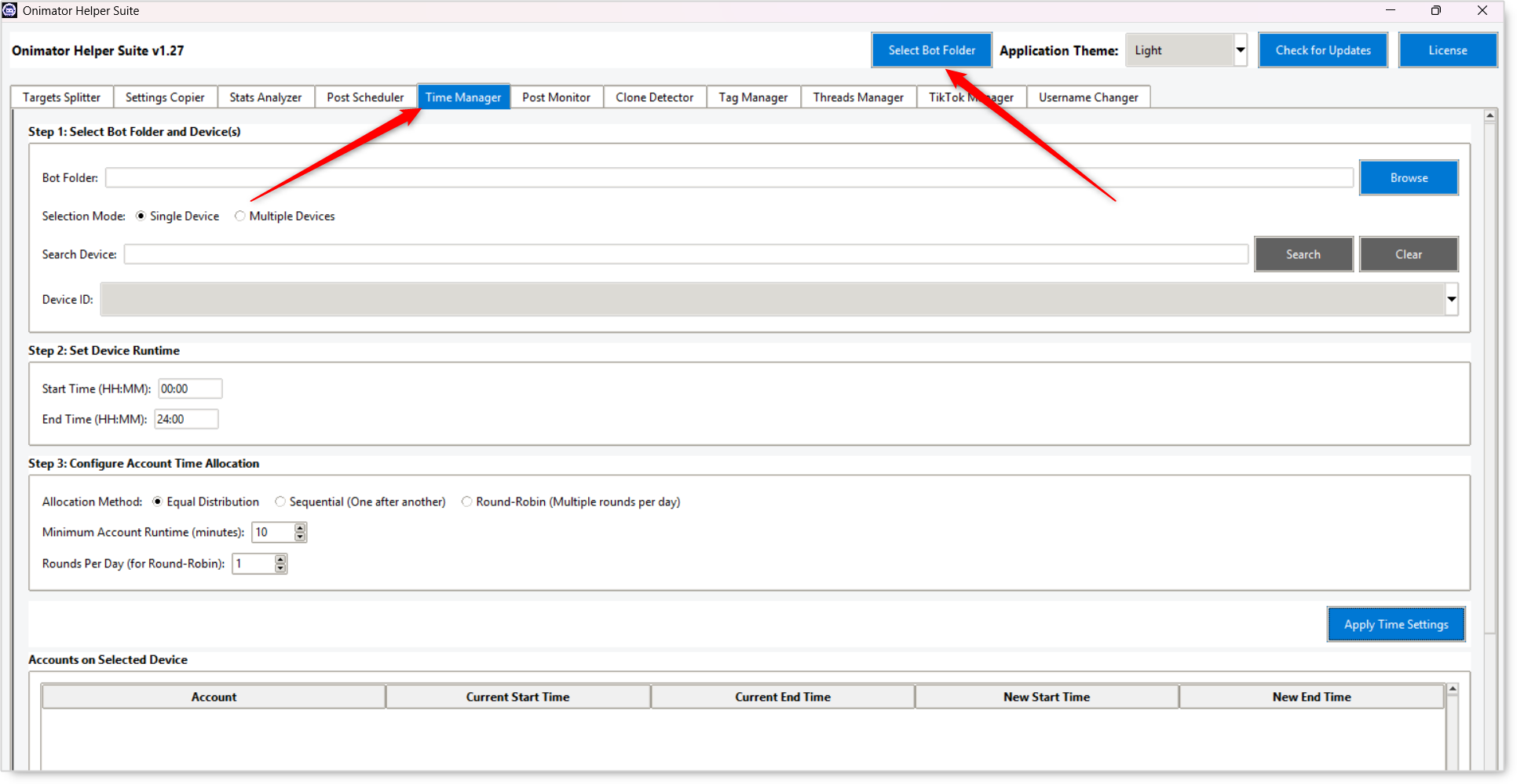
- Open the Onimator Helper Suite.
- Click Select Bot Folder in the suite’s header (required, populates the device list).
- Click the Time Manager tab in the top tab row.
🔧 Time Manager Configuration
Step 1: Select Bot Folder and Device(s)

Bot Folder
Text field + Browse button. Points at the Onimator install whose accounts you want to schedule. The Step 1 panel re-shows it so you can confirm the right folder before making changes.
Selection Mode (radio)
- Single Device — work on one phone at a time.
- Multiple Devices — apply the same allocation logic across many phones simultaneously.
Search Device (field + Search / Clear buttons)
Filter the device list when you have many phones connected.
Single Device mode
- Device ID (dropdown) — pick the phone to schedule.
Multiple Devices mode
A device table appears with columns:
- Select (checkbox) — pick the phones you want to include.
- Device ID — hardware identifier.
- Number of Accounts — how many accounts that phone holds.
Below the table: Select All / Deselect All buttons.
Step 2: Set Device Runtime
 The daily window the device(s) are allowed to operate, all per-account slots get distributed inside this window.
- Start Time (HH:MM) — beginning of the device’s active day. Default
00:00. - End Time (HH:MM) — end of the device’s active day. Default
24:00.
📘 The total runtime =
End − Start. With00:00 → 24:00you have 24 hours of slot budget; with08:00 → 22:00you have 14.
Step 3: Configure Account Time Allocation
 How the device runtime gets divided across the accounts on that device.
Allocation Method (radio)
- Equal Distribution — Splits the day evenly across accounts. If 4 accounts share a 24-hour window, each gets a 6-hour slot back-to-back. Best for steady, predictable per-account throughput.
- Sequential (One after another) — Accounts run one after another in a strict chain. Similar to Equal Distribution in result but explicitly framed as a queue (account A finishes, then B starts, etc.). Best when you want a hard hand-off between accounts.
- Round-Robin (Multiple rounds per day) — Each account gets several short windows spread through the day. Best for human-like patterns where each account “checks the app” multiple times rather than running one big shift. Use the Rounds Per Day field to control how many cycles.
- 💡 Example: Device is online for 12 hours total, you set Rounds Per Day = 4 with Minimum Account Runtime = 30 minutes. Each account gets about four 30-minute windows spread across the day.
Minimum Account Runtime (minutes)
Floor on how short a single slot can be. Prevents the allocator from chopping the window into 2-minute slivers when you have many accounts on a small window. Default 10 minutes.
Rounds Per Day (for Round-Robin)
Only relevant when the Allocation Method is Round-Robin. How many times each account runs in a day. Default 1. Higher = more frequent, shorter slots per account.
🔘 Action Buttons
Below the configuration sections:
- Apply Time Settings (large blue button) — The primary commit action. Calculates the allocation from your Step 1–3 inputs and applies the new timers to all accounts on the selected device(s). The Accounts table updates to show the new Start / End values.
- Calculate Time Slots — Recomputes the proposed schedule based on current Step 1–3 inputs.
- Apply to Database — Writes the current schedule to Onimator’s settings database explicitly.
- Export to CSV — saves the current allocation to a CSV file (useful for backup or sharing).
- Import from CSV — loads an allocation from a previously-saved CSV.
- Import Template — load a re-usable allocation template.
- Save as Template — save the current Step 1–3 configuration as a named template.
📋 Accounts on Selected Device
A table at the bottom of the tab lists every account on the selected device(s), with Current vs New columns so you can see exactly what’s about to change:
| Column | What it shows |
|---|---|
| Account | Username. |
| Current Start Time | The account’s Timer Tab Start, as it stands in Onimator now. |
| Current End Time | The account’s Timer Tab End, as it stands now. |
| New Start Time | The allocator’s proposed Start for this account. |
| New End Time | The allocator’s proposed End. |
Click Apply Time Settings to apply the new allocation, the table updates with the New Start / End columns reflecting the change.
📅 Recommended Workflow
Stagger 3+ Accounts on One Phone
- Single Device mode → pick the phone.
- Step 2: Set the device’s runtime window (e.g.
06:00 → 23:00for a realistic awake day). - Step 3: Pick Equal Distribution with Minimum Account Runtime at
30min. - Click Apply Time Settings, the Accounts table updates with each account’s new Start / End.
Round-Robin for a Human-Like Pattern
- Single or Multiple Device mode.
- Step 2: Realistic awake hours (e.g.
08:00 → 22:00). - Step 3: Round-Robin, Rounds Per Day =
4, Minimum Account Runtime =30. - Click Apply Time Settings, each account on the device receives four 30-minute windows spread through the day.
Rewrite Schedules Across Many Phones
- Multiple Devices mode → select all the phones you want to align (or use Select All).
- Set a uniform device runtime window in Step 2.
- Pick an allocation method in Step 3.
- Click Apply Time Settings to push the new schedules across every selected phone.
- Save as Template so you can reuse this config later.
🔐 Best Practices
Always Select Bot Folder First
Without it, the device list is empty and writes will fail / target the wrong install.
Export to CSV Before Big Changes
Before pushing a new allocation across many devices, Export to CSV as a quick backup. If anything goes wrong, you have the old schedule on disk to import back.
Use Templates for Repeat Setups
If you onboard new phones / accounts on a recurring basis, Save as Template locks in your “house” allocation, then Import Template on the next set.
Minimum Account Runtime Should Be ≥15 min
Slots shorter than that don’t give the bot enough time to do meaningful work and waste the runtime budget on app startup overhead.
Round-Robin Is the Most Human Pattern
Real users don’t check social apps once for 6 hours straight. They check multiple times per day for shorter bursts. Round-Robin reproduces that pattern.
Match Device Runtime to Your Audience’s Awake Hours
Don’t allocate slots at 03:00 if your audience sleeps then. Set the device runtime window to your target timezone’s waking day first, then let the allocator distribute within it.
⚠️ Common Issues
Device List Is Empty in Multiple Devices Mode
Cause: Bot Folder isn’t set, or the folder doesn’t contain any registered devices. Fix: Click Browse in Step 1 → re-point at the active Onimator install.
New Start / End Columns Are Blank After Apply Time Settings
Cause: Step 1 device(s) not selected, Step 2 times are invalid (e.g. End ≤ Start), or Minimum Account Runtime exceeds the available per-account share. Fix: Verify device selection, fix the runtime window, lower Minimum Account Runtime.
Changes Not Visible in Onimator After Apply Time Settings
Cause: The new times got written, but you’re viewing Onimator without refreshing. Fix: Reopen the affected account in Onimator’s Timer Tab to confirm the new Start / End values are there.
Round-Robin Slots Overlap on the Same Account
Cause: Rounds Per Day is high enough that the math can’t give each round the Minimum Account Runtime without overlapping. Fix: Lower Rounds Per Day or Minimum Account Runtime, or widen the Step 2 device runtime.
🏁 Conclusion
- Bulk timer allocator — Sets per-account Start / End times in Onimator from a device-level window.
- Three allocation methods — Equal Distribution, Sequential, Round-Robin.
- Single or Multi-Device — One phone or many at once.
- One-click commit —
Apply Time Settingscalculates and applies the new schedule across the selected device(s). - Templates + CSV — Save / reuse / migrate allocations.
💡 Implementation Tip: For multi-account-per-device setups, Round-Robin is usually the most human-like and the most resilient pattern, each account runs in shorter bursts spread through your audience’s awake hours rather than one long shift. Example: with a 12-hour device window and 30-minute slots, each account naturally gets ~4 rounds per day. Save the configuration as a template so every new device you provision gets the same proven schedule.
🎥 Tutorials & Support
- This article covers Part 5 of the OniHelper tutorial series (Time Manager). The series continues with the next module.
- Telegram Support: Join Onimator Support