
🧠 Overview
The Threads Manager is a container tab inside the Onimator Helper Suite that bundles five Threads-specific helper modules into one place. Each sub-tab is the Threads version of a tool that also exists as a standalone OniHelper module, but specialized for Threads (and, in the Time Manager case, aware of Instagram accounts sharing the same phone).
The five sub-tabs:
- Copy Settings — Bulk-copy a source account’s Follow tool settings onto selected target accounts.
- Time Manager — Threads bulk schedule allocator. Adds “Avoid Conflicts with Instagram Accounts on Same Device” option.
- Post Scheduler — Schedule Threads posts (single or bulk import).
- Targets Splitter — Paste a username list and split it across selected Threads accounts.
- Post Monitor — Posting dashboard / troubleshooter for Threads (reads
Threads Bot Path).
📌 It’s like OniHelper, but for Threads. A parallel TikTok Manager tab exists in the same suite for TikTok.
💡 Strategic Purpose: Threads has its own bot folder and its own set of running accounts. Threads Manager keeps the Threads workflow self-contained instead of forcing you to bounce between the suite-wide modules with different folder paths.
🔁 Threads Manager vs. the Standalone OniHelper Modules
| Threads Manager sub-tab | Equivalent standalone module | Key Threads-only differences |
|---|---|---|
| Copy Settings | Settings Copier | Bundles a tree of Follow tool settings to copy. |
| Time Manager | Time Manager | Adds Avoid Conflicts with Instagram Accounts on Same Device + IGBOT Folder input. |
| Post Scheduler | Post Scheduler | Leaner form, no AI Generate Caption, no Reel Trial, no Post Type radio, no Tag People. |
| Targets Splitter | Targets Splitter | Threads-targeted; shows current Target Method at the top. |
| Post Monitor | Post Monitor | Reads Threads Bot Path instead of the suite’s main Onimator Bot Path. |
⚙️ Access the Threads Manager
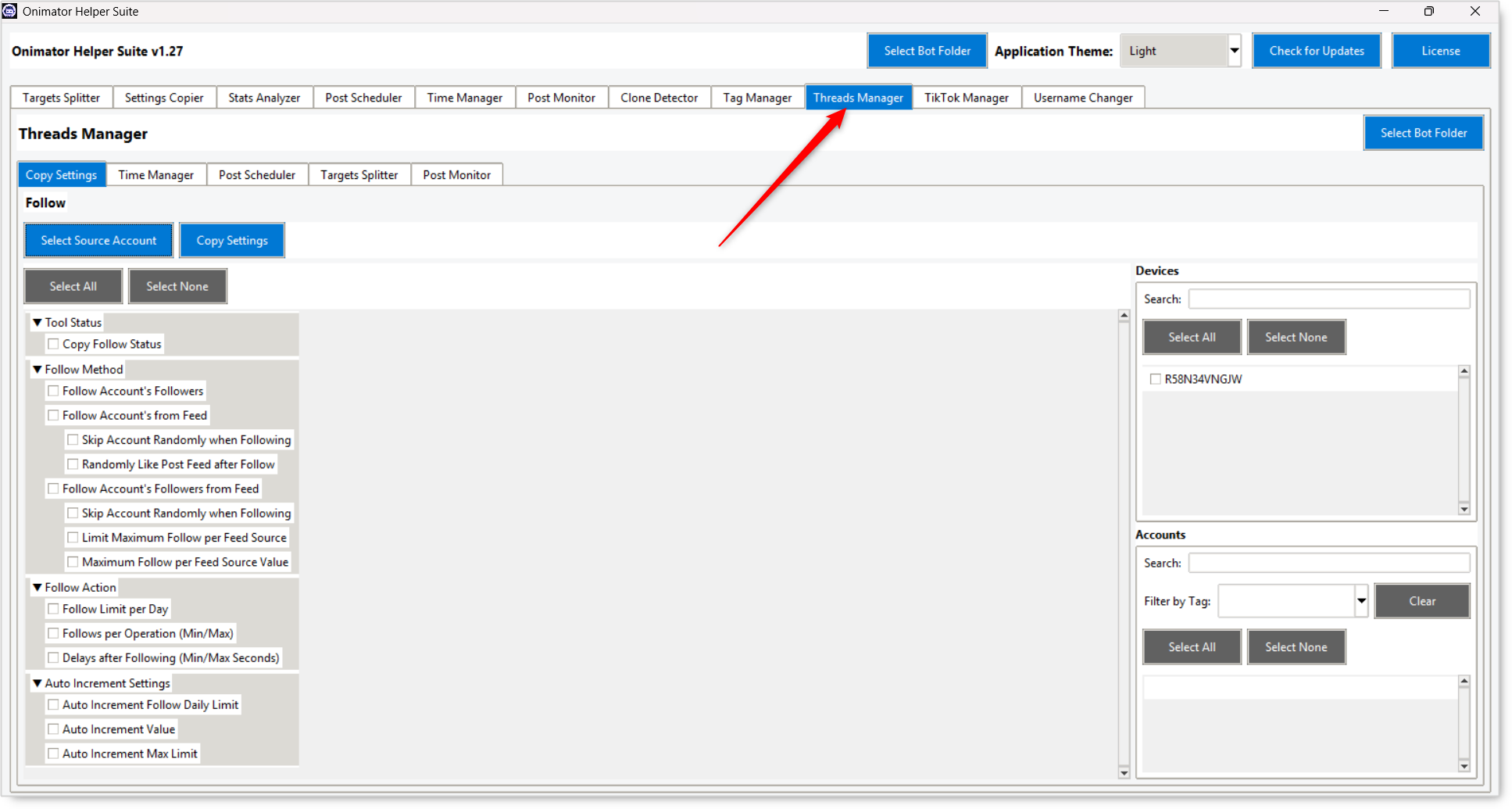
- Open the Onimator Helper Suite.
- Click Select Bot Folder in the suite’s header.
- Click the Threads Manager tab in the top tab row.
- The Threads Manager itself has its own
Select Bot Folderbutton (top-right inside the tab). Use it to point at your Threads bot folder if it’s separate from the one selected in the suite header. - Pick which of the five sub-tabs you want to work in.
🔧 Sub-Tab 1: Copy Settings
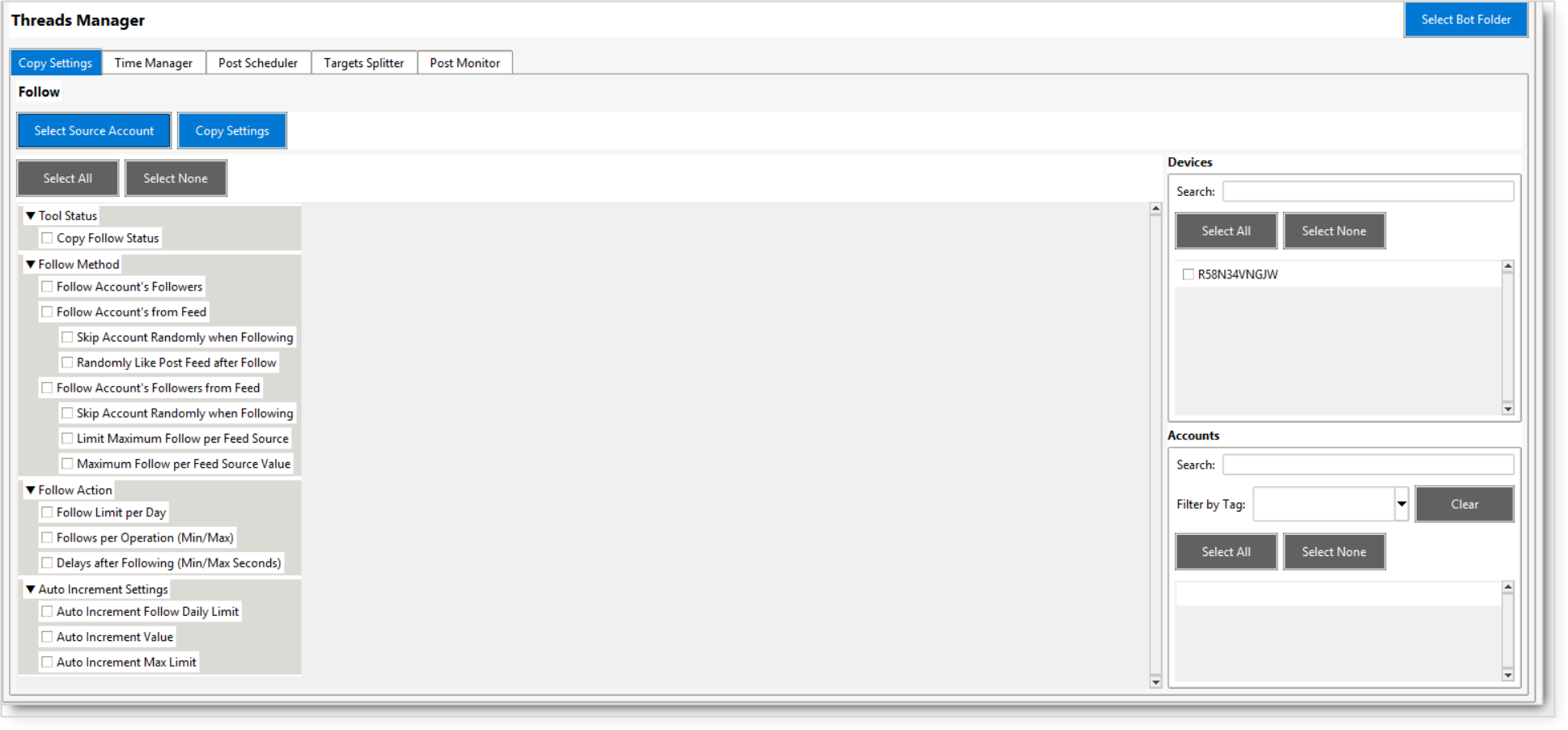 Replicates one account’s Follow tool configuration onto many accounts in one action.
Header Controls
- Select Source Account (button) — opens a picker for the account whose settings you want to copy from.
- Copy Settings (button) — applies the checked settings to every account selected in the right pane.
- Select All / Select None (buttons) — bulk-toggle the settings tree.
Settings Tree (left side)
Collapsible groups of checkboxes. Each one represents a setting that gets copied from the source account to the targets if you tick it.
▼ Tool Status
- Copy Follow Status — also copies the source account’s master Follow ON/OFF state.
▼ Follow Method
- Follow Account’s Followers
- Follow Account’s from Feed
- Skip Account Randomly when Following
- Randomly Like Post Feed after Follow
- Follow Account’s Followers from Feed
- Skip Account Randomly when Following
- Limit Maximum Follow per Feed Source
- Maximum Follow per Feed Source Value
▼ Follow Action
- Follow Limit per Day
- Follows per Operation (Min/Max)
- Delays after Following (Min/Max Seconds)
▼ Auto Increment Settings
- Auto Increment Follow Daily Limit
- Auto Increment Value
- Auto Increment Max Limit
Devices Pane (right side)
- Search field.
- Select All / Select None.
- Device list with checkboxes.
Accounts Pane (below Devices)
- Search field.
- Filter by Tag (dropdown + Clear).
- Select All / Select None.
- Account list with checkboxes.
Workflow
- Select Source Account.
- Tick which Follow settings to copy in the tree.
- Select target devices on the right.
- Select target accounts within those devices.
- Click Copy Settings.
🔧 Sub-Tab 2: Time Manager
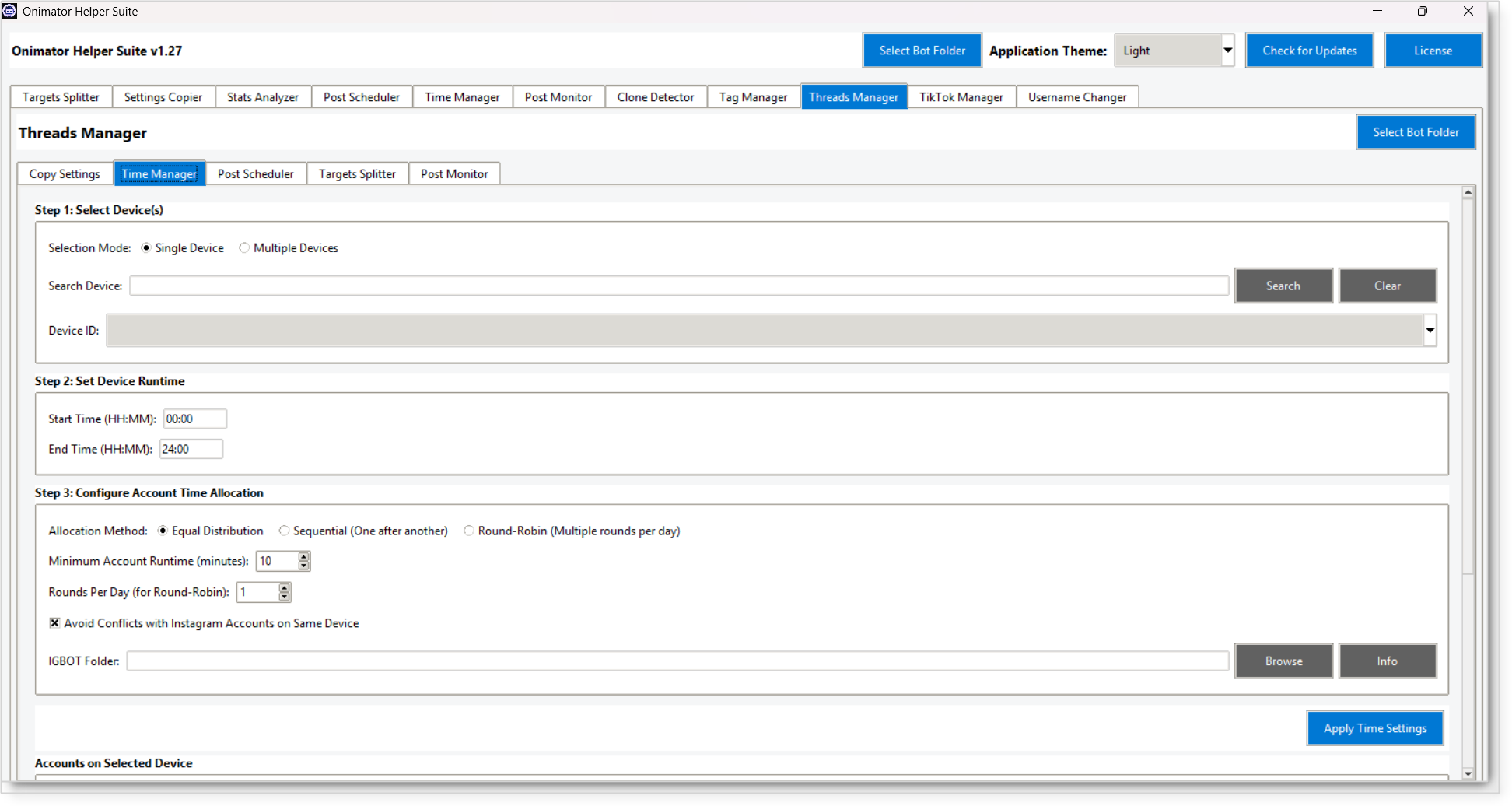 The Threads bulk schedule allocator. Same Step 1–3 structure as the standalone Time Manager, with two Threads-specific extras.
Step 1: Select Device(s)
- Selection Mode (radio) — Single Device / Multiple Devices.
- Search Device + Search / Clear.
- Device ID (dropdown — single mode) or device table (multiple mode).
Step 2: Set Device Runtime
- Start Time (HH:MM) (default
00:00). - End Time (HH:MM) (default
24:00).
Step 3: Configure Account Time Allocation
- Allocation Method (radio) — Equal Distribution / Sequential / Round-Robin.
- Minimum Account Runtime (minutes) (default
10). - Rounds Per Day (for Round-Robin) (default
1).
➕ Threads-Only: Avoid Conflicts with Instagram Accounts on Same Device (checkbox, checked by default)
When ON, the allocator factors in any Instagram accounts also scheduled on the same phone and avoids overlapping their windows. Prevents Threads and IG from running at the same instant on one device, which would look botty.
➕ Threads-Only: IGBOT Folder (text field + Browse + Info)
Point at the IGBot install for the Avoid-Conflicts logic to read Instagram schedules from. Required if Avoid Conflicts is ON.
Action Buttons
- Apply Time Settings (primary) — calculates and applies the allocation to the selected Threads accounts on the device.
- Calculate Time Slots — recomputes the schedule.
- Apply to Database — writes to Onimator’s settings DB.
- Export to CSV / Import Template / Save as Template — backup / reuse.
Accounts on Selected Device (table)
Columns: Account · Current Start Time · Current End Time · New Start Time · New End Time.
🔧 Sub-Tab 3: Post Scheduler
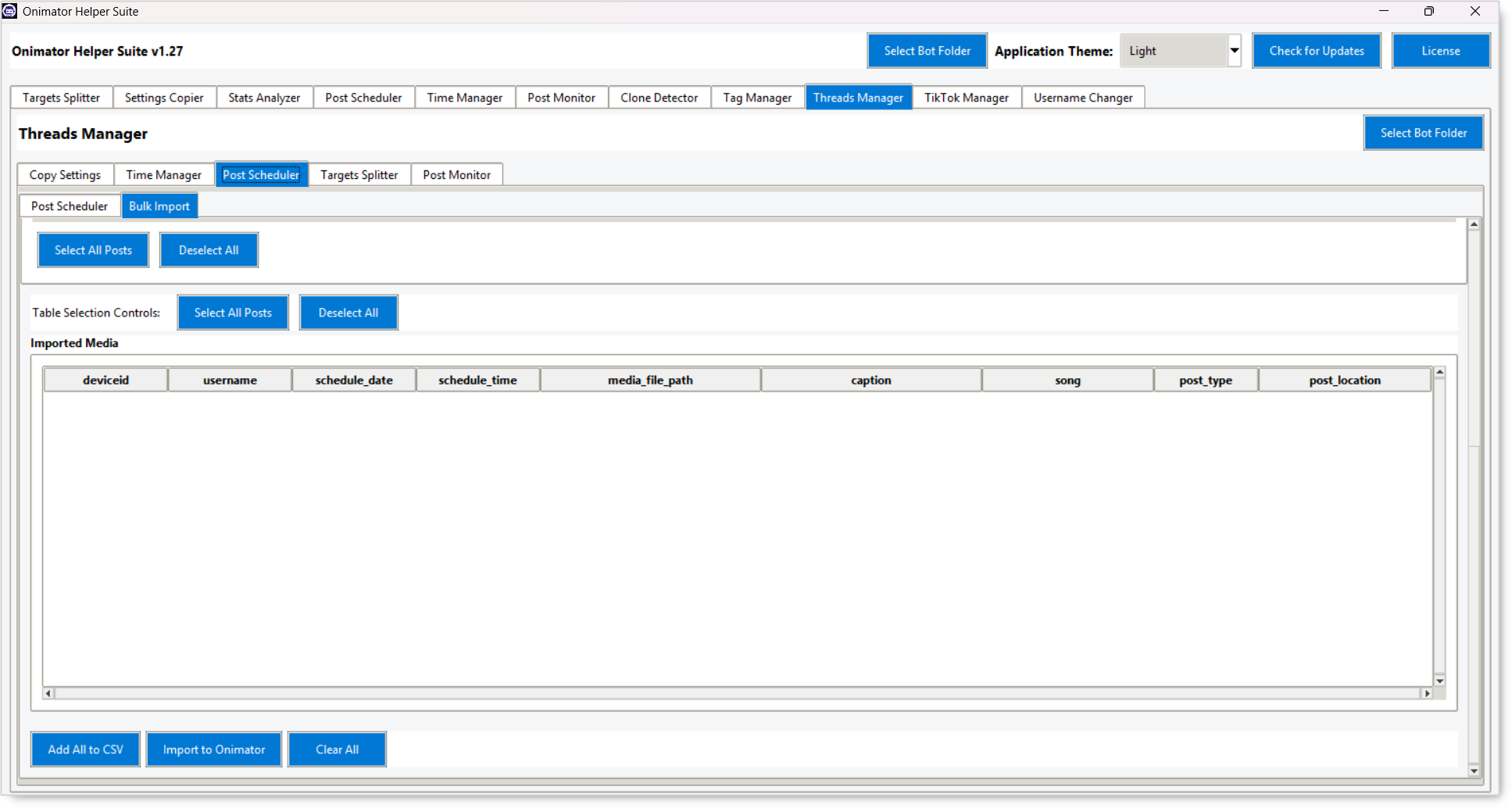 Schedule Threads posts. Same two sub-sub-tabs as the standalone Post Scheduler (
Post Scheduler for single, Bulk Import for folder-based), but leaner because Threads has fewer post-type options than Instagram.
Post Scheduler Sub-Sub-Tab (single post entry)
Fields
- Device ID (dropdown).
- Username (dropdown).
- Schedule Date (date picker — DD/MM/YYYY).
- Schedule Time (text — HH:MM).
- Media File (text + Browse).
- Caption (text area, spin syntax supported).
- Song Name (text).
- Location (text).
📘 Threads-specific simplifications (vs the standalone Post Scheduler): no
AI: Generate Captionbutton, noAI Settings, noPost Typeradio, noTag People, noEnable Reel Trial.
Action Buttons
- Add to CSV · Clear Form · Import to Onimator · Export to CSV · Clear Table · Delete Selected.
Table Columns
deviceid · username · schedule_date · schedule_time · media_file_path · caption · song · post_type · post_location.
Bulk Import Sub-Sub-Tab
Media Folder
- Folder path (text) + Browse + Scan Folder + Import Media Files.
Scheduling Options
- Start Publishing Time — date picker + HH:MM.
- Time Between Posts (same account) — minutes spacing between consecutive posts on one account.
Import Filter Options
- Skip previously imported files (checkbox).
Edit Selected Items
- Caption (text) + Apply Caption button — bulk-write the caption to all selected rows.
- Select All Posts / Deselect All (buttons within the Edit section).
📘 Note: The Threads Manager’s Bulk Import is simpler than the standalone Post Scheduler’s. It doesn’t show the
Schedule/Content/Settingsthree-sub-tab Edit Selected Items panel; just a single Caption edit. No Natural Sort, no Set videos as, no Default Post Settings.
Table Selection Controls
- Select All Posts / Deselect All (buttons).
Imported Media (table)
Same columns as the single-post tab.
Bottom Hand-Off Buttons
- Add All to CSV · Import to Onimator · Clear All.
🔧 Sub-Tab 4: Targets Splitter
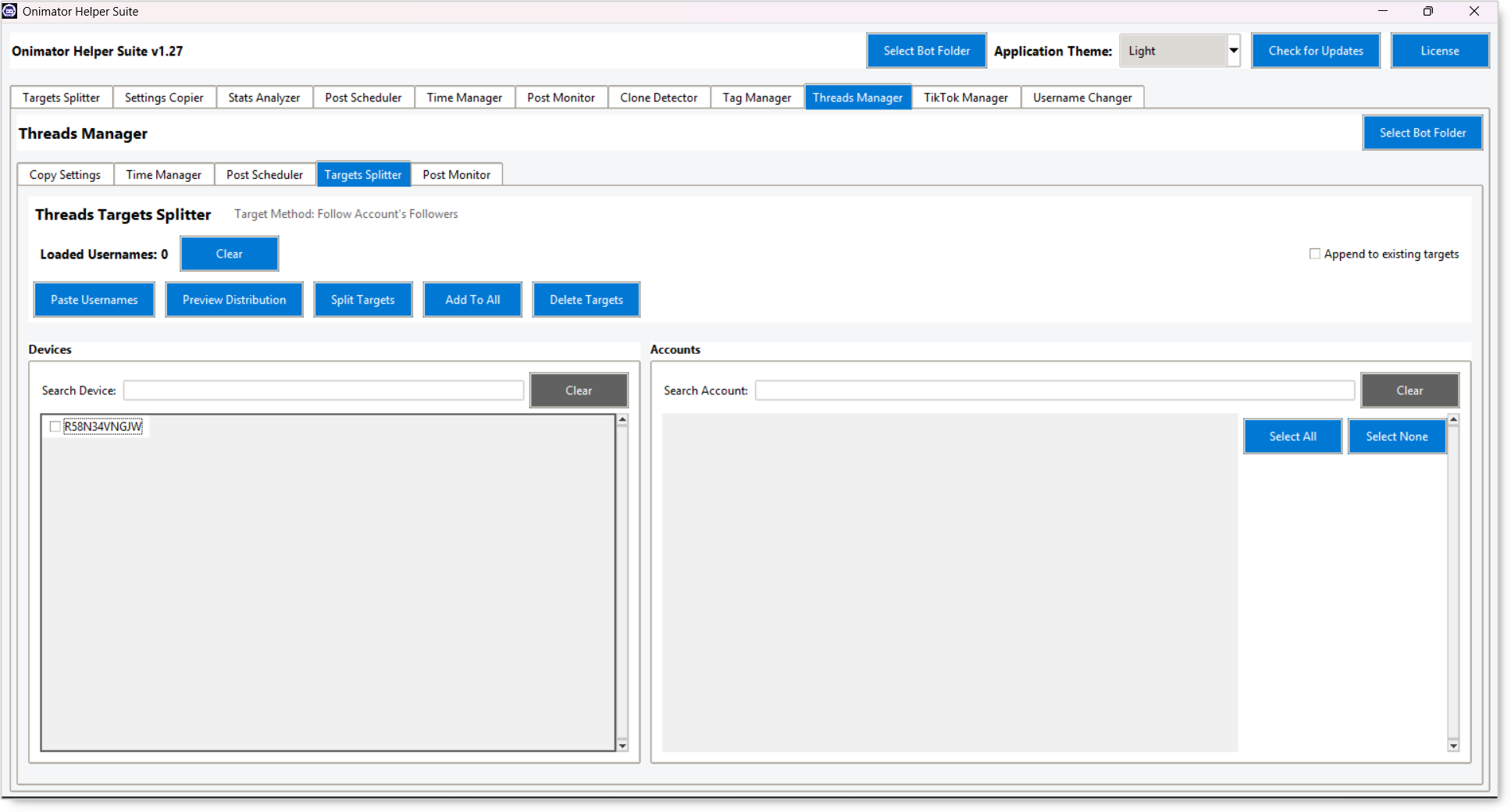 Paste a list of target usernames and distribute them across the selected Threads accounts.
Header
- Title: “Threads Targets Splitter”.
- Target Method: read-out next to the title (e.g.
Follow Account's Followers). Shows what targeting method these usernames will feed.
Loaded Usernames Strip
- Loaded Usernames: N counter.
- Clear (button).
- Append to existing targets (checkbox, top-right) — when ON, distributed usernames are added to existing target lists rather than replacing them.
Action Buttons
- Paste Usernames — opens an input box for your list (one username per line).
- Preview Distribution — shows which username goes to which account before committing.
- Split Targets — commits the distribution: each selected account gets its share of the usernames.
- Add To All — adds every pasted username to every selected account (instead of splitting).
- Delete Targets — wipes targets off the selected accounts.
Devices Pane (left)
- Search Device + Clear + device list with checkboxes.
Accounts Pane (right)
- Search Account + Clear.
- Select All / Select None.
- Account list with checkboxes.
Workflow
- Select target devices on the left.
- Select target accounts on the right.
- Click Paste Usernames → paste your list.
- Preview Distribution to sanity-check.
- Decide on Append to existing targets ON / OFF.
- Split Targets (distribute one share per account) or Add To All (every username to every account).
🔧 Sub-Tab 5: Post Monitor
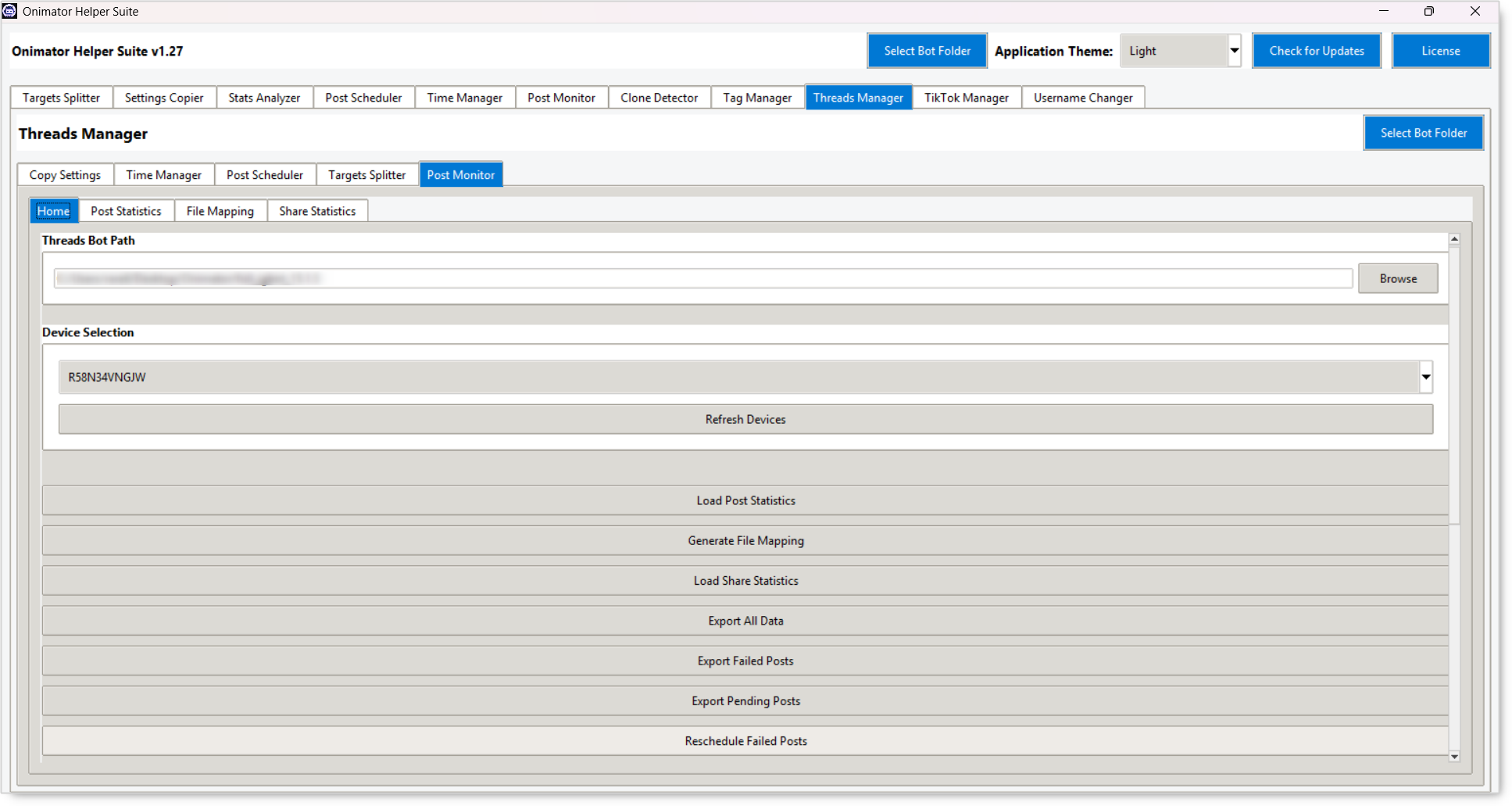 Posting dashboard and troubleshooter for Threads posts. Same structure as the standalone Post Monitor, but it reads from a Threads Bot Path instead of the Onimator Bot Path.
Sub-Sub-Tabs
- Home (control panel).
- Post Statistics (view — empty until Load on Home).
- File Mapping (view — empty until Generate on Home).
- Share Statistics (view — empty until Load on Home).
Home: Threads Bot Path
- Text field showing the Threads bot folder + Browse.
Home: Device Selection
- Select Device (dropdown) + Refresh Devices.
Home: Load / Export / Reschedule / Delete Buttons
- Load Post Statistics
- Generate File Mapping
- Load Share Statistics
- Export All Data
- Export Failed Posts
- Export Pending Posts
- Reschedule Failed Posts (single device)
- Reschedule Failed Posts (All Devices) (batch)
- (and the standalone Post Monitor’s
Delete Operationswarning + Delete Failed / Delete Pending buttons, plus the Application Description panel).
📘 For column references and best practices on the view sub-tabs, see the standalone Post Monitor article, the structure is the same here, just reading from Threads data.
📅 Recommended Workflow
Provision a New Threads Account on an Existing Phone
- Time Manager sub-tab → Multiple Devices (or Single) → set runtime window → Round-Robin if you have other Threads accounts on the same phone.
- Tick “Avoid Conflicts with Instagram Accounts on Same Device” and point IGBOT Folder at your IGBot install.
- Click Apply Time Settings, the Threads account gets a slot that doesn’t overlap any IG account.
Replicate Follow Settings Across a Group of Threads Accounts
- Copy Settings sub-tab → Select Source Account = the account whose tuning you like.
- Tick the settings you want to propagate in the tree (e.g. everything under Follow Action + Auto Increment Settings).
- Select target devices + accounts on the right.
- Copy Settings.
Bulk Schedule a Week of Threads Posts
- Post Scheduler sub-tab → Bulk Import.
- Browse to the week’s media folder → Scan Folder.
- Set Start Publishing Time + Time Between Posts (same account).
- Tick Skip previously imported files for repeat-run safety.
- Import Media Files → handle the account-selection popup.
- Use Caption + Apply Caption to apply a spin-syntax caption across all selected rows.
- Hand off: Import to Onimator or Add All to CSV.
Distribute a Username List Across Threads Accounts
- Targets Splitter sub-tab → select target devices + accounts.
- Paste Usernames → paste the list.
- Preview Distribution.
- Split Targets (divide) or Add To All (replicate).
Daily Threads Posting Health Check
- Post Monitor sub-tab → Home.
- Point Threads Bot Path at your Threads install.
- Pick the device → Load Post Statistics.
- Switch to Post Statistics sub-sub-tab → look at the Failed counter.
🔐 Best Practices
Always Select the Threads Bot Folder First
Threads Manager has its own Select Bot Folder button (top-right inside the tab). Use it to point at the Threads install if it lives somewhere different from the suite header’s selection.
Enable “Avoid Conflicts with Instagram” When Phones Are Shared
If your phones run both IG and Threads accounts (very common), keep this checkbox ON and the IGBOT Folder pointed correctly. Otherwise Threads + IG will overlap on the same device and your runtime patterns will look mechanical.
In Copy Settings, Only Tick What You Mean to Copy
The tree’s checkboxes are granular. Don’t Select All blindly, if you tick Tool Status → Copy Follow Status, you’ll also toggle the master Follow switch on every target account, which may or may not be what you want.
Preview Before Split (Targets Splitter)
Preview Distribution is reversible; Split Targets and Delete Targets are not. Always preview first.
For Repeat Bulk Imports, Tick Skip Previously Imported Files
Otherwise the same media file gets scheduled twice across runs.
Use Save as Template (Time Manager) for House Schedules
If you have a “standard Threads schedule” you re-use, save it as a template once and Import Template on each new device.
⚠️ Common Issues
Time Manager Won’t Avoid IG Conflicts
Cause: IGBOT Folder isn’t set, or Avoid Conflicts is unchecked. Fix: Browse to the IGBot install and confirm the checkbox is ticked, then re-Apply.
Post Monitor Sub-Tab Says “Select Onimator folder from the Home tab to load…”
Cause: You haven’t clicked the corresponding Load button on the Home sub-sub-tab. Fix: Go to Home → click Load Post Statistics / Generate File Mapping / Load Share Statistics before switching tabs.
Targets Splitter “Loaded Usernames” Stays at 0
Cause: You haven’t pasted yet, or the paste came in empty. Fix: Click Paste Usernames and confirm the list (one username per line) before splitting.
Copy Settings Did Nothing on Target Accounts
Cause: No tree boxes were ticked, or no accounts were selected on the right. Fix: Confirm at least one Follow-tree checkbox is on AND at least one account is selected, then re-click Copy Settings.
Post Scheduler Single-Tab Is Missing “AI: Generate Caption”
Not a bug. The Threads Manager’s Post Scheduler is a leaner version, no AI caption, no Reel Trial, no Post Type radio, no Tag People. Use the standalone Post Scheduler module if you need those (and the rows it produces can also be imported into Threads if applicable).
🏁 Conclusion
- Threads Manager = OniHelper but for Threads. Five Threads-specific sub-tabs in one place.
- Copy Settings clones the Follow tool’s config from a source account to many.
- Time Manager allocates Threads schedules and avoids Instagram conflicts on shared phones.
- Post Scheduler schedules Threads posts (single or bulk), leaner than the standalone version.
- Targets Splitter distributes a username list across Threads accounts.
- Post Monitor is the posting dashboard / troubleshooter, reading from
Threads Bot Path.
💡 Implementation Tip: Treat Threads Manager as the one-stop tab for any Threads work. Use the in-tab Select Bot Folder to point at the Threads install (not the IGBot one), and keep Avoid Conflicts with Instagram ON whenever the phones double as IG hosts, that single checkbox is the difference between “my accounts look human” and “my accounts all run simultaneously on the same device every cycle.”
🎥 Tutorials & Support
- No transcript for this module yet — article built from UI screenshots only.
- Telegram Support: Join Onimator Support