
Video Tutorials
Coming Soon…
🧠 Overview
The Onimator Comment Tool enables you to build genuine engagement by automatically commenting on posts from targeted users. By combining targeted search, AI-generated or custom templates, and safe scheduling, the tool helps you create real conversations and grow your presence authentically.
🚀 Key Features
- Targeted Commenting: Find posts using keywords, hashtags, or topics and engage with meaningful replies.
- AI-Powered Responses: Generate smart, contextual comments using built-in AI or use custom-written templates.
- Natural Interaction Patterns: Set delays, cap daily actions, and avoid duplicates.
- Comment Tracking: Prevents repeat comments to the same user across accounts.
- Safe Automation: Gradually increase volume while staying within Instagram’s limits.
🛠️ Getting Started
1. Access the Comment Tool
- Add your Instagram account in Onimator.
- Click the SETTINGS button next to your account.
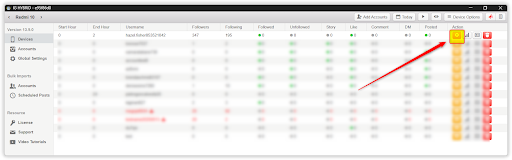
- Navigate to the Comment tab.

⚙️ Tool Configuration
1. Status
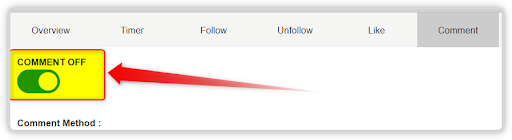
- On: Activates comment operations.
- Off: Pauses all activity.
2. Comment Method

- Comment Using Keyword Search: Find and comment on posts related to specific hashtags, keywords, or topics you specify. The bot will search for relevant posts and leave comments based on your settings.
3. Comment Text

-
Custom Comment Templates
Write your own comment templates in the text area.
▸ Create multiple variations separated by line breaks
▸ The bot will randomly select one comment per action
-
AI-Powered Comments
Use the
[AI]tag to activate AI-generated comments.▸ The bot will analyze each post and generate a contextually relevant response
-
Custom Comment GPT Prompt
Click the prompt button to set up advanced AI instructions
▸ Helps create more personalized and targeted comments
⚠️ Important Technical Note
Commenting requires Gesture Mode Navigation to be enabled on the device.
▸ If not manually set, the bot will automatically switch the device to Gesture Mode.
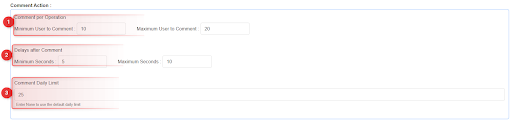
4. Comment Actions
-
Comments per Operation
Sets how many users the bot will comment on in one session.
▸ Example: 10–20 means the bot will randomly comment on 10 to 20 users per run.
-
Delays after Comment
Sets the pause between each individual comment.
▸ Example: 5–10 seconds means the bot will wait randomly between 5 and 10 seconds before commenting again.
-
Comment Daily Limit
Sets the maximum number of comments allowed in a 24-hour period.
▸ Example: Setting it to 25 stops all commenting after 25 comments until the next day.
⚙️ Additional Settings

- Don’t Comment user that was already Commented by the same tagged account: Prevents commenting on users you’ve already commented on before with other accounts using the same tagname. This helps avoid appearing spammy and maintains natural interaction patterns.
💬 Best Practices for Comment Content
💡 Creating Effective Comments:
-
Be Genuine
Write comments that add value and show you’ve actually viewed the content.
-
Ask Questions
Spark engagement by asking thoughtful, relevant questions based on the post.
-
Use Emojis Sparingly
Add a few emojis to make comments feel natural—but avoid overdoing it.
-
Avoid Generic Phrases
Stay away from obvious bot-like comments such as “Nice!” or “Great post!”
🔹 Comment Template Examples:
- “Love this perspective! How did you get started with [topic]? 💭” • “This is so inspiring! What’s your favorite part about [activity/subject]?” • “Thanks for sharing this! I’ve been thinking about [related topic] lately 🤔” • “Amazing work! How long did this take you to create?”
AI Comment Guidelines:
When using [AI] comments, the bot will: • Analyze the post content, caption, and context • Generate relevant, conversational responses • Maintain a natural tone that matches your brand voice • Avoid repetitive or generic comments
🛡️ Safety & Compliance
Instagram Limits:
- Daily Comment Limit: Instagram generally allows 50 -100 comments per day for established accounts, but start conservatively with 20-30 comments daily. • Account Age: Newer accounts should use lower limits (10-15 comments/day) and gradually increase. • Quality Over Quantity: Focus on meaningful comments rather than high volume.
Risk Management:
- Always review and test your comment templates before running • Monitor your account for any restrictions or warnings • Use realistic delays between comments (5-15 seconds minimum) • Avoid commenting on controversial or sensitive content
🏁 Conclusion
The Onimator Comment tool provides a sophisticated system for building genuine engagement and relationships on Instagram.
- Build Real Connections: Create meaningful conversations through thoughtful, relevant comments that encourage responses and follow-backs.
- Leverage AI Intelligence: Use advanced AI to generate contextual comments that feel natural and add value to each conversation.
- Stay Safe & Compliant: Maintain account health with smart daily limits, duplicate prevention, and natural timing patterns.
- Scale Strategically: Start with conservative limits and gradually increase as you see positive engagement and relationship building.
Get started by creating 5-10 genuine comment templates, then test with a small daily limit (10-15 comments). Monitor engagement rates and responses to optimize your approach. For advanced AI prompting strategies, explore our video tutorials or reach out to Onimator support—happy engaging!
🎥 Tutorials & Support
- 📹 Coming Soon – AI comment tutorial
- 💬 Support Channel: Contact Onimator Support