
Overview
The Post Monitors addon watches a target Instagram account for new posts and, the moment one is detected, automatically dispatches likes and/or comments to it using your eligible Job Orders accounts. Think of it as automated Job Orders for new content: instead of manually creating a Like or Comment job every time the target posts, the monitor reacts the second the post drops.
Built for reactive engagement campaigns where speed matters, early engagement on a fresh post weights heavier in the algorithm than engagement that arrives an hour later.
Key Features
- HikerAPI-Powered Detection — Polls the target’s profile on a schedule (default every 15 min) and fires when a new post appears.
- Auto-Like Dispatch — Distributes likes from your eligible accounts the instant a new post is detected.
- Auto-Comment Dispatch — Optional second action, with Spintax and
[AI]template support. - Per-Monitor Account Pools — Use the global Job Orders pool, or hand-pick a subset of accounts for each monitor.
- Live Dashboard — Active monitors, posts detected today, total monitors, eligible accounts, all at a glance.
- Real-Time Per-Monitor Stats — Status, Counts (L / C), Last Detected, Posts Today, Poll Interval.
Strategic Purpose: Capture the algorithm’s “early engagement bonus.” Self-boost your own posts, deliver client engagement on autopilot, or run automated engagement pods, all without touching the app when a post drops.
Prerequisites
Before Post Monitors can do anything, two things must be in place:
- HikerAPI key configured in Global Settings → Integrations. Without HikerAPI, the bot can’t detect new posts and monitors stay stuck on “awaiting first poll” forever.
- Accounts opted into Job Orders. Post Monitors uses the same eligible-accounts pool as Job Orders. Each account you want to use must have “Participate Job Orders” enabled in its Overview Tab.
Access Post Monitors
- Launch IGBot.
- In the left-side sidebar, under Addons, click Post Monitors.
- The dashboard opens with four stat cards and the monitors table.
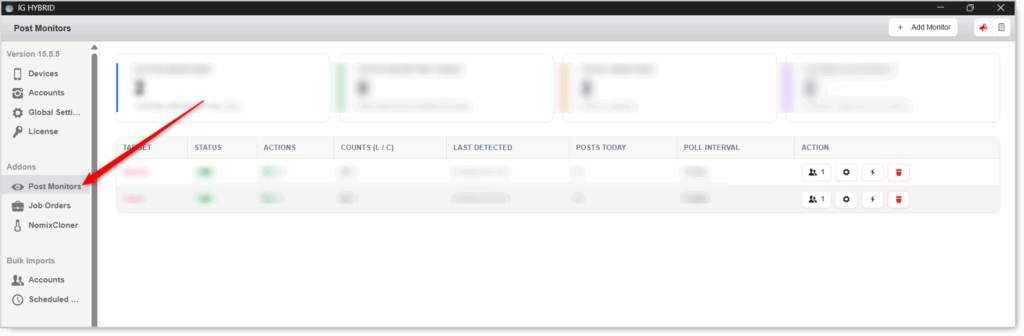
The Dashboard
Stat Cards
- Active Monitors — How many monitors are currently watching for new posts.
- Posts Detected Today — Total new posts picked up today across all monitors.
- Total Monitors — Active + paused monitors combined.
- Eligible Accounts — Accounts opted into Job Orders (the same pool used here).
Monitors Table
- Target — The Instagram username being watched (clickable link).
- Status —
ON(active),OFF(paused), or a stopped state. - Actions — Icons showing what fires on detection: ❤️ like, 💬 comment, or both.
- Counts (L / C) — Likes count
/Comments count per detected post.30 / -= 30 likes, no comments.30 / 10= 30 likes and 10 comments. - Last Detected — Timestamp of the last new post picked up, or
awaiting first pollif it hasn’t run yet. - Posts Today — Number of new posts this monitor has detected today.
- Poll Interval — How often HikerAPI checks for new posts (default
15 min). - Row Actions — 👥 manage accounts · ⚙️ settings · ⚡ run / trigger · 🗑️ delete.
Creating a New Monitor
- On the dashboard, click Add Monitor (top-right).

- Fill out the Add Post Monitor modal (fields below).
- Click ADD MONITOR at the bottom.

Field 1: Target Instagram Username
The Instagram account whose new posts you want to watch.
- Enter the username only, no
@symbol (e.g.natgeo, not@natgeo). - Must be a public account that HikerAPI can resolve. Private accounts won’t work.
- If the bot can’t resolve the target, the monitor stays stuck on “awaiting first poll” indefinitely.
Field 2: Like the New Post (Toggle + Max Accounts)
Toggle “Like the new post” ON to enable auto-likes. One sub-field appears:
- Max accounts to engage per post (default
30) — How many of your eligible accounts will like each new post. Set this to a number you can fulfill with your eligible-accounts pool, only as many likes fire as you have accounts available.
Field 3: Comment on the New Post (Toggle + Max Accounts + Comment Text)
Toggle “Comment on the new post” ON to enable auto-comments. Two sub-fields appear:
- Max accounts to engage per post (default
5) — Lower than likes by default, because comments are higher-risk. - Comment text — Spintax and
[AI]supported. Placeholder example:{Cool|Awesome|Love this} {📷|🔥|💗}. Emojis work inside spintax. Use[AI]for fully GPT-generated comments (requires OpenAI integration).
Always use spintax or
[AI]for comment text. Identical hardcoded comments across every detected post is the fastest path to a spam flag.
Field 4: Poll Interval
Dropdown. How often HikerAPI checks the target for new posts. Default 15 min.
Pick Accounts or Use Global Pool
After you click ADD MONITOR, a popup appears titled “Pick accounts for this monitor?” with two choices:

Option A: SKIP — USE GLOBAL POOL
Assigns the monitor to every account with “Participate in Job Orders” turned on. No selection needed.
- Use when: you want every eligible account to participate.
- Best for: single-monitor setups or one unified engagement strategy across all bots.
- Caveat: all eligible accounts contribute to this monitor’s actions, which can overlap with other monitors / Job Orders.
Option B: PICK ACCOUNTS NOW
Opens the account-selection popup so you can hand-pick a specific subset for this monitor.
- Use when: running multiple monitors / jobs and you want different account subsets per campaign.
- Best for: agencies separating client work, multi-niche operators, anyone needing per-monitor control.
- Workflow: check the boxes for the accounts you want → Save.
You can change this later. Even if you skip now, you can come back and pick specific accounts later via the 👥 manage-accounts icon on the monitor’s row.
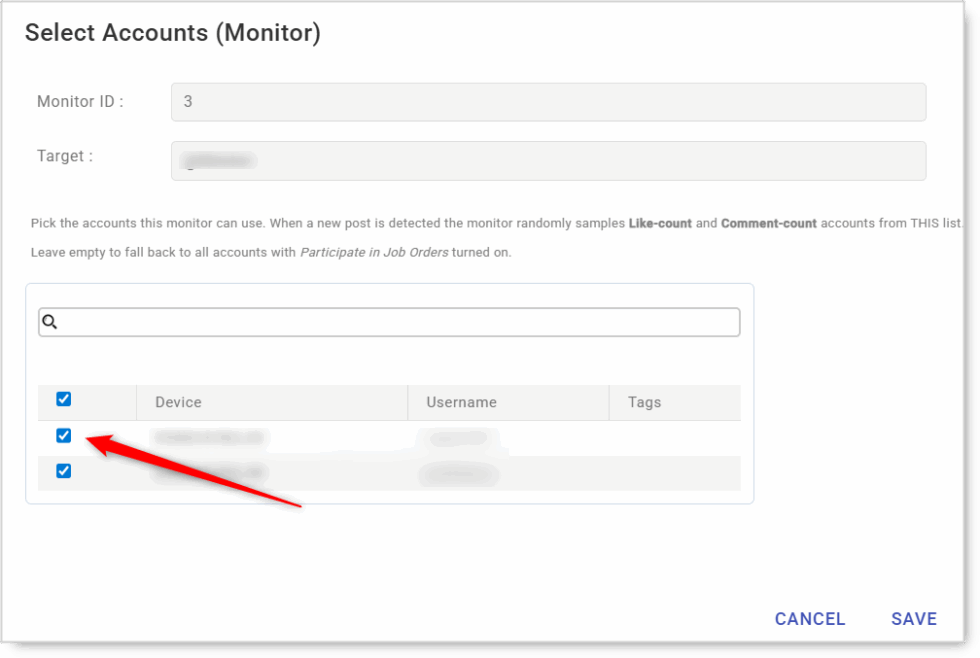
Managing a Monitor’s Accounts Later
 Click the 👥 manage accounts icon in the monitor’s row to open the account-selection popup any time.
- Accounts must have “Participate in Job Orders” ON in their Overview Tab to appear in the list.
- Select at least enough accounts to cover your Max accounts to engage per post (e.g. if it’s 30, select at least 30 eligible accounts).
- The dashboard’s Eligible Accounts stat card shows the total available across the bot.
Account missing from the list? Same fix as Job Orders, enable “Participate in Job Orders” in that account’s Overview Tab.
Poll Interval Trade-Offs
- Faster polls (5–10 min) — Quicker reaction to new posts, more HikerAPI calls (higher cost on your Hiker plan).
- Default (15 min) — Balanced for most accounts. Good detection speed without hammering the API.
- Slower polls (30–60 min) — Lower API cost, but posts may be detected well past the algorithm’s “early-engagement bonus” window.
15 min is the sweet spot for most setups. Drop to 5–10 min only when speed-to-detect really matters (e.g. self-boost on your own posts).
Run the Devices
Like Job Orders, monitors don’t fire until the devices holding their assigned accounts are running.
- Go to Devices in the sidebar.
- Start every device that holds an account assigned to an active monitor.
- Confirm each device shows the running indicator.
HikerAPI keeps polling regardless, but the like / comment actions only execute when devices are active.
Safety & Best Practices
Test Small Before Scaling
Set up one monitor on your own account with low counts (10–20 likes, no comments) before rolling out multi-client / multi-monitor setups.
Match Counts to Your Pool
A monitor can’t dispatch more actions than you have accounts. If you only have 30 eligible accounts, setting Likes per post to 100 just caps at 30 effective likes.
Comments Require Spintax or [AI]
Hardcoded identical comments across every detected post = instant spam flag. Always rotate phrasings via spintax and / or use [AI].
Coordinate with Per-Account Daily Limits
A monitor that fires 30 likes per post on a target who posts 5x/day pulls 150 likes/day from your pool. Make sure each account’s daily activity budget accommodates this on top of its other engagement.
Pair with Webhook Notifications
Hook up Discord / Slack webhooks (Global Settings → Webhooks) for real-time pings when a new post is detected, useful if you want to know the instant detection fires, not just see it on the dashboard.
HikerAPI Quota Discipline
Polling every 1–2 min burns through your Hiker quota fast for marginal benefit. 5–15 min is almost always enough.
Conclusion
- Automated Job Orders for new content — Watch a target, auto-dispatch likes/comments the moment they publish.
- Built on HikerAPI — Detection-driven, not manual.
- Shared pool with Job Orders — Same “Participate in Job Orders” eligibility model.
- Per-monitor account pools — Global default, or hand-pick subsets per campaign.
- Early engagement = algorithm advantage — Reactive engagement weights heavier than late engagement.
Implementation Tip: Start with a single monitor on your own account, Likes only, 10–20 likes per post, default 15 min poll. Publish a test post and confirm detection fires and engagement lands. Once that loop is proven, scale to client / partner targets and add Comments with a well-built spintax template.
Tutorials & Support
- Need help? Watch the Post Monitors tutorial (coming soon).
- Telegram Support: Join Onimator Support