
Video Tutorials
Overview
The Like Tool is IGBot’s low-risk engagement engine. It points the bot at one of three sources (followers of source accounts, likers found via keyword search, or specific accounts) and likes their recent posts at a controlled pace. Each like is a small engagement signal that boosts reach in a niche without consuming the account’s follow quota.
Built for IGBot users who want to warm up new accounts, maintain engagement with VIP lists, or build broad niche visibility without the higher-risk profile of Follow or DM tools.
Strategic Purpose: Liking posts is a cheaper, lower-risk engagement signal than following. It’s the right tool for warming up fresh accounts, recovering recently-blocked accounts, and maintaining a steady engagement footprint that boosts visibility without burning follow budget.
Key Features
- Three Like Methods — Source’s Followers (broad reach), Likers via Keyword Search (highly targeted), and Specific Accounts (curated). Pick one or stack several.
- Per-User Post Cap — Control how many of each user’s posts get liked per visit (typical 1–3), so the bot doesn’t blast a single user with ten likes in a row.
- Auto-Increment Warm-Up — Gradually raise the daily cap on fresh or recently-blocked accounts instead of starting at full volume.
- Apply Filters to Specific Accounts — Optional toggle to run hand-picked lists through the same Target Filters as the broader methods.
- Shared Word Filter — The “Filter word search in followers list” is the same list used by Follow and Story tools, so targeting stays consistent across actions.
- Story Likes After Post Likes — Optional follow-up that views and likes a user’s stories right after liking their post.
- Cross-Tool Skip Rules — Skip users already followed by the Follow Tool and users already liked by a same-tag account.
- Auto-Remove Sources — For the Specific Accounts method, sources can be auto-removed once liked, keeping the list clean.
- Quick Tool — On-demand Check Follow-Back Ratio to measure how many liked users actually followed back.
Strategic Purpose: Use Like Tool as the first tool you turn on for a new account. Two weeks of pure liking establishes a non-aggressive behavioral baseline that makes every subsequent tool (Follow, DM, Comment) operate cleaner.
Why Like Is Lower-Risk Than Follow or DM
Likes are the highest-volume, lowest-risk action on Instagram. Unlike follows (which Instagram tracks against tight per-day thresholds) or DMs (which are heavily monitored for spam patterns), likes are baseline app behavior that real users perform constantly. The Like Tool’s natural ceilings are 5–10× higher than Follow’s before detection signals begin to accumulate.
That said, Like is not risk-free. Pattern detection on liking still fires when:
- Likes happen at uniformly fast intervals (no delay variation)
- The same accounts get repeatedly liked in tight loops
- Likes pile up on accounts that show no other genuine engagement
Use generous delay variation and the per-user post cap to avoid these patterns.
Access the Like Tool
- Add your account in IGBot.
- Click the SETTINGS button beside your account.
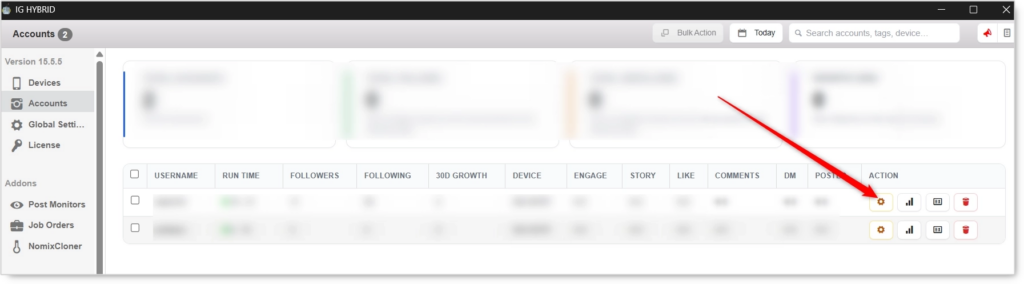
- Navigate to the Like tab.

Like will not fire without at least one Like Method enabled. Pick a method, configure its source list, and set the daily cap before enabling the master toggle.
Like Configuration
Master Toggle

- Enable Like posts — When on, the bot likes posts from the sources configured below. When off, no like activity regardless of method toggles.
Like Methods (Required: pick at least one)
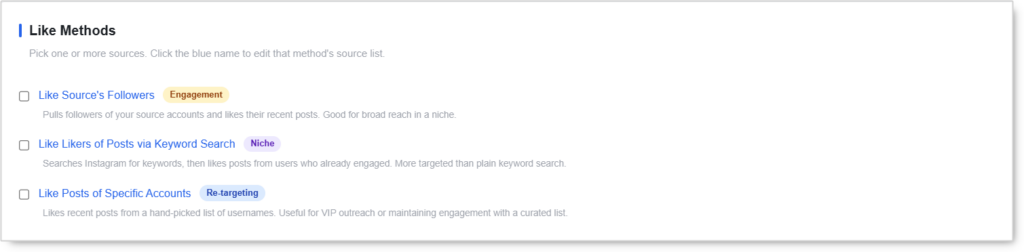 Pick one or more sources. Click the blue method name to edit that method’s source list. Stacking methods shares the same daily cap; it distributes the budget across more sources.
Like Source’s Followers (Engagement)
 Pulls followers of your source accounts and likes their recent posts. Good for broad reach in a niche.
Use case: The default broad-engagement method. Best when you can identify 5–10 in-niche source accounts whose followers match your ideal audience.
Like Likers of Posts via Keyword Search (Niche)
 Searches Instagram for keywords, then likes posts from users who already engaged with matching content. More targeted than plain keyword search because the targeted users have already demonstrated interest in your niche.
Use case: Niche entry where engagement-quality matters more than volume. The users targeted by this method have already liked content similar to yours, which produces unusually high reciprocal engagement rates.
Like Posts of Specific Accounts (Re-targeting)
 Likes recent posts from a hand-picked list of usernames. Useful for VIP outreach or maintaining engagement with a curated list.
Method-specific sub-option:
- Apply filters to Specific Accounts — When on, the Like-tab Target Filters you’ve configured (Followers, Posts, Bio, Verified, etc.) are applied to each username on the list before liking. Targets that fail are skipped and removed from the list. Default OFF — specific usernames are normally treated as hand-picked and bypass filters.
Use case: Maintaining engagement with a list of VIPs (competitors, partners, prospects) by reliably liking their new posts. Apply filters only if the list came from a wider scrape and needs additional qualification.
Like Action
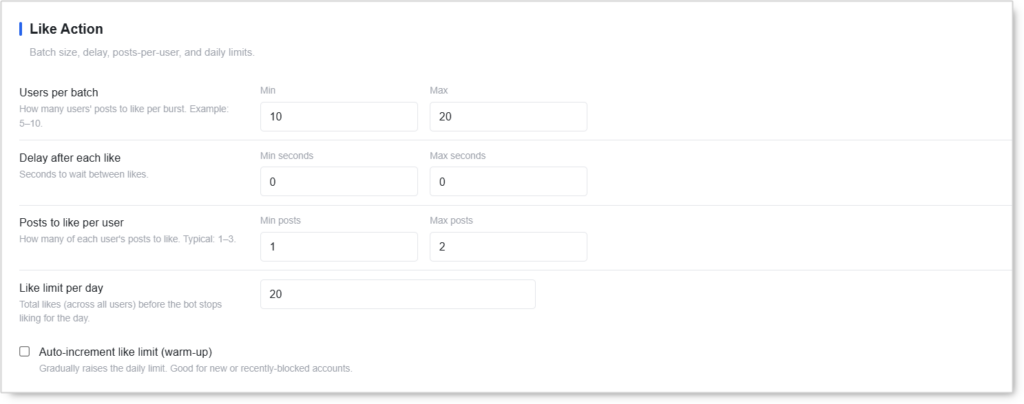 Batch size, delay, posts-per-user, and daily limits.
- Users per batch (Min / Max) — How many users’ posts to like per burst. Example:
5–10. - Delay after each like (Min seconds / Max seconds) — Seconds to wait between likes. Always set both > 0 and use a range to vary the cadence.
- Posts to like per user (Min posts / Max posts) — How many of each user’s posts to like per visit. Typical:
1–3. Avoid liking more than 3 per visit — it reads as bot behavior. - Like limit per day — Total likes (across all users) before the bot stops liking for the day.
- Auto-increment like limit (warm-up) — Gradually raises the daily limit. Good for new or recently-blocked accounts. Start low, end at your target.
The Min/Max delay range matters more than the absolute values. Identical
0–0delay or5–5flat delay produces a uniform cadence that reads as automated. Always use a range with at least a 3-second spread.
Additional Like Rules
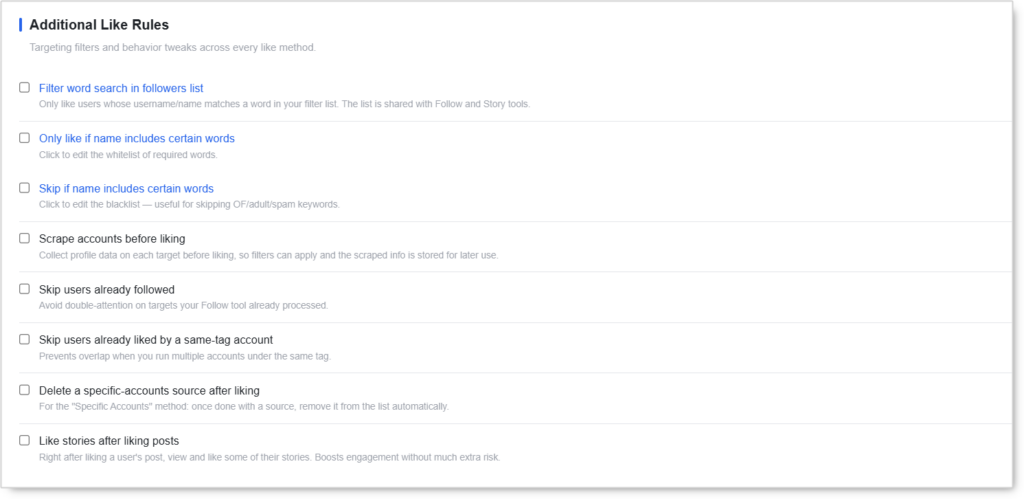 Targeting filters and behavior tweaks across every like method.
- Filter word search in followers list — Only like users whose username or name matches a word in your filter list. The list is shared with Follow and Story tools (one word list, three tools).
- Only like if name includes certain words — Whitelist of required words in the user’s name or username.
- Skip if name includes certain words — Blacklist of skip-words. Useful for skipping OF/adult/spam keywords.
- Scrape accounts before liking — Collect profile data on each target before liking, so filters can apply and the scraped info is stored for later use. Slower per-target but enables full filter application.
- Skip users already followed — Avoid double-attention on targets the Follow Tool already processed. Prevents the same account from being liked and followed in tight succession.
- Skip users already liked by a same-tag account — Prevents overlap when running multiple accounts under the same tag.
- Delete a specific-accounts source after liking — For the Specific Accounts method: once done with a source, remove it from the list automatically. Keeps the source list clean.
- Like stories after liking posts — Right after liking a user’s post, view and like some of their stories. Boosts engagement without much extra risk and counts toward the Story Tool’s daily budget.
Target Filters
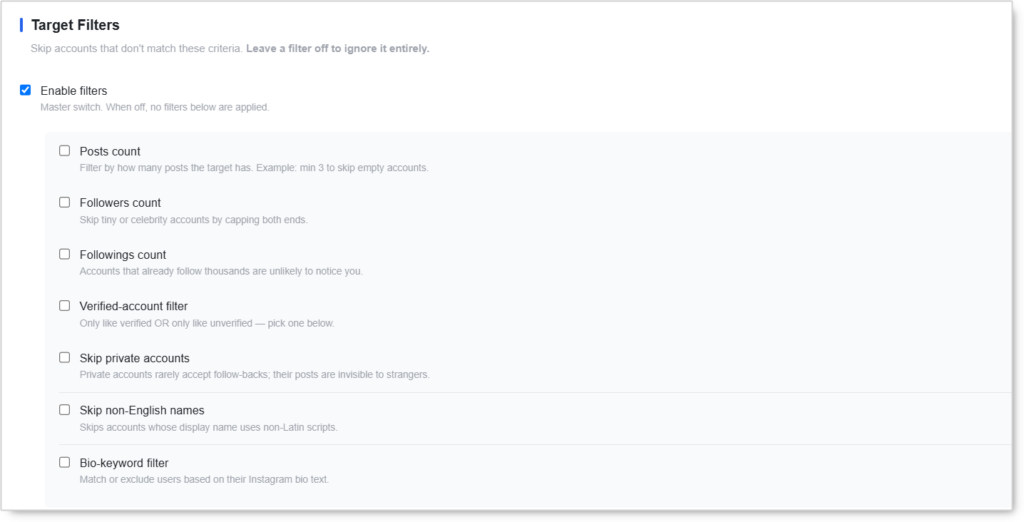 Skip accounts that don’t match these criteria. Leave a filter off to ignore it entirely. Leaving min/max blank inside an active filter also means “no limit on that end.”
- Enable filters — Master switch. When off, no filters below are applied (even if individually toggled on).
When the master switch is on, configure individual filters:
- Posts count — Filter by how many posts the target has. Example: min
3to skip empty accounts. - Followers count — Filter by target’s follower count. Example:
100–10000to skip brand-new and celebrity accounts. - Followings count — Filter by how many accounts the target follows.
- Verified-account filter — Only like verified OR only like unverified.
- Skip private accounts — Private accounts’ posts aren’t visible without approval.
- Skip non-English names — Skips accounts whose display name uses non-Latin scripts.
- Bio-keyword filter — Match or exclude users based on their Instagram bio text.
The Like Tool’s filter requirements are lower than Follow’s because liking is cheaper. Use Posts count and Followers count as the baseline; add Bio-keyword only when you need precise niche matching.
Quick Tools
 Utilities you can run on demand for this account.
- Check Follow-Back Ratio — See how many users you liked actually followed you back. Useful for measuring whether the Like Tool is contributing to follower growth or just to engagement.
Safety & Best Practices
Daily Cap by Account Tier
| Account Tier | Likes/day |
|---|---|
| New (under 30 days) | 30–50 with Auto-increment ON |
| Warmed (30–90 days) | 100–200 |
| Aged (90+ days, clean history) | 200–500 |
These caps are total ceilings across all like methods combined. Stacking methods doesn’t expand the budget.
Use Like Tool First on New Accounts
Pure liking for the first 7–14 days establishes a non-aggressive baseline. Turn on Like Tool, run at the New-tier cap with Auto-increment ON, and don’t enable Follow or DM until the Like phase completes cleanly.
This is the safest possible warm-up sequence.
Delay Variation Matters More Than Absolute Delay
A 0–0 delay or 5–5 flat delay produces a uniform cadence that reads as automated even at slow absolute speeds. Always use a range with at least a 3-second spread between min and max. 2–8 is better than 5–5.
Keep Posts-Per-User Capped at 3 Max
Liking 5+ posts on the same user in a single visit is one of the strongest bot signals available. Stay at 1–3 posts per user. If you need higher per-user engagement, layer in the Story Tool instead of pushing the post cap up.
Coordinate with Other Engagement Tools
The Like Tool’s likes and the Follow Tool’s “Like random posts when visiting” sub-option both draw from the same per-account like budget. The Skip users already followed toggle in Additional Like Rules prevents the same target from being hit by both.
For Engage Tool users on the same account, disable the standalone Like tab. Engage handles liking as a sub-action and stacking causes double-fires.
The Story Like Boost
Enabling Like stories after liking posts is the highest-ROI add-on in the Like Tool. Story likes show up prominently in the recipient’s notifications, often more visibly than post likes do, and the action is essentially free risk-wise. Counts toward Story Tool budget.
Risk Management
- Stack at most 2 methods on a single account
- Use Target Filters to skip empty and celebrity accounts — both burn budget
- Watch the Check Follow-Back Ratio Quick Tool — if the ratio is below 5%, the targeting is too cold or the filters need tightening
- Don’t run Like Tool at full volume the day after a recent block; restart with Auto-increment from the New-tier cap
Conclusion
- Three like methods cover broad-reach (Source’s Followers), targeted (Keyword Likers), and curated (Specific Accounts).
- Lower risk than Follow or DM — Like is the safest tool to run at high volume on warmed accounts.
- Auto-increment warm-up scales fresh or recently-blocked accounts back to target volume cleanly.
- Per-user post cap prevents the bot signature of stacking 5+ likes on one user.
- Shared word filter keeps Follow / Like / Story targeting consistent across tools.
- Story like boost turns each post like into a higher-visibility engagement event for free.
- Cross-tool skip rules prevent the same target from getting hit by Like + Follow on the same account.
Implementation Tip: New account playbook — enable Like Source’s Followers as the only method with Like Action at 5–10 per batch, 2–8s delay, 1–2 posts per user, 30/day cap with Auto-increment +10/day until 100. Enable Like stories after liking posts in Additional Rules. Run for 14 days clean before introducing Follow or DM tools. Once Like is stable at target volume, that warmed account profile produces 30–50% lower block rates on every subsequent tool.
Tutorials & Support
- Video Tutorial: Watch here
- Need Help? Reach out via Onimator Support Telegram