
Overview
Global Settings is the central control panel for IGBot behavior across every account and device. The per-account tool tabs (Follow, Like, DM, etc.) control what an individual account does. Global Settings controls how the platform itself behaves — startup behavior, hard hourly ceilings, anti-detection logic, source management, integrations, and experimental features.
Built for IGBot operators who want to configure platform-level safety and behavior once, then have it apply across every account without having to repeat per-account configuration.
Strategic Purpose: The per-account tools determine per-account outcomes. Global Settings determines what’s possible across the whole operation. Most safety and performance gains at scale come from Global Settings, not from per-account tuning.
Section Map
Global Settings is divided into twelve sections, accessible via the sidebar on the right:
- General — Core timers and startup behavior
- Device Control — Reboot, sleep, console window behavior
- Action Limits — Global hard ceilings per hour
- Anti-Detection — Block detection, flight mode, randomization
- Search & Sources — How the bot finds and prunes targets
- Follow-Back Ratio — Auto-prune low-performing sources
- Login & Auto-Relogin — Login retry policy and LOLI
- Notifications — Webhook alerts and event notifications
- Accounts Page Display — Which columns appear on the Accounts page
- Job Orders — SMM-panel order behavior
- Integrations — APIs, AI providers, CRM, MongoDB, proxies
- Advanced — Experimental flags
General

Core timers and global startup behavior.
- Start all device delay (seconds) — How long to wait between starting each device when you click “Start All”. Helps stagger network load. Default:
1. - Wait for Instagram to open (seconds) — Delay before the bot starts acting after launching Instagram. Raise if the app takes a while to load on your phone. Default:
15. - Action tool timeout (minutes) — Max minutes a single action tool (Follow, Like, etc.) can run before rotating to the next one. Default:
60. - Growth-since window (days) — Number of days used to compute the “Growth” column on the Accounts page. Default:
30. - Media path for scheduled posts — Folder on the phone where scheduled post images live. Must end with a forward slash. Default:
sdcard/pictures/. - Use Rescan Media app to detect new media — Turn on if scheduled posts can’t see newly added images in your media folder.
The Media path is required for the Post Scheduling Tool to work. If scheduled posts fail at publish time, this is the first place to check.
Device Control
 How devices behave around reboots, startup, and sleep.
- Daily device reboot time — 24-hour clock (e.g.
18:30). Phones reboot at this time each day. EnterNoneto disable. - Kill IGBot instead of waiting for the device — If the phone is disconnected, close the bot immediately instead of retrying. Useful in unattended setups.
- Auto-start all devices on app launch — When the app opens, automatically click “Start All Devices” for you.
- Sleep screen instead of doing a random action — During idle periods, turn the phone screen off instead of performing a filler random action. Quieter but less human-like.
- Refresh Instagram after every action — Reload the app between actions to clear state. More reliable but slower.
- Show per-device console log window — When on, each running device opens a console window showing its live log. Turn off for a quieter desktop.
Daily reboot at a quiet hour (e.g.
03:00) is recommended for long-running operations. Memory leaks and stuck states clear on reboot.
Action Limits
 Global hard ceilings per hour. Applied on top of per-account daily limits.
- Enable action-per-hour hard limit — Turn on to cap the bot at the per-tool hourly ceilings below. Safer for long-running accounts.
When enabled, configure per-tool hourly caps:
- Follow limit per hour — Default:
25. - Unfollow limit per hour — Default:
25. - Like limit per hour — Default:
25. - DM limit per hour — Default:
25. Only counts first-time messages to new users. DM replies are not counted. - Story-view limit per hour — Default:
100. - Comment limit per hour — Default:
25.
The hourly cap is a safety floor in addition to per-account daily caps. Even if a per-account daily limit allows 300 follows/day, this setting prevents the account from doing more than the configured per-hour limit. Recommended ON for all multi-account operations.
Anti-Detection
 Block detection, pause-instead-of-block, flight mode, and randomization behaviors.
Behavior Toggles
- Randomize action tool order — Start Follow/Like/Story in a random order each cycle instead of the fixed sequence. Looks more human.
- Stop actions when “Request Pending” notification appears — Freezes all actions when Instagram warns about pending requests — a common pre-block signal.
- Check new followers via Notification page — Reads the Notifications feed to detect follow-backs. Turn off to use the Followers list instead.
- Disable all actions when a block or ghost block is detected — Stops every tool on the account as soon as a block is seen. Recommended — prevents compounding damage.
- Enable Like block detection — Watches for the “We limit how often…” popup and treats it as a block.
Flight Mode
- Enable Flight Mode reset — Toggles airplane mode to force a new IP. Useful on mobile networks with shared IPs.
- Flight mode on every account switch — Refresh IP between accounts. Slower but safer for multi-account devices.
- Flight mode on a daily timer — Run the flight-mode reset at a specific clock time each day.
Flight mode on every account switch is the single highest-leverage anti-detection setting. Every account on a multi-account device gets a fresh mobile IP between sessions, eliminating the network-correlation signal that flags account clusters.
Ghost-Block Detection
- Enable ghost-block detection — Samples recently-followed accounts and checks whether your follow actually landed. Catches silent “shadow bans”.
- Ghost-block checker sensitivity — Percent (1–100) of recently-followed accounts to sample. Higher = catches ghost blocks faster but uses more API calls. Default:
60.
- Ghost-block checker sensitivity — Percent (1–100) of recently-followed accounts to sample. Higher = catches ghost blocks faster but uses more API calls. Default:
Pause Instead of Disable
- Pause the bot instead of turning off the action when “Try Again Later” is detected — Soft-pauses for a set number of minutes so the action tool doesn’t get disabled for the day.
- Also apply pause-instead-of-block to Like Post — By default only affects Follow/Unfollow. Turn on to extend to Like as well.
- Minutes to pause — How long to sleep after a “Try Again Later” detection before resuming. Default:
120.
- Auto re-enable action tools after N days — If a tool is turned off by a block, the bot turns it back on after this many days.
Search & Sources
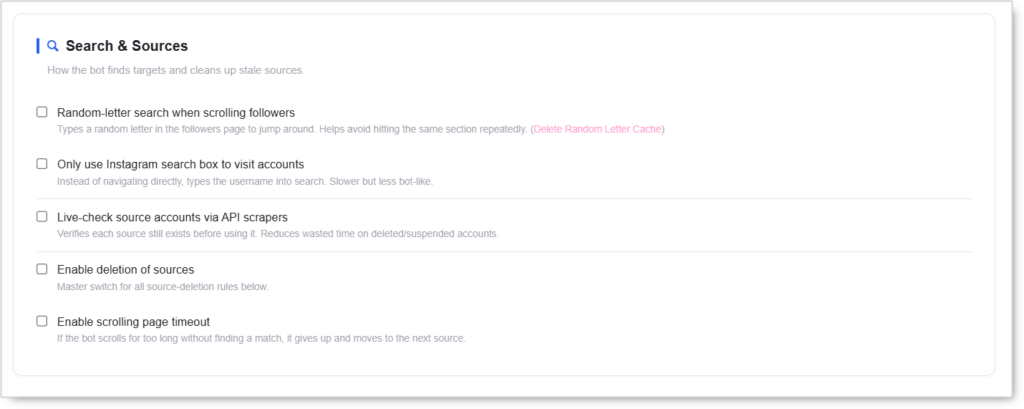 How the bot finds targets and cleans up stale sources.
Random-Letter Search
- Random-letter search when scrolling followers — Types a random letter in the followers page to jump around. Helps avoid hitting the same section repeatedly.
- 1st random letter set — Letters the bot picks from. Runs once per session before scrolling starts. Default:
abcdefghijklmnopqrstuvwyz. - 2nd random letter set — Added after the first letter for deeper jumping. Leave blank for single-letter mode. Default:
aeiou. - Use random-letter search only randomly — Sometimes triggers, sometimes not — more human-like than always-on.
- Apply to Follow tool
- Apply to Like tool
- Apply to Story-view tool
- 1st random letter set — Letters the bot picks from. Runs once per session before scrolling starts. Default:
Other Search Behaviors
- Only use Instagram search box to visit accounts — Instead of navigating directly, types the username into search. Slower but less bot-like.
- Live-check source accounts via API scrapers — Verifies each source still exists before using it. Reduces wasted time on deleted/suspended accounts.
Source Deletion
- Enable deletion of sources — Master switch for all source-deletion rules below.
- Apply source deletion to Follow / Like / Story View — Per-tool toggles for which tools trigger source deletion.
- Delete sources that are verified (blue check) — Celeb accounts rarely follow back — this auto-prunes them.
- Delete sources that no longer exist — If Instagram says the account doesn’t exist, the bot removes it from your source list.
- Delete source after following X% of users — Percent of the source’s followers the bot needs to follow before the source becomes eligible for deletion. Default:
99.
Scrolling Page Timeout
- Enable scrolling page timeout — If the bot scrolls for too long without finding a match, it gives up and moves to the next source.
- Timeout (minutes) — Max minutes of scrolling before the bot rotates sources. Default:
2. - Apply to Followers page (Follow tool)
- Apply to Followings page (Unfollow tool)
- Apply to Followers page (Story View tool)
- Timeout (minutes) — Max minutes of scrolling before the bot rotates sources. Default:
Follow-Back Ratio (FBR)
 Auto-prune sources based on how many users actually followed back.
- Enable followers checker for FBR — Periodically fetches follower counts so FBR calculations stay accurate.
- Enable automatic FBR-driven source deletion — Once a source has been fully worked, delete it if its follow-back ratio fell below your threshold.
- Minimum follows per source before eligible — Don’t judge a source until at least this many of its users have been followed. Default:
186. - Minimum follow-back ratio (%) — Sources below this FBR get deleted. Typical:
5–15. Default:10. - Minimum sources to keep — Never delete below this many sources, even if they all underperform. Default:
4. - Delay days before deletion — After hitting the follow minimum, wait this long before deleting a low-FBR source. Default:
100.
- Minimum follows per source before eligible — Don’t judge a source until at least this many of its users have been followed. Default:
FBR-driven deletion is the operational answer to “which sources are actually working.” Sources below the threshold burn budget without producing followers; auto-deletion redirects that budget to higher-performing sources.
Login & Auto-Relogin
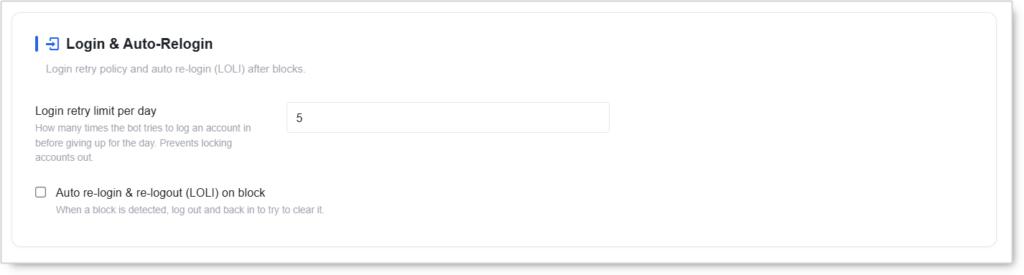 Login retry policy and auto re-login (LOLI) after blocks.
- Login retry limit per day — How many times the bot tries to log an account in before giving up for the day. Prevents locking accounts out. Default:
5. - Auto re-login & re-logout (LOLI) on block — When a block is detected, log out and back in to try to clear it.
LOLI is a recovery option, not a routine setting. Frequent login/logout cycles on the same account read as compromised-account behavior. Enable only when a block is actually persistent.
Notifications
 When the bot should alert you based on action outcomes.
- Notify at source follow percentage — Fire a notification if the bot has followed more than this % of a source’s followers (usually means the source is exhausted). Default:
80. - Notify when action completion falls below target — If an account is supposed to hit X% of its daily limit and doesn’t, fire a notification.
Webhook (Discord / Slack / Generic)
Forward critical bot events to an external chat or webhook receiver — get a Discord ping the moment an account hits a Follow Block or loses connectivity.
- Webhook URL — Paste a Discord webhook URL, a Slack incoming-webhook URL, or any JSON receiver. Leave blank to disable.
- Fire on every event (default: critical only) — When off, only the four critical categories post: Block, Session, Ghost block, No Connection. When on, every recorded event posts (much noisier).
- Send test notification — Posts one message to the URL above to verify connectivity. Sends even if “Fire on every event” is off.
Discord webhook is the most-used integration for multi-account operations. A single Discord channel can receive critical events from dozens of accounts, making block detection and connectivity issues immediately visible without checking each account individually.
Accounts Page Display
 Which columns and rows appear on the global Accounts page.
- Hide accounts with no active hours — Rows where both start-hour and end-hour are
0get hidden. Helps focus the list. - Hide Tags column
- Hide Follow column
- Hide Unfollow column
- Hide Device Name column
- Hide Story column
- Hide Like column
- Hide Comment column
- Hide DM column
- Hide Posted column
- Hide Growth Since column
The default Accounts page shows everything, which becomes overwhelming at scale. Hide columns you don’t actively reference. Most operators hide Tags, Comment, and Posted by default.
Job Orders
 Settings for SMM-panel style orders dispatched to selected accounts.
- Randomize task execution order — When multiple orders are queued, run them in random order instead of the order they were created.
Integrations
External APIs, databases, dashboards, and proxy network.
API Scraping

- Scraped users limit per API call — Cap how many usernames the bot pulls per scrape. Lower = cheaper API usage. Default:
7500. - RapidAPI “Instagram Scraper by Crawler” key — Get your key from
rapidapi.com/yuananf/api/instagram28. - Enable Hiker API scraper — Alternative Instagram scraping backend. Often faster and more reliable than RapidAPI.
- Scrape contact button info (email, phone) — When visiting a business profile, clicks the Contact button and reads email/phone if available. Slower.
AI Providers

- Enable OpenAI — Powers AI comment/DM templates when you use the
[AI]placeholder.- OpenAI API key — Your OpenAI API key.
- GPT model — Default:
gpt-4.gpt-4o-miniis the cheapest good-quality choice for short comments/DMs.
- Enable Cupid AI — Alternative AI provider tuned for flirty/dating DMs.
- Cupid AI access token — Cupid AI API token.
- Enable FluidTalk — Managed persona DM engine. Configure the persona on your FluidTalk dashboard, then paste the secret key below.
- Personas — Each secret key is its own persona. Add as many as you like and name them — accounts pick a persona in the DM tab.
- + Add persona — Add additional named personas with their own secret keys.
For most operations, OpenAI is the right default with
gpt-4o-miniselected for cost efficiency. Cupid AI is dating-app-specific. FluidTalk’s per-persona architecture is valuable when running multi-account operations with distinct DM voices per account cluster.
CRM & Dashboard

- Enable Onimator CRM — Pulls DM jobs from the Onimator CRM backend (SMM-panel integration).
- Onimator CRM token — Authentication token for CRM access.
- Check Onimator CRM connection — Verifies the token and connectivity without saving settings.
- Enable Web Dashboard persistence — Syncs accounts and activity to an external Dashboard URL via ngrok.
- Dashboard URL — Full URL of your external Dashboard (with protocol).
- Ngrok API key — Get yours at
ngrok.com.
MongoDB

- Enable MongoDB action logging — Stream bot activity to a MongoDB cluster for reporting and multi-device aggregation.
- MongoDB URI — Connection string (e.g.
mongodb+srv://...). - Database name — Default:
igbot. - Send actions — Log every follow/like/comment/etc. action to MongoDB.
- Actions collection name — Default:
actions.
- Actions collection name — Default:
- Send scraped accounts — Push scraped user profiles (followers, bio, etc.) to MongoDB.
- Scrape accounts collection name — Default:
scrape_accounts.
- Scrape accounts collection name — Default:
- Send growth statistics — Log each account’s daily follower/following/post counts.
- Statistics collection name — Default:
statistics.
- Statistics collection name — Default:
- Send FollowBack updates — Log confirmed follow-backs to MongoDB.
- MongoDB URI — Connection string (e.g.
MongoDB integration is the right architecture for multi-device, multi-account reporting at agency scale. A central MongoDB cluster aggregates activity from every device into one queryable source.
Proxy & Network

- Enable proxy rotation — Before each account starts, the bot hits your rotation API to get a fresh proxy/IP.
AI Assistant Access (MCP)
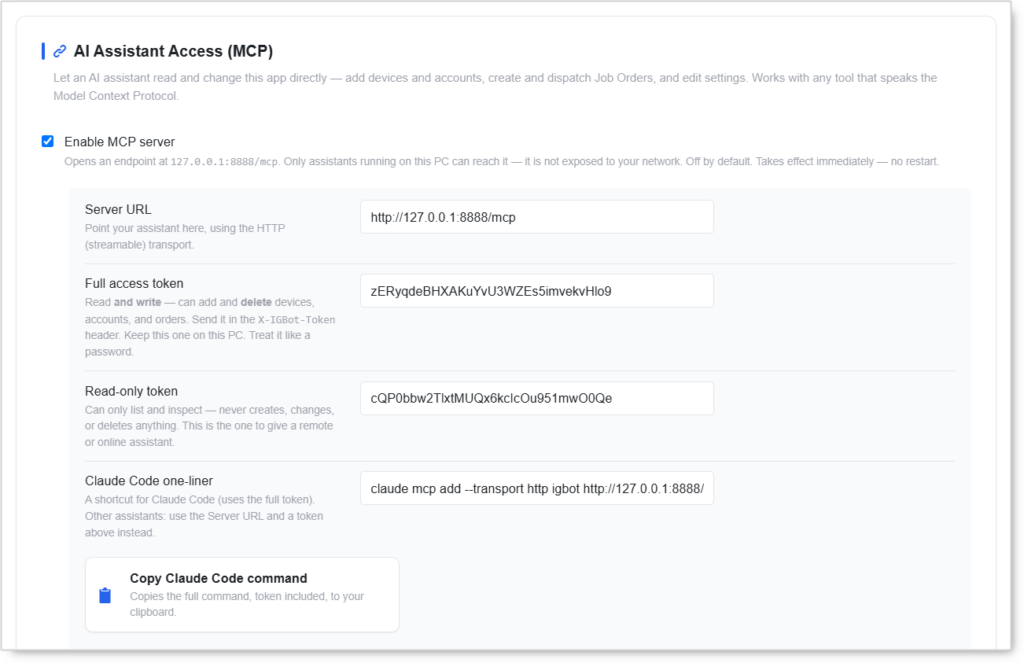
Lets an AI assistant like Claude Code connect directly to IGBot through the Model Context Protocol standard. Introduced in v15.7.2.
- Enable MCP server — Opens a local endpoint at
127.0.0.1:8888/mcpthat AI assistants can connect to. Only assistants running on the same PC can reach it — the endpoint is not exposed to your network. Takes effect immediately, no restart needed.- Server URL — The endpoint your AI assistant connects to. Default:
http://127.0.0.1:8888/mcp. Uses the HTTP (streamable) transport. - Full access token — Read and write access. The AI can add and delete devices, accounts, and orders. Send it in the
X-IGBot-Tokenheader. Treat like a password. - Read-only token — Inspect-only access. The AI can list and view but never creates, changes, or deletes anything. Safer for remote or cloud-hosted AI assistants.
- Claude Code one-liner — Ready-made command for Claude Code that uses the full-access token. Other assistants: use the Server URL + a token above instead.
- Copy Claude Code command — Button. Copies the full command with your token embedded to your clipboard.
- Server URL — The endpoint your AI assistant connects to. Default:
- Allow remote writes (dangerous) — By default, any request coming through a tunnel or proxy is forced read-only — even with the full token — so a remote leak can’t delete anything. This toggle overrides that safeguard. Leave OFF unless you specifically need a remote AI to make changes.
Off by default. Enable only if you actively use an MCP-compatible AI assistant. For remote access, hand out the read-only token — not the full one. Deletes always take two calls (preview, then confirm), but auto-approving assistants won’t pause for you.
Advanced / Experimental
 Experimental flags and legacy options. Change with caution.
- Enable UIAutomator2 backend (experimental) — Alternative UI-automation engine. Some device models work better with this on.
- Verbose Engage trace logger — When ON, the Engage tool prints granular step-by-step traces to CMD AND appends them to
<account>/.stm/engagement_trace_<date>.txt. Useful for diagnosing ADB hangs. Turn OFF once the workflow is stable; the per-step logs are noisy under normal operation. - Verbose Follow trace logger — When ON, every Follow method (Hashtag / Likers / WordSearch / Followers / OwnFollowers / JobOrders / SpecificUser / SavedPost) emits granular step-by-step traces to CMD AND appends them to
<account>/.stm/follow_trace_<date>.txt. Useful for pinpointing why a Follow run silently no-ops (skip reason, filter result, tap miss, block). Disabled by default; the per-step logs are noisy under normal operation.
Verbose loggers are diagnostic tools. They produce substantial log volume. Enable when troubleshooting a specific issue and disable once resolved.
Safety & Best Practices
The Five Highest-Leverage Settings
If you only configure five things in Global Settings, configure these:
- Anti-Detection → Flight mode on every account switch — eliminates network correlation between accounts on the same device.
- Anti-Detection → Disable all actions when a block or ghost block is detected — prevents compounding damage.
- Action Limits → Enable action-per-hour hard limit with conservative per-tool caps.
- Anti-Detection → Pause the bot instead of turning off (Try Again Later) with 120-minute pause — soft-pause is recoverable; tool-disable is not.
- Notifications → Webhook URL pointed at a Discord channel — block detection visible immediately, not next time you check the dashboard.
Configure Once, Apply Everywhere
Global Settings applies to every account on every device. Time invested here produces compounding returns: a single configuration change ripples across the entire operation.
Conversely, per-account configuration tuning at scale is operationally expensive. If a behavior can be controlled at the Global Settings layer, configure it there.
Daily Reboot Saves Long-Running Operations
Set Daily device reboot time to a quiet hour (e.g., 03:00). Memory leaks, stuck app states, and Android-side resource exhaustion all clear on reboot. Long-running multi-day operations are materially more stable with daily reboot enabled.
Hourly Hard Limits Catch Misconfigurations
The per-account daily limits can be misconfigured (e.g., accidentally setting 500/day instead of 50). The Action Limits → Enable action-per-hour hard limit catches these misconfigurations before they produce blocks. Cheap insurance.
Source Deletion + FBR Deletion Work Together
The two source-deletion systems serve different purposes:
- Source Deletion (Search & Sources) — Removes sources after the bot has worked them (followed X% of their followers, source verified, source doesn’t exist).
- FBR Deletion — Removes sources that produced low follow-back rates regardless of how much was followed.
Enabling both produces a self-cleaning source list. Sources that don’t perform get removed; sources that are exhausted get removed. The remaining source pool stays high-quality.
Webhook Is The Operational Force Multiplier
A Discord webhook turns multi-account monitoring from a manual task into a passive notification stream. The four critical event categories (Block, Session, Ghost block, No Connection) cover everything that requires operator attention. Enable Webhook URL on every multi-account operation.
Don’t Enable Every AI Provider
OpenAI, Cupid AI, and FluidTalk are alternatives, not stack components. Enable the one that matches your use case:
- General content / DMs / comments → OpenAI
- Dating-app DMs (Bumble, Tinder) → Cupid AI
- Multi-persona DM operation → FluidTalk
Enabling multiple providers creates configuration ambiguity per account. Pick one per use case.
MongoDB For Scale, Not For Single-Operator
MongoDB integration is overhead for single-operator setups (one person, 5–10 accounts, watching the IGBot UI directly). For agency scale (multiple operators, 50+ accounts, central reporting), MongoDB is the right architecture.
Verbose Loggers Are Diagnostic-Only
The Verbose Engage / Follow trace loggers in Advanced produce substantial log volume. They’re invaluable for diagnosing specific issues, but they slow down normal operation and fill disk. Enable only when troubleshooting, disable when done.
Conclusion
- Twelve sections covering everything from startup behavior to experimental flags.
- General + Device Control govern how the platform itself runs (timers, reboot, sleep).
- Action Limits adds hourly hard ceilings on top of per-account daily limits.
- Anti-Detection is where the highest-impact safety settings live (Flight mode, block detection, pause-instead-of-disable).
- Search & Sources controls how the bot finds targets and prunes stale sources.
- Follow-Back Ratio auto-deletes low-performing sources, keeping the source pool quality high.
- Login & Auto-Relogin handles login retry policy.
- Notifications with Webhook URL turns multi-account monitoring into a passive notification stream.
- Accounts Page Display controls which columns appear on the global Accounts page.
- Job Orders controls SMM-panel order execution behavior.
- Integrations covers API scraping, AI providers, CRM, MongoDB, and proxy rotation.
- Advanced holds experimental flags for diagnostic and edge-case use.
Implementation Tip: New-operator playbook — start with these five settings:
- Action Limits → Enable hourly hard limits with default values
- Anti-Detection → Flight mode on every account switch + Disable all actions on block + Pause-instead-of-disable with 120 min
- Anti-Detection → Enable ghost-block detection at 60% sensitivity
- Notifications → Webhook URL pointed at a Discord channel
- Device Control → Daily device reboot time at
03:00
These five settings alone produce 80% of the safety and operational stability benefits of full Global Settings configuration. Everything else can be added later as the operation scales.
Tutorials & Support
- Need help? Watch the Global Settings tutorial (coming soon).
- Telegram Support: Join Onimator Support