
Overview
The v15.7.2 update introduced Model Context Protocol (MCP) integration to Onimator. This lets an AI assistant like Claude Code connect directly to your Onimator setup and manage it through natural language instead of clicking through the interface.
Once connected, you can ask the AI to list your devices, check which bots are running, prepare Job Orders, or run audits, all through plain-English requests.
Setup takes about 5 minutes.
Before You Start
Three things need to be in place:
- Onimator must be open — the MCP server only runs while Onimator is running.
- Use the same Windows PC — the default MCP connection uses
127.0.0.1, so Claude Code needs to run on the same computer as Onimator. - Install Claude Code — this guide uses Claude Code because Onimator provides a ready-made command for it. Most coding agents require a paid subscription.
Step 1: Enable the MCP Server
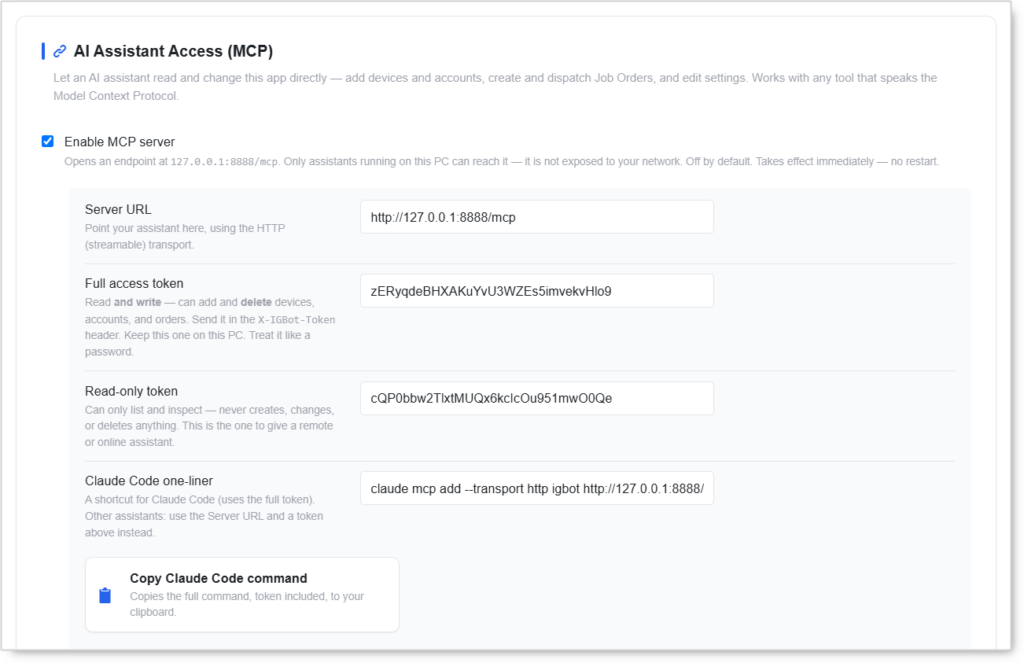
Open Onimator settings and find the AI Assistant Access (MCP) section. Turn on Enable MCP server.
The server starts immediately. You do not need to restart Onimator.
Step 2: Choose Your Access Level
Use the read-only token when you only want the AI to view information. Use the full-access token only when you want the AI to make changes.
| Access type | What the AI can do | Best use |
|---|---|---|
| Read-only | View devices, accounts, settings, and Job Orders. | Testing, checking information, or remote access. |
| Full access | Create, edit, dispatch, and delete items. | Trusted local use when you want the AI to manage Onimator. |
Important security note: Your token works like a password. Do not post it in a public chat, ticket, or screenshot. If a token is exposed, regenerate it before using MCP again.
Step 3: Copy the Claude Code Command
In the MCP section, click Copy Claude Code command. The command already includes the server address and your full-access token.
The generated command looks similar to:
claude mcp add onimator http://127.0.0.1:8888/mcp --header "Authorization: Bearer <your-token>"Do not build this command manually. The copy button ensures the exact format Claude Code expects.
Step 4: Add Onimator to Claude Code
Open PowerShell or Command Prompt on the same computer. Paste the copied command and press Enter.
Then start Claude Code:
claudeInside Claude Code, check the MCP connection:
/mcpYou should see the Onimator or IGBot MCP server listed as connected.
Step 5: Test the Connection Safely
Even if you used the full-access token, start with a view-only request:
Use the Onimator MCP server and list my devices, accounts, and current Job Orders. Do not create, edit, or delete anything.
If the response includes actual device names, account information, and Job Order details, the connection is fully functional.
After you confirm everything is connected, you can ask the AI to prepare an action:
Create a Job Order for [account name]. Show me all settings first and wait for my confirmation before you dispatch it.
Remote Access
The default server address is http://127.0.0.1:8888/mcp. This address only works on the same computer.
For normal local use, keep Allow remote writes turned off. Only enable it when you understand the risks and really need a remote AI assistant to make changes.
What You Can Do Once Connected
Common daily interactions include:
- Morning fleet reports — ask which accounts hit their daily caps or encountered blocks.
- Configuration audits — the AI flags mismatches like source lists whose toggle is off, or accounts assigned to disabled devices.
- Bulk onboarding — add accounts from a list and assign each to the right phone.
- Job Order dispatch — create and send follow, like, or comment Job Orders across the fleet.
- Warm-up configuration — set up account warm-up sequences through conversational requests.
Good practice: For important actions, ask the AI to show planned changes first and wait for your approval. This prevents mistakes.
Troubleshooting
Claude cannot connect — Make sure Onimator is open and Enable MCP server is turned on.
The server is missing in /mcp — Run the copied command again in a fresh terminal window, then restart Claude Code.
The AI can view but cannot change anything — You may be using the read-only token, or the request is arriving through remote access while remote writes are disabled.
You shared a token by mistake — Regenerate the token in Onimator settings before continuing, then rerun Step 3.
Conclusion
MCP integration lets an AI assistant handle the routine clicks and daily checks that normally take up operator time. The setup is a one-time process, and once complete, you can manage devices, accounts, and Job Orders through natural language.
Start with the read-only token to build confidence, and switch to full access when you’re ready.
For remote access setups or more advanced configuration, contact Onimator Support on Telegram.