
Overview
You’ve connected Onimator to an AI assistant. The connection works, the assistant can see your devices, and now you’re staring at an empty prompt with no idea what to type.
This article is that list. Thirty-five prompts worth asking, what each one gives back, and the one setup detail that decides whether you get real reports or just a description of your configuration.
Every prompt is in a copy block. Paste it, swap in your own account names, and read what comes back.
Our setup guide, How to Connect Claude Code to Onimator via MCP, ends with five things you can do once connected, each in a sentence. This article turns every one of them into prompts you can actually run.
MCP reaches more than you’d guess. The assistant can read and change 11 automation tools — Follow, Unfollow, Like, Comment, Story Viewer, Watch Reels, Share, Repost, Close Friends, Engagement and DM — across 33 source lists, plus name filters, the ignore list, account settings, the DM campaign queue and Job Orders. If a tool has a source list in Onimator, the assistant can see it.
Before You Start
Three conditions, all covered in the setup guide:
- Onimator must be open. The MCP server only runs while the app is running.
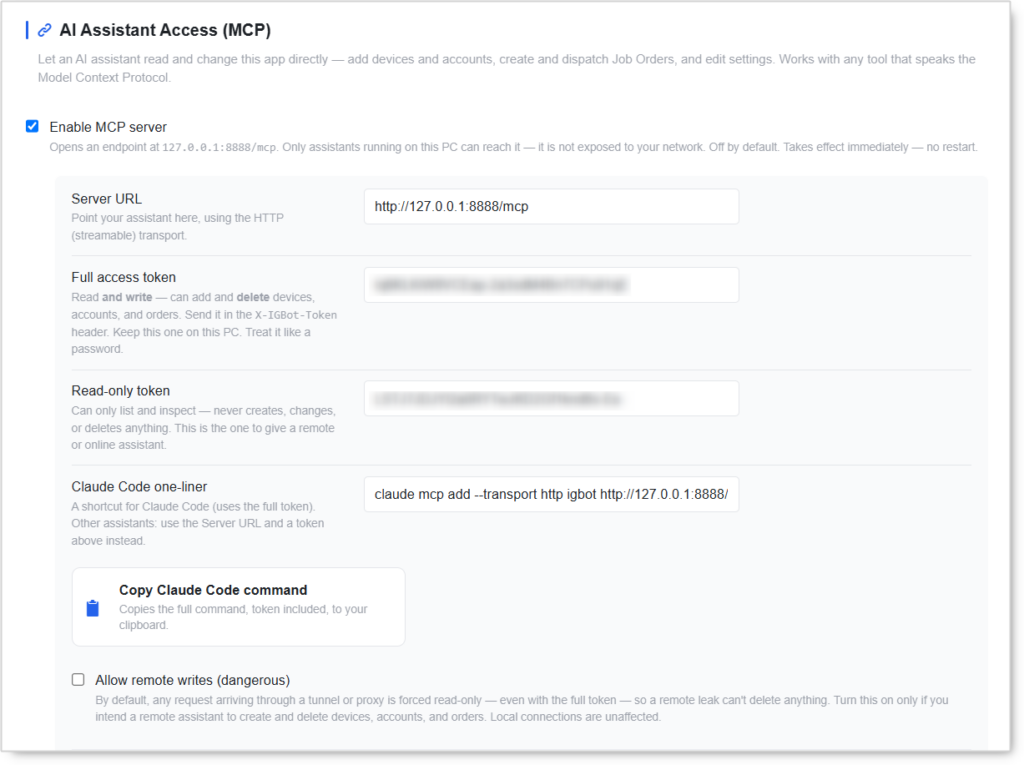
- Enable MCP server must be on, under AI Assistant Access (MCP) in settings.
- The assistant runs on the same PC. The default address is local only.
Full step-by-step instructions are in How to Connect Claude Code to Onimator via MCP.
The One Setup Detail That Unlocks the Reports
Start Claude Code inside your Onimator installation folder, not in some random directory.
Here’s why it matters. MCP gives the assistant access to your configuration: devices, accounts, settings, source lists and Job Orders. But your bot’s action history lives in database files inside the Onimator folder, one set per account. If the assistant starts in that folder, it reads both. That’s when it can calculate daily reports, instead of only telling you how things are configured.
Open a terminal in your Onimator folder and run claude there. That’s the whole trick.
The assistant opens those files read-only, so your bot can keep working at the same time. If you want to look at them yourself, see How to Open DB Files.
The files it reads:
| File | Where | What’s in it |
|---|---|---|
data.db |
<DEVICE_ID>/<account>/data.db |
Every follow and unfollow, with its date, its source, and whether that person followed back |
stats.db |
<DEVICE_ID>/<account>/stats.db |
Daily numbers: posts, followers, following |
accounts.db |
<DEVICE_ID>/accounts.db |
The accounts on that device, their working hours and tool toggles |
settings.db |
<DEVICE_ID>/<account>/settings.db |
The account’s full configuration |
.txt lists |
<DEVICE_ID>/<account>/ |
Source lists, whitelists, name filters |

Using Codex Instead of Claude Code
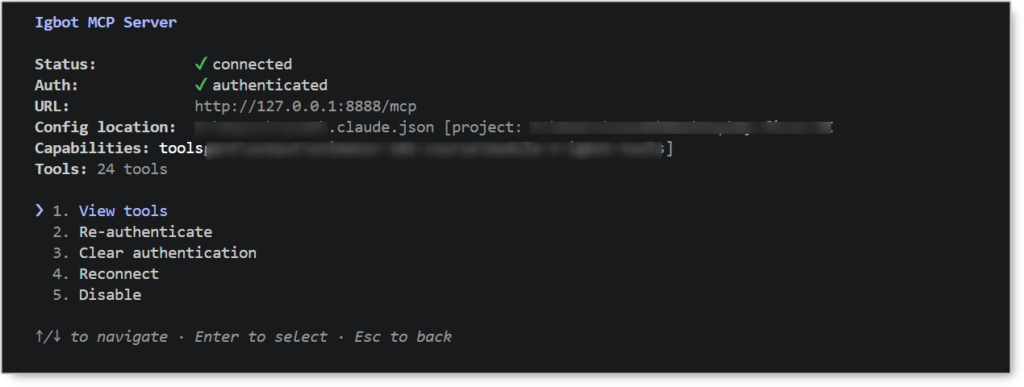
The setup guide covers Claude Code because that’s the one we generate a Copy button for. Codex works just as well. Add it to ~/.codex/config.toml by hand:
[mcp_servers.onimator]
url = "<http://127.0.0.1:8888/mcp>"
bearer_token_env_var = "ONIMATOR_MCP_TOKEN"
Set the ONIMATOR_MCP_TOKEN environment variable to your Onimator token, then start Codex in your Onimator folder.
Or do it in one command:
codex mcp add onimator --url <http://127.0.0.1:8888/mcp> --bearer-token-env-var ONIMATOR_MCP_TOKEN
Confirm it saved with codex mcp list.
Your token works like a password. Keep it out of screenshots and support tickets. If one is exposed, regenerate it in Onimator settings.
Rule Zero: Start Read-Only
The read-only token physically does not have write tools, no matter what you ask it for. There’s nothing to go wrong.
Switch to the full-access token only once you actually want the assistant changing things. Allow remote writes stays off.
The Prompt Library
Each prompt is tagged:
| Tag | Meaning |
|---|---|
| 🔌 MCP | Works over the MCP connection alone |
| 📁 MCP + files | Needs the assistant started inside the Onimator folder |
| ✍️ Makes changes | Needs the full-access token |
A. Getting Oriented
A1 — connection test 🔌
Use the Onimator MCP server and list my devices, my accounts on each device, and my current Job Orders. Do not create, edit, or delete anything.
If real device and account names come back, the connection works. Same test as in the setup guide.
A2 — map of your whole setup 🔌
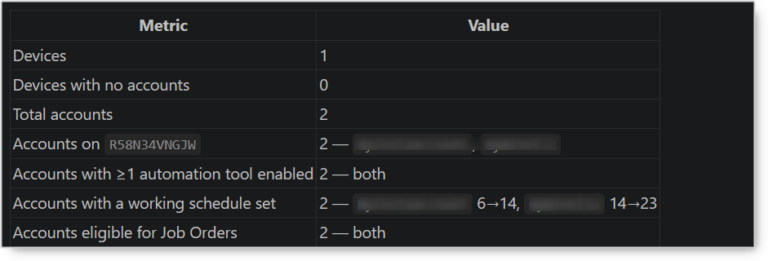
Give me a map of my Onimator setup: how many devices I have, how many accounts sit on each one, which devices have no accounts at all, how many accounts have at least one automation tool enabled, how many have a working schedule set, and which accounts are eligible for Job Orders. One table, nothing else.
Your whole operation on one page. A good first question once you run more than a handful of phones.
The two columns worth reading first are the ones people don’t expect. Accounts with no tool enabled are configured but idle. Accounts with no schedule have Start and End both at 0, which means the bot will never run them no matter what else is set up.
A3 — what can it actually do here 🔌
List every Onimator tool you have access to through MCP, and split them into read-only and write. I want to know what you could change before I give you a full-access token.
The assistant lists its own permissions. A neat way to see for yourself that a read-only token really has nothing to write with.
A4 — which tools are actually switched on 🔌
For every account, show me which automation tools are enabled: follow, unfollow, like, comment, story viewer, watch reels, share, repost, close friends, engagement and DM. One row per account, one column per tool.
The fastest way to see what your fleet is really doing, rather than what you think you configured.
B. Daily Checks
B1 — the morning sweep 🔌
Which of my devices are unreachable right now, and which accounts have automation stopped? Give me a table sorted worst first, and say for each one whether it's the phone or the automation.
A fix-list, instead of tapping through every phone one by one.
B2 — the silent config mistake 🔌
Go through every source list on every account and find anything that would never run: a list with entries but its method toggle off, a method that's on but the parent tool is off, and any list that is empty. Show account, list name, entry count, and exactly which switch is wrong.
This is the classic silent failure: a list full of targets, but the toggle is off, so nothing ever happens. Onimator reports, for each list, whether it would run at all. The assistant just collects that across all 33 lists into one table.
B3 — is anything actually running 🔌
For every device, tell me whether the automation worker is running and whether the phone is reachable over adb. Flag any device where the phone is reachable but the worker is stopped.
Reachable and running are two different things. A phone can be plugged in and healthy while the bot on it is simply stopped.
B4 — safety nets 🔌
For every account, show me whether the ignore list has any entries and whether any name filters are configured. Flag any account running outbound tools with an empty ignore list.
The ignore list is what stops the bot acting on people you never want it to touch. An empty one on an account running Follow or DM is worth knowing about.
B5 — Job Order progress 🔌
For each of my open Job Orders, show the target, how many accounts are assigned, how many completed it, and which assigned accounts have done nothing yet.
Shows which campaign has stalled, and on which accounts.
C. Reports
These need the assistant started inside the Onimator folder.
C1 — actions per account, today vs yesterday 📁
For every account, count the follows and unfollows done today and yesterday, using each account's own action database. Show one row per account with today, yesterday, and the difference. Flag any account at zero today, and any account that already reached its daily limit.
The morning report. Accounts at zero mean something is blocked or a timer didn’t fire. Accounts at their cap mean you could consider raising the limit.

C2 — the week, not the day 📁
For the last 7 days, show total follows per day for the whole setup, and then the 5 accounts with the biggest drop compared to their own 7-day average.
Trend instead of a single day. Catches accounts that fade slowly rather than stopping outright.
C3 — follower growth 📁
Using the daily stats each account records, show me followers gained per account over the last 30 days, sorted best to worst. Include the current follower and following counts.
The bot records followers, following and post count once a day per account, so growth can be calculated backwards.
C4 — did anything break 📁
Check each account's problem and login-error files. Summarise which accounts reported problems, what kind, and when. Ignore accounts with clean files.
Pulls problem logs from the whole setup into one list.
D. Follow Sources: Find the Dead Ones, Swap Them
This is the section that actually changes results. It’s specific to the Follow tool, because follow-back is the only outcome recorded per source.
D1 — follow-back ratio per source 📁
Calculate the follow-back ratio for every source I've used: the percentage of people followed from that source who followed back. Only include sources with at least 100 follows. Sort worst first, and show the source, how many follows it produced, how many followed back, the ratio, and which accounts are using it.
The most important report here. Every follow is recorded together with its source and whether that person followed back, so the ratio is exact rather than estimated. The 100-follow threshold stops a source being judged on a handful of attempts. A source with a hundred follows and zero follow-backs is simply dead.
D2 — where is that source still in use 📁
Take the 20 worst sources from the previous report and tell me, for each one, which accounts still have it in their source lists right now.
Turns the report into a task list. You know not just what is dead, but where it still sits.
D3 — swap them 📁 ✍️
On account [ACCOUNT NAME], remove these sources: [LIST]. Then add these instead: [LIST]. Before you change anything, show me exactly what you plan to remove and what you plan to add, and wait for my confirmation.
Adding sources is append-only and de-duplicated. New entries are added to the list, nothing existing is overwritten, and duplicates drop out on their own. Removal only works on the exact entries you name. That’s why a swap is always those two moves: remove the old, add the new.
D4 — spread the good ones 📁 ✍️
Which of my sources have the best follow-back ratio, and which of my accounts are not using them yet? Suggest a distribution so no single source ends up on more than [N] accounts, and show me the plan before touching anything.
This is a suggestion from the assistant, not an automation. Keep the “show me the plan before touching anything” in your prompt.
E. The Other Tools
Follow is not the only tool with source lists. Story Viewer has four, Comment has four, Engagement has four, Like has three, and Reels, Share, Repost and Close Friends have one each.
E1 — audit one tool across the fleet 🔌
For the [comment / like / story viewer / reels] tool, show me every account that has it enabled, how many entries are in each of its source lists, and whether each list would actually run. Flag accounts where the tool is on but every list is empty.
Swap the tool name. The same prompt works for all eleven.
E2 — engagement comment templates 🔌
Show me the engagement comment templates on every account. Flag any account using fewer than three variations, any template without spintax, and any account with no [AI] template.
Identical comment text across accounts is one of the fastest ways to get flagged. This finds the accounts still running a single hardcoded line.
E3 — passive tools only 🔌 ✍️
On account [NAME], show me which passive tools are configured: story viewer sources, watch-reels keyword search, and engagement. Then enable story viewing and reels watching only, leave follow, comment and DM off, and show me the plan first.
The warm-up shape. Passive tools carry almost no risk and build the behavioural baseline a new account needs before anything outbound.
E4 — top up a quiet tool 🔌 ✍️
On account [NAME], add these entries to the [list name] source list: [LIST]. Show me the current entry count, what you'll add, and the resulting count, then wait for my confirmation.
Adding is append-only and de-duplicated, so re-adding an entry that’s already there changes nothing.
F. Settings
F1 — config diff between two accounts 🔌
Compare the settings of account [A] and account [B] and show me only the keys where they differ, with both values side by side.
The fastest answer to “why is this account doing less than that one?”
F2 — daily limits 🔌 ✍️
Show me the current daily follow, unfollow, like and story-view limits for these accounts: [LIST]. Then set the daily follow limit to [N] on all of them. Show me the before-and-after table first and wait for my go-ahead.
Settings can be changed at three levels: globally, for one phone, or for a single account. The assistant reads the current value, applies the change and saves. Unknown keys are rejected, so a typo can’t slip through silently.
F3 — turn something off everywhere 🔌 ✍️
Turn the comment tool off on every account. List the accounts you're going to change and the current value on each, then wait for my confirmation.
Global changes go in one move. Per-account changes the assistant loops through the list.
F4 — AI DM configuration 🔌 ✍️
Show me the current AI DM configuration on account [NAME] — which provider is set and which persona. Then switch it to [PROVIDER] with persona [NAME]. Confirm with me before saving.
AI DM configuration, including FluidTalk personas, lives in the account settings, so it goes the same route.
G. DM Campaigns
G1 — the campaign queue 🔌
Show me the Targeted DM Campaign queue for account [NAME]: how many rows are pending, how many are sent, and whether the campaign would actually run right now.
Each row pairs one username with one message. This tells you whether the queue still has anything left in it, and whether the DM method and Direct Messages are both switched on so it can fire.
G2 — top up the campaign 🔌 ✍️
Add these username and message pairs to the Targeted DM Campaign on account [NAME]: [LIST]. Show me what you'll add and the resulting pending count before you write anything.
G3 — pull someone out 🔌 ✍️
Remove these people from the Targeted DM Campaign on account [NAME]: [LIST]. Show me their pending rows before you delete anything.
Useful when a name shouldn’t have been on the list, or has already been contacted another way.
H. Onboarding: From Empty Phone to Running Account
H1 — register a phone 🔌 ✍️
Add device [DEVICE ID] to Onimator, then show me the device list with its account count. Tell me what you're about to do before you do it.
MCP registers a phone that is already authorised over ADB. It does not prepare the handset — Developer Options, USB debugging and the manual app login all still happen on the phone first.
H2 — add accounts from a list 🔌 ✍️
Here is a list of accounts with the phone each one should go on: [LIST]. Add them to Onimator. Show me the full plan — which account goes on which device — and wait for my confirmation before creating anything.
An account is always created on a specific phone, so the list has to include the assignment. The assistant works through it entry by entry.
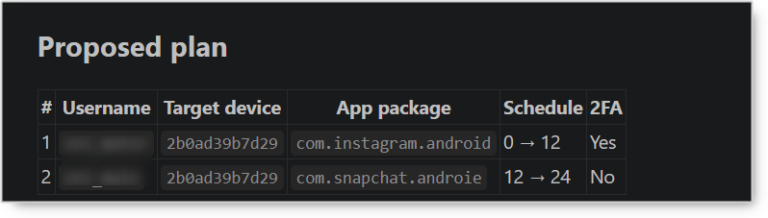
MCP creates accounts with a username, password and device only. If your list also carries schedules, app packages or 2FA codes, use Bulk Imports → Accounts instead. The CSV route handles every field; MCP would silently drop them and leave you with accounts that have no schedule and therefore never run. See How to Bulk Import Accounts via CSV.
H3 — configure a new account end to end 🔌 ✍️
On account [NAME], set the schedule to [START] to [END], enable story viewing and reels watching only, leave follow, comment and DM off, and set conservative daily limits. Show me every setting you'll change and its new value, then wait for my confirmation.
A new account arrives with no schedule and nothing enabled. This is the one prompt that takes it from registered to actually working, in the shape a fresh account should start in.
H4 — copy a working account’s setup 🔌 ✍️
Compare account [NEW] with account [WORKING]. Then apply [WORKING]'s tool toggles and daily limits to [NEW], but keep [NEW]'s own schedule so the two don't overlap on the same phone. Show me the full diff before you change anything.
Faster than configuring each account by hand, and it keeps a fleet consistent. Preserving the schedule matters: two accounts on one phone with identical hours will queue for the device.
H5 — start it 🔌 ✍️
Show me which devices are currently running and which are only reachable, then start the bot on device [DEVICE ID]. Confirm with me first.
The last step of onboarding. Reachable and running are different states, so check both before assuming a device is idle.
I. Job Orders
I1 — create and dispatch 🔌 ✍️
Create a [follow/like/comment] Job Order targeting [TARGET], with a daily action limit of [N]. Then show me which accounts are eligible, and wait for me to approve the list before you assign it.
A Job Order is created with your own settings layered over the template. Only accounts that opted in are eligible, so the list may be shorter than your fleet.
Assigning accounts to a Job Order replaces the current assignment, it does not add to it. That’s why the account list should be approved before it’s dispatched.
I2 — who actually did the work 🔌
For Job Order [ID], show me the completion log: which account completed it, on which device, and when. Group it by day.
The completion log is written with a date and hour per account, so this is a hard report, not an estimate.
Give Your Assistant House Rules
Instead of appending “don’t change anything” to every prompt, drop a CLAUDE.md file into your Onimator folder. The assistant reads it every time it starts.
# House rules for this Onimator setup

-Default to read-only. Never create, edit, delete or dispatch anything unless I ask for it in that message.
-Before any change, show me a plan: what you will change, from what value to what value, on which accounts.
-Never start or stop the bot without asking me first.
-When reading the bot's database files, open them read-only. The bot may be running.
-Source lists: only ever add or remove the exact entries I name. Never rewrite a list.
-Never enable a method toggle without asking. Turning one on makes the account start acting on strangers.
-When I ask for a report, show your numbers as a table and say which accounts you skipped and why.
Two Things MCP Does Not Do
There is no ready-made report button. MCP gives the assistant access to the data. The assistant assembles the report. That’s why you can ask for any cut of the data you like, but you do have to ask.
No post scheduling through MCP. Scheduling posts uses the existing route. See How to Schedule Posts Using CSV.
Also worth knowing: a Job Order can’t be edited after it’s created. If you want different settings, you create a new one.
Troubleshooting
The setup guide covers connection problems. These three are specific to running prompts.
| Symptom | Cause | Fix |
|---|---|---|
| The assistant can see the configuration but can’t calculate daily actions | Started outside the Onimator folder | Close it, open a terminal in the Onimator folder, start it again |
| “I can’t change that” even with a full-access token | The connection is remote and Allow remote writes is off, by design | Work locally, or deliberately enable remote writes |
| The assistant reports an error reading a database | The database was mid-write by the bot | Ask it to open the databases read-only and retry |
For connection failures, a missing server in /mcp, or an exposed token, see the troubleshooting section of the setup guide.
One Thing Worth Knowing About Source Lists
Adding entries to a list does nothing on its own. The bot uses a list only when the method toggle and its parent-action toggle are both on, the bot is running, and the next cycle begins. Changes are not instant.
The bot also removes dead source accounts from these files while it runs, so lists shrink over time on their own. A list that looks shorter than you left it usually hasn’t been edited by anyone.
Conclusion
- Start in the Onimator folder. It’s the difference between configuration answers and real reports.
- Start read-only. The token can’t write, so nothing can go wrong while you’re learning.
- D1 is the prompt that changes results. Dead sources are invisible until you measure them.
- It’s not just Follow. Eleven tools and 33 source lists are reachable, so audit the quiet ones too.
- Ask for a plan before any change. Put it in a
CLAUDE.mdand stop repeating yourself.
Copy a prompt, swap in your account names, and see what comes back. The assistant assembles whatever cut of the data you ask for, so the list above is a starting point rather than a limit.
Tutorials & Support
- Telegram Support: Contact Onimator Support