
Overview
The Timer tab decides when an account is allowed to run. You give it a start time and an end time, and the bot only works inside that window.
This matters for two separate reasons, and beginners usually only know the first. The obvious one is that accounts sharing a device can’t all run at once, so they need to take turns. The less obvious one is that an account with no schedule doesn’t look human, because real people sleep.
A newly added account has no schedule at all, and the bot will refuse to run it until you set one. This guide covers how.
Two apps, one license. The Timer works the same way in IGBot and Onimator. Field labels differ slightly — IGBot says Start hour / End hour, Onimator says Start time / End time — and each has a different section underneath. Both are covered below.
Strategic Purpose: The Timer is the cheapest safety control in the product. It costs nothing, takes a minute, and it’s the difference between an account that browses like a person and one that’s active at 4am every night.
The 30-Second Version
- Open the account’s settings and go to the Timer tab.
- Under Account Schedule, enter a Start and an End.
- Use whole hours (
9) or hours and minutes (8:15), on a 24-hour clock. - For several windows a day, comma-separate both fields: Start
8,13,19with End10,15,21. - Check the Daily Activity Window bar shows green where you expect.
- Save.
A New Account Won’t Run Until You Do This
A freshly added account has Start and End both set to 0, and the app tells you plainly that this is a problem:
Required. If Start and End are empty, equal, or invalid, the bot will NOT run this account.
You’ll also see a red badge: Start equals End — bot will never run this account, or Invalid schedule in Onimator.
0 to 0 is not “all day”. It’s an empty window, and the account sits idle forever. This is the single most common reason a correctly configured account does nothing.

Why Timers Matter
Accounts on one device have to take turns. A phone runs one account at a time. Without schedules, accounts compete for the same device and you get stalled runs and unpredictable behaviour. Timers divide the day so each account gets its own slot.
An account with no schedule doesn’t look human. This is the reason that actually protects you. A real person doesn’t like posts at 03:40 every night, then again at 04:15, forever. Consistent activity through the small hours is one of the simplest patterns to detect, and you’re handing it over for free.
The rest of this guide is about serving both at once: give each account its own slot, but put those slots inside hours a real person would be awake.
Finding the Timer
Open the account’s settings — the gear icon on the account’s row — and select the Timer tab.
- IGBot — second tab along, after Account.
- Onimator — second tab along, after Overview.
The first block is Account Schedule.
The Two Fields
Start — when the account may begin working.
End — when it must stop.
Both accept two formats:
| Format | Example | Means |
|---|---|---|
HH |
9 |
09:00 |
HH:MM |
8:15 |
08:15 |
Everything is on the 24-hour clock, 0 to 24. 0 is midnight, 9 is 9am, 18 is 6pm.
Use the minutes. If every account on a device starts exactly on the hour, that regularity is visible across the fleet. 8:15, 9:40, 13:05 costs nothing and looks far less mechanical than 8, 10, 13.
The Daily Activity Window
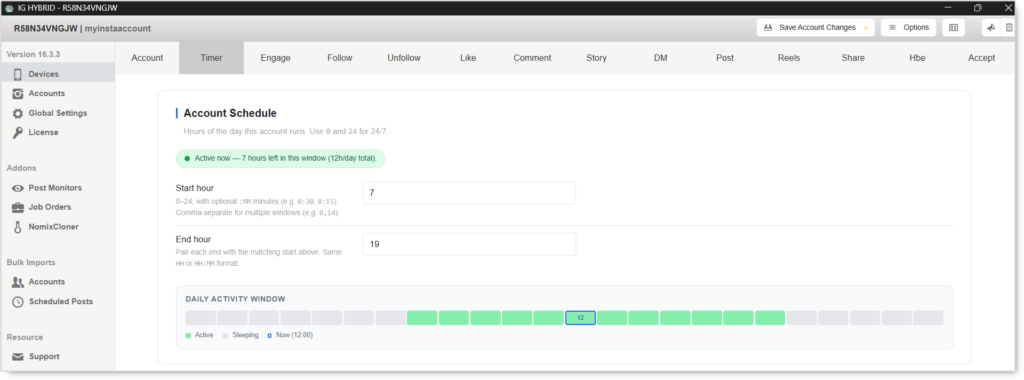
Below the fields is a 24-segment bar showing your schedule as a picture:
- Green — Active, the account may run
- Grey — Sleeping, the account is idle
- Marker — Now, the current hour
Use it as your check. If you meant the account to work evenings and the bar is green all morning, you’ll see it immediately. On a brand-new account the whole bar is grey, which is the same thing the warning is telling you.
Splitting the Day Between Accounts
The simplest setup. Take your available hours, divide by how many accounts share the device, and give each one a block.
Example: 8 accounts, realistic hours
A believable waking window is roughly 07:00 to 23:00 — sixteen hours. Eight accounts split evenly gives each one two:
| Account | Start | End |
|---|---|---|
| A | 7 | 9 |
| B | 9 | 11 |
| C | 11 | 13 |
| D | 13 | 15 |
| E | 15 | 17 |
| F | 17 | 19 |
| G | 19 | 21 |
| H | 21 | 23 |
Nothing overlaps, nothing runs overnight, and every account works inside hours a person plausibly would.
Several Windows Per Account
Real people don’t use an app in one unbroken block. They check it in the morning, again at lunch, again in the evening. You can reproduce that by giving one account multiple windows.
Comma-separate both fields. They pair up in order — first Start with first End, second with second:
Start:  8, 13, 19
End:   10, 15, 21
Three sessions: 08:00–10:00, 13:00–15:00, 19:00–21:00.
Both fields must hold the same number of values. Three starts need three ends.
This is the better pattern. Three short sessions across a day look far more like a person than one long block, and the total working time is identical. Once you’re comfortable with the basics, use this instead.
Example: 4 accounts, three sessions each, staggered with minutes
| Account | Start | End |
|---|---|---|
| A | 7:00, 12:10, 18:05 | 8:00, 13:10, 19:05 |
| B | 8:15, 13:20, 19:15 | 9:15, 14:20, 20:15 |
| C | 9:30, 14:35, 20:25 | 10:30, 15:35, 21:25 |
| D | 10:45, 15:50, 21:40 | 11:45, 16:50, 22:40 |
Each works three hours a day across three sessions, no two overlap, and no two share a start time.
Crossing Midnight
Start must be earlier than End. You can’t enter 23 to 2 — the app reads it as invalid and flags the schedule.
To cover a span that crosses midnight, split it into two windows:
Start:  23, 0
End:    24, 2
That’s 23:00–24:00 and 00:00–02:00, together covering 23:00 to 02:00.
If you find yourself needing to cross midnight, ask whether the account should be running then at all. Overnight activity is exactly the pattern the Timer exists to avoid.
Running 24/7
Entering 0 as Start and 24 as End gives a 24-hour window. IGBot documents this directly: “Use 0 and 24 for 24/7.”
It works, and you shouldn’t use it. An account available every hour of every day is one of the easiest automation signals to spot, and no other setting compensates for it. The feature exists; treat it as something for a device doing non-account work, not for an account you care about.
The same applies to dividing all 24 hours between accounts. Eight accounts across a full day means two of them only ever act between midnight and 6am, and those are the two that get flagged first.
Tool Timers (IGBot)
The account schedule decides when an account works. Tool timers decide which tools run in each part of that time. For example: Follow only from 6 to 6:30, then Like only from 6:30 to 7.
You’ll find it in the Timer tab, between Account Schedule and Pacing. It needs IGBot 17.5.2 or later.
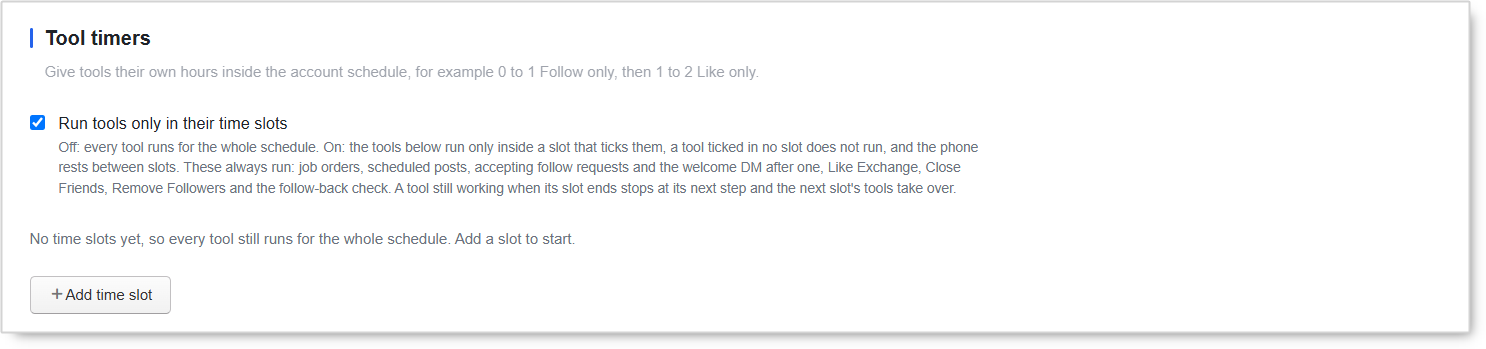
Run tools only in their time slots
- Off — every tool runs for the whole account schedule, as before.
- On — a tool runs only inside a time slot that has it ticked. A tool that isn’t ticked in any slot doesn’t run, and the phone rests between slots.
Turning it on with no slots changes nothing. Until you add a slot, every tool still runs for the whole schedule.
Adding a time slot
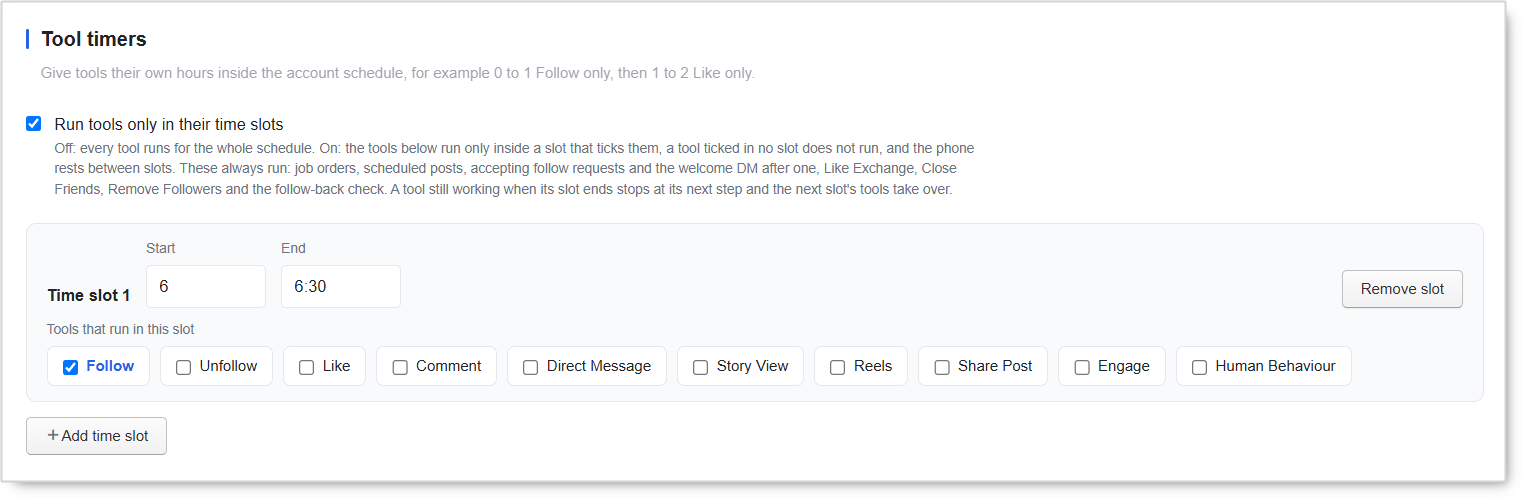
Click + Add time slot. Each slot has:
- Start and End — a whole hour from
0to24, or a time like8:30. - Tools that run in this slot — Follow, Unfollow, Like, Comment, Direct Message, Story View, Reels, Share Post, Engage and Human Behaviour.
- Remove slot — deletes the slot.
Keep slots inside the account schedule. Tool timers split the account’s hours between tools. They don’t add hours.
What always runs
These ignore slots and run whenever the account is scheduled:
- Job orders
- Scheduled posts
- Accepting follow requests, and the welcome DM after one
- Like Exchange
- Close Friends
- Remove Followers
- The follow-back check
When a slot ends
A tool that’s still working when its slot ends stops at its next step, and the next slot’s tools take over.
What Sits Below the Schedule
Both apps put another timing control under Account Schedule, and they’re not the same thing.
IGBot — Pacing. Adds natural variance between actions so the bot doesn’t feel mechanical.
- Filler actions between real actions — random scrolls and story views mixed in between real work.
- Delay between actions — seconds to wait between one action and the next. Keep a spread.
Onimator — Delay After Every Session. How long the bot pauses between sessions, randomised between a min and max. The default is 60 to 120 seconds.
The Timer decides when the account works. These decide how it behaves while it’s working. Both matter, and neither replaces the daily limits set inside each tool.
Saving
Changes aren’t live until you save.
- IGBot — Save Account Changes, top right.
- Onimator — Save Account Settings, top right.
Check the Daily Activity Window looks right before you save.
Safety Notes
Don’t run 24/7. The most common Timer mistake. The bot being available around the clock doesn’t mean your account should be.
Stagger accounts on the same device. Overlapping windows mean accounts queue for the phone, and runs get skipped or cut short.
Vary the schedule between accounts. If eight accounts all run 09:00–11:00 and 19:00–21:00, they share a timing fingerprint, which is its own detection signal. Use the minutes field to break up the pattern.
More accounts than hours means more devices. If you have sixteen accounts and a sixteen-hour window, one-hour slots are too short to do useful work. That’s a signal to add a device, not to extend into the night.
Match the timezone the account presents. An account whose profile and audience are US-based should be active in US hours. The schedule follows the device’s clock, so check that it matches the story the account tells.
Common Problems
“Start equals End — bot will never run this account.” Both fields hold the same value, usually 0 and 0 on a new account. Enter a real window.
“Invalid schedule.” Start is later than End, or the format is wrong. Check you’re on the 24-hour clock and that Start comes first.
Uneven counts in the comma fields. Three starts and two ends won’t pair up. Both fields need the same number of values.
The bar is grey where you expected green. The window didn’t save, or it’s set to hours you didn’t intend. The Daily Activity Window is the source of truth — trust it over what you think you typed.
Accounts fighting over one phone. Two windows overlap. Lay every account’s schedule out on paper and check for collisions before entering them.
A tool stopped running after turning on tool timers. With Run tools only in their time slots on, a tool that isn’t ticked in any slot doesn’t run. Tick it in a slot, or turn the checkbox off.
The phone sits idle during the schedule. With tool timers on, the phone rests in any gap between slots. Close the gap, or keep it as a deliberate break.
Windows too short to matter. An account with a one-hour slot and generous action delays may only complete a handful of actions. Widen the window, or put fewer accounts on the device.
What’s Next
- Set daily limits per tool — the Timer says when, each tool’s daily limit says how much. You need both.
- Warm new accounts up first — see How to Warm Up a New Instagram Account. A realistic Timer is one of its requirements.
- Add a device before you add more accounts once your usable hours are full.
Implementation Tip: Set one account to a single two-hour window today and watch the Daily Activity Window turn green in the right place. Once that’s clear, move to comma-separated windows — that’s the pattern you’ll want long term.
Tutorials & Support
- Telegram Support: Join Onimator Support