
Overview
Accounts live on devices. You don’t add an account to the software in general — you add it to a specific phone, and that phone is where it runs.
That’s why the device comes first. If you haven’t connected a phone yet, start with What You Need to Start With Onimator and come back here.
Adding the account itself is the easy part: two fields and a button. The things worth knowing are what has to be true before you click it, and what to set up straight afterward.
Two apps, one license. IGBot handles Instagram. Onimator handles Threads, TikTok, Snapchat, Reddit, Bumble and Tinder. The idea is the same in both, but the route differs slightly, so each is covered separately below. See IGBot vs Onimator — What’s the Difference.
Strategic Purpose: The Add Account dialog only asks for a username and password, which makes it look like the whole job. It isn’t. An account added and left alone has no schedule, no proxy, and no warm-up — the three things that decide whether it survives.
The 30-Second Version
- Install the platform’s app on the phone and log in manually. The bot does not log in for you.
- Go to Devices in the sidebar.
- In Onimator, pick the platform from the tabs along the bottom first.
- Open the device with Manage, then click Add Account (IGBot) or Add [Platform] Account (Onimator).
- Enter the username (and password, in IGBot), then confirm.
- Set the account’s Timer schedule and assign its proxy before running anything.
Before You Start
- A device already added — see What You Need to Start With Onimator.
- The platform’s app installed on that phone, logged in manually. Instagram for IGBot; Threads, TikTok, Snapchat, Reddit, Bumble or Tinder for Onimator.
- The username and password for the account.
- A proxy for the account, if you’re running more than one.
The manual login is not optional. The bot drives an app that is already open and signed in on the phone. If you add credentials here without logging in on the device first, nothing will run.
Where Accounts Live
Click Devices in the left sidebar. You’ll see a dashboard with four numbers across the top:
| Card | What it means |
|---|---|
| Total Phones | Devices registered with this bot |
| Connected | Devices reachable via ADB right now |
| Running | Devices currently executing the bot |
| Total Accounts | Accounts across all your phones |
Below that, a row per device showing its Device ID, Device Name (the handset model), Status, how many Accounts it holds, and the action buttons.
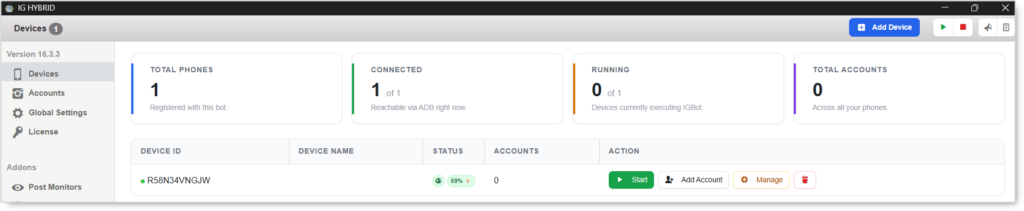
Registered is not the same as connected. A device can show under Total Phones while Connected reads 0 of 1. That means the bot knows about the phone but can’t reach it at this moment — usually an unplugged cable or a sleeping phone. A red warning icon in the Status column is telling you the same thing. When the device is healthy, Status shows a connection icon and the phone’s battery level instead.
Adding an Account in Onimator
One phone serves every platform. You add the device once, and it appears under all the platform tabs. There’s no need to register the same handset again for a second platform.
- Pick the platform from the tabs along the bottom — Bumble, Tinder, Snapchat, Reddit, Threads, TikTok, Instagram. The window title updates to show which one you’re in.
- Go to Devices. Your phone is listed there, the same phone you’d see under any other platform.
- Click Manage on the device row to open it.
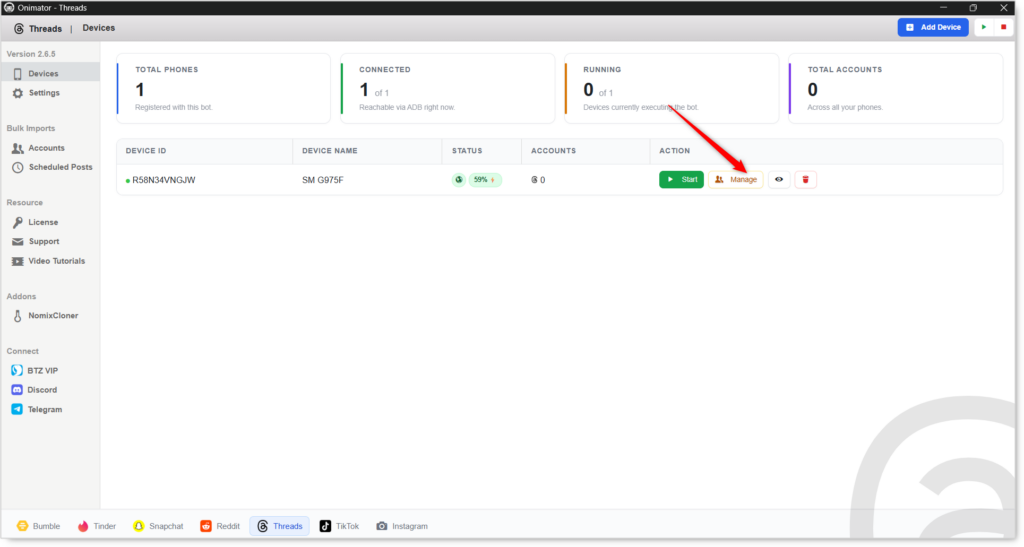
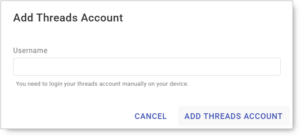
- Click Add [Platform] Account in the top toolbar — it’s labelled for the platform you’re in, so under Threads it reads Add Threads Account.

- Enter the username and confirm.
This is how you run several platforms from one phone. Add Threads accounts under the Threads tab, TikTok accounts under the TikTok tab, and so on. Same device, different platforms, each with its own accounts and its own schedules.
Check which platform tab you’re in before adding. The button name is the clearest signal — if it says “Add Threads Account” and you meant TikTok, switch tabs first.
Adding an Account in IGBot
IGBot is Instagram-only, so there’s no platform to pick. Four routes, all opening the same dialog:
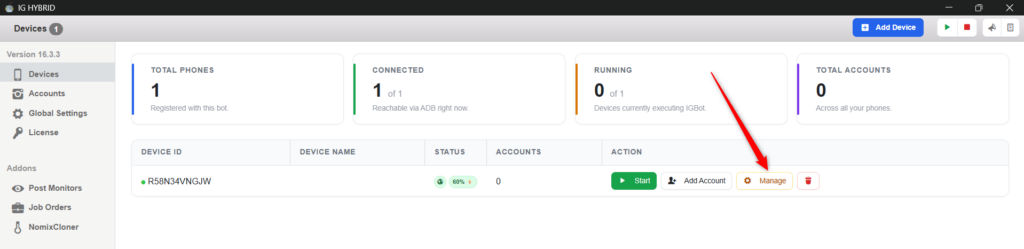
From the device row — On the Devices list, click Add Account in the row’s Action column. Fastest route.

From inside the device — Click Manage to open the device, then Add Account in the top toolbar.

From the empty state — Open a device with no accounts and you’ll see “No accounts on this device yet” with an Add your first account button.

By importing a ZIP — If you’re moving an account from another install, use Device Options → Import Account and supply the account ZIP. This brings the account across with its existing configuration instead of setting it up fresh.
The Add Account Dialog
The two apps ask for different things.
In Onimator — username only
The dialog is titled for the platform, for example Add Tinder Account. It has a single field:
- Username — the account handle, without the
@.
Underneath it, the dialog reminds you: “You need to login your [platform] account manually on your device.”
Confirm with ADD [PLATFORM] ACCOUNT.
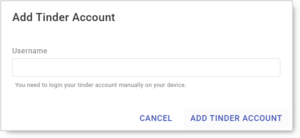
No password is asked for, and that’s deliberate. Onimator works entirely from the session already signed in on the phone. The username is only a label so the bot knows which account it’s driving. If you haven’t logged in manually on the device, adding the username here achieves nothing.
In IGBot — username and password
The dialog is titled with the device ID, confirming which phone the account is being added to. Check this if you run several devices — it’s the only thing telling you where the account is about to land.
Two fields:
- Username — the account handle, without the
@. - Password — the account’s password.
Confirm with ADD ACCOUNT.

Neither dialog has a proxy field or a 2FA field. Those are configured separately after the account exists. Adding the account is only step one.
What You’ll See Afterward
The account appears as a row on the device, with columns tracking what it’s done. The counters differ by platform, because each one measures different things.
IGBot (Instagram)
START HOUR · END HOUR · USERNAME · FOLLOWERS · FOLLOWING · ENGAGE · FOLLOWED · UNFOLLOWED · STORY · LIKE · COMMENT · DM · POSTED · ACTION
Onimator (Threads)
START HOUR · END HOUR · USERNAME · FOLLOWS · UNFOLLOWS · POSTS · ACTION
Other platforms show their own equivalents, so a Tinder device tracks matches and messages rather than upvotes and posts.
Whatever the platform, the first two columns are always the account’s Timer schedule, and the counters after it start at zero because the account hasn’t done anything yet.

Start Hour 0 and End Hour 0 means no schedule is set, and the account will not run. A brand-new account always looks like this. The bot needs a window of hours to work inside, and 0 to 0 is an empty window, not “all day”.
Set the schedule next — see How to Set Up Timers. It takes about a minute, and nothing else you configure matters until it’s done.
Use the gear icon in the Action column to open that account’s settings, where the Timer and every tool live. In IGBot, use Today in the toolbar to switch the period the counters cover.
Adding Several Accounts at Once
Adding accounts one at a time is fine for the first few. Past roughly ten it stops being sensible.
Bulk Imports → Accounts in the sidebar takes a CSV where each row is a complete account: device assignment, username, password, app package, Timer schedule, and an optional 2FA setup code. Fifty accounts import in seconds rather than an afternoon.
See How to Bulk Import Accounts via CSV for the format and the column reference.
The bulk CSV includes the Timer schedule, so importing accounts and scheduling them happens in one file. If you’re setting up more than a handful, that’s the route — you’d otherwise be entering schedules by hand afterward anyway.
What to Do Before You Run Anything
Three things, in this order.
1. Assign a proxy. Accounts sharing one IP is among the clearest signals that they belong to the same operator, and it’s how one flagged account takes the rest with it. See How to Set Up a Proxy on an Android Device.
2. Set the Timer schedule. An account with no schedule can act at any hour, and consistent overnight activity is one of the easiest patterns to spot. See How to Set Up Timers.
3. Warm the account up. A fresh account running outbound actions is the fastest route to a block. Passive tools only for the first couple of weeks. See How to Warm Up a New Instagram Account — the principle applies on every platform, not just Instagram.
Common Problems
The account was added but nothing runs. Check the Status column on the Devices list. If Connected reads 0 of 1, the phone isn’t reachable — check the cable and USB debugging.
Nothing happens at the expected time. The Timer schedule is empty or set outside the current hour. Start Hour and End Hour are the first two columns on the account row.
Login problems on the device. The bot doesn’t log in for you. Open the app on the phone and confirm the account is still signed in — sessions do get logged out, and everything downstream fails silently when they do.
Added to the wrong phone. The dialog is titled with the device ID. If it went to the wrong device, remove it and re-add it from the right one.
Onimator: the account isn’t showing. You’re probably on a different platform tab from the one you added it under. Accounts belong to a platform, so a Threads account only appears while you’re in Threads. Check the tabs along the bottom.
What’s Next
- Set up the account’s Timer — see How to Set Up Timers.
- Warm it up before anything outbound — see How to Warm Up a New Instagram Account.
- Start with passive tools — the low-risk browsing and viewing tools for your platform.
Implementation Tip: Add one account, set its schedule, and let it run passive tools for a week before adding a second. The first account is where you learn what normal looks like, and that’s much harder to see with five running at once.
Tutorials & Support
- Telegram Support: Join Onimator Support