
Overview
FluidTalk is a managed persona engine. You build a Character on the FluidTalk dashboard, give her a voice, a funnel and a set of rules, and then connect her to Onimator with a single token. From that point on, every AI reply your account sends in DMs and comments is written by that Character.
The split is simple: FluidTalk writes, Onimator delivers. FluidTalk never touches Instagram. It generates the text, and IGBot posts it on the real device.
Strategic Purpose: OpenAI gives you a prompt. FluidTalk gives you a person. She holds one consistent identity across DMs and comments, remembers each lead between sessions, and works a phased funnel that decides when a lead has earned your link. The same lead who comments on a post and later slides into the DMs is recognised as one person.
Key Features
- One Character, Two Surfaces — The same persona handles DMs and comments. A comment reuses the same conversation a DM to that person would, and is billed as one turn.
- Cross-Surface Memory — She remembers what a lead said in the comments when they DM her later, and vice versa.
- Phases and Gates — Cold ➜ Warm ➜ Invite. A lead only advances by crossing a rapport gate, so your link is earned rather than dropped on message one.
- Funnel Map — Draw the route once, for example Instagram ➜ OnlyFans, and every conversation steers there.
- Comment Threads — She comments on a post, works the replies underneath it, then drives warm commenters into DMs as the same Person, already warm.
- Multiple Personas per Install — Each connector token is its own Character. Add as many as you like and assign a different one per account.
- Human Pacing — Replies arrive as short separate messages with natural pauses, not one block of text.
- Follow-Ups — She messages first when a lead goes quiet, with a different instruction for the first nudge than the last.
Critical: Two Switches, Two Places
The most common FluidTalk problem is not an error. It is silence.
Comments in particular need switching on in two places:
- FluidTalk — the Character’s Comments flow, which is off by default and fail-closed
- Onimator — the account’s Comment tab, provider set to FluidTalk
Miss the FluidTalk side and the bot posts no comments, logs no error, and charges you nothing. Everything looks configured. Nothing happens.
Whenever FluidTalk “isn’t working”, check the FluidTalk dashboard before you check Onimator. Almost every silent failure lives on that side.
Before You Start
You need:
- A FluidTalk account at
talk.fluidvip.com - Tokens in your FluidTalk wallet. When the balance hits zero, new conversations pause and replies simply stop. A red banner shows at the top of the dashboard.
- IGBot v16.3.3 or later, with at least one account added
Some features are plan-gated. Multi-account dedup requires Pro or higher, upgraded in Settings → Subscription on FluidTalk.
Part 1 · Build the Character on FluidTalk
Create the Character
Go to Characters in the left sidebar and click + New Character.
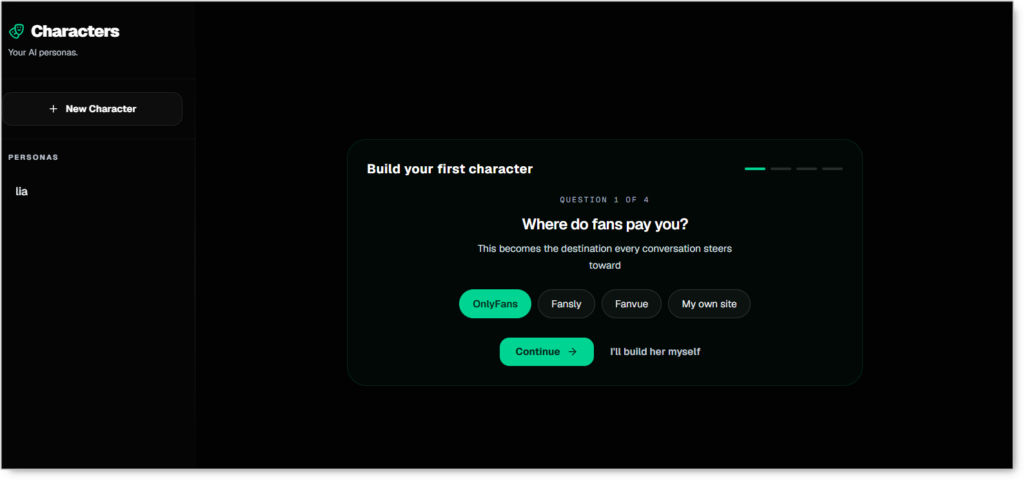
You get a four-question wizard, or you can click I’ll build her myself to skip straight to manual setup.
| Question | What it sets |
|---|---|
| 1. Where do fans pay you? | OnlyFans, Fansly, Fanvue or your own site. This becomes the destination every conversation steers toward. |
| 2. Where do they find you first? | Instagram, Reddit, TikTok, Telegram, X, or add your own. Pick every surface you post on. Each one gets its own engine. |
| 3. Who is she? | Name, age, city and vibe. Rough is fine, all of it is editable later. |
| 4. Your destination username | The link she hands over once a conversation has earned it. Optional, but skip it and she has nowhere to send anyone. |
Question 2 is load-bearing. If Instagram is not selected, there is no Instagram engine bound to this Character, and Onimator’s calls will fail with nothing to show for it. Tick Instagram even if you plan to add other platforms later.
The build runs through cloning the engine, writing her identity, tuning her voice, dealing the phase decks and placing the gates. When it finishes you land on her Character page.
The Character Tabs
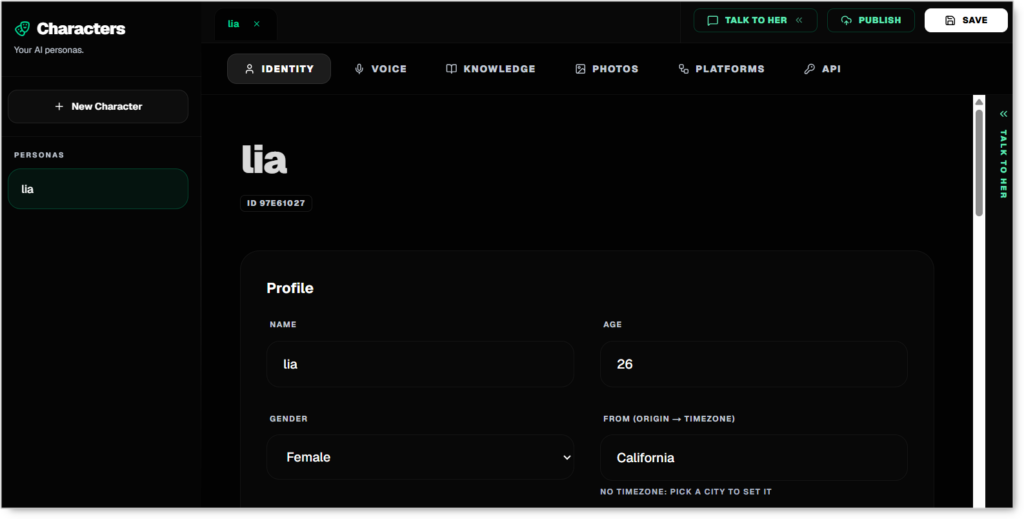
Her page has six tabs, plus SAVE and PUBLISH in the top right.
| Tab | What lives there |
|---|---|
| IDENTITY | Name, age, gender, origin city |
| VOICE | Her words, her slang, her emoji habits |
| KNOWLEDGE | What she knows and can talk about |
| PHOTOS | Images she can send |
| PLATFORMS | Platform rows, Funnel Map, engines, dedup |
| API | The connector token Onimator needs |
SAVE is all you need. PUBLISH submits your Character to the public marketplace for other people to discover and clone. It is not required to make her work, and it is not part of setup.
Identity
Her origin city sets her clock. A character from California will not send “good morning” at 3 AM her time. Set it to somewhere that matches the persona.
Voice
This is where the Character stops sounding like an assistant. Write her actual sentences: her phrasing, her slang, her emoji habits. A thin voice produces generic AI output within a few exchanges. A detailed one holds across long conversations.
Knowledge
Everything she can speak about with authority. Anything you do not put here, she may invent. Prices, offers, availability and personal details are the usual gaps, so fill them in explicitly.
Photos
Images she can attach when a conversation calls for one.
Platforms & Funnel Map
Open the PLATFORMS tab.
Platform rows

Each row is one platform, with a Link and a Username, and a toggle for which of the two she hands over.
Your wizard answers land here automatically. Instagram usually arrives blank, because there is nothing to hand over on Instagram itself. Your destination row arrives filled in.
Funnel Map

Below the rows is a canvas. Drag platform to platform to draw the route, for example Instagram ➜ OnlyFans.
No map does not break her. It means that platform sells directly, using its own Link or Username from the rows above. It only breaks when the platform has no link either, which is the normal state for an Instagram row. If Instagram is your entry surface, draw the arrow.
One reply per lead across accounts
At the bottom of the tab, off by default.
- Off: every account running this Character replies to the same lead
- On: only the first account a lead messages replies, the rest ignore it
This matters for fleets. Run one Character across ten accounts with this off, and a lead who messages three of them gets three replies from the same person. Requires Pro plan or higher.
The Engines
Click a platform inside the Funnel Map to open its engine. The header shows the Character and platform, with two surfaces: DM and Comments.
The DM engine 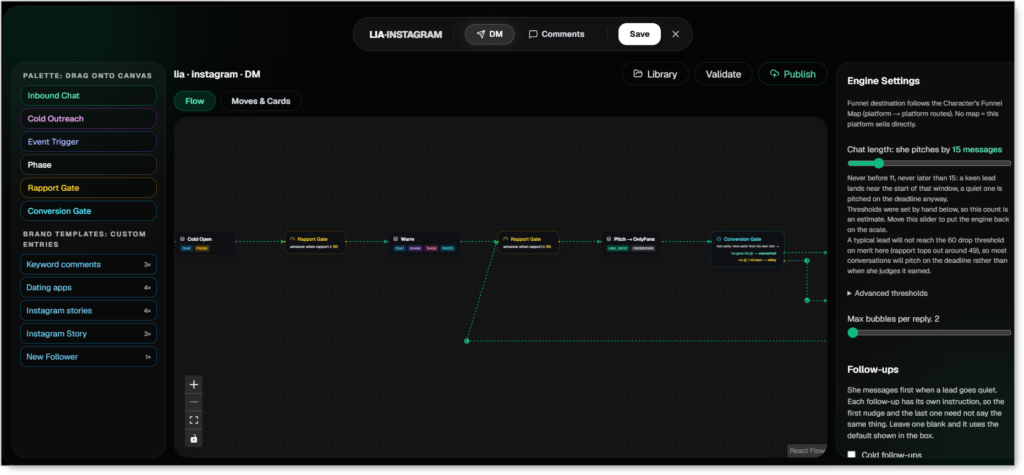
The Flow canvas shows her conversation as nodes:
Cold Open ➜ Rapport Gate ➜ Warm ➜ Rapport Gate ➜ Pitch ➜ Conversion Gate
Drag new nodes from the palette on the left: Inbound Chat, Cold Outreach, Event Trigger, Phase, Rapport Gate, Conversion Gate. Moves & Cards holds what she actually says at each phase, and Library has ready-made templates.
Engine Settings, on the right:
- Chat length — how many messages before she pitches. Long for a slow burn, short if your traffic runs hot. The panel tells you in plain language when your gates and your chat length disagree, for example warning that rapport tops out below your drop threshold so most conversations will pitch on the deadline instead of on merit.
- Max bubbles per reply — how many separate messages one reply is split into.
- Follow-ups — she messages first when a lead goes quiet. Each follow-up has its own instruction, so the first nudge and the last need not say the same thing.
Click Validate to check the flow before you rely on it.
The Comments engine
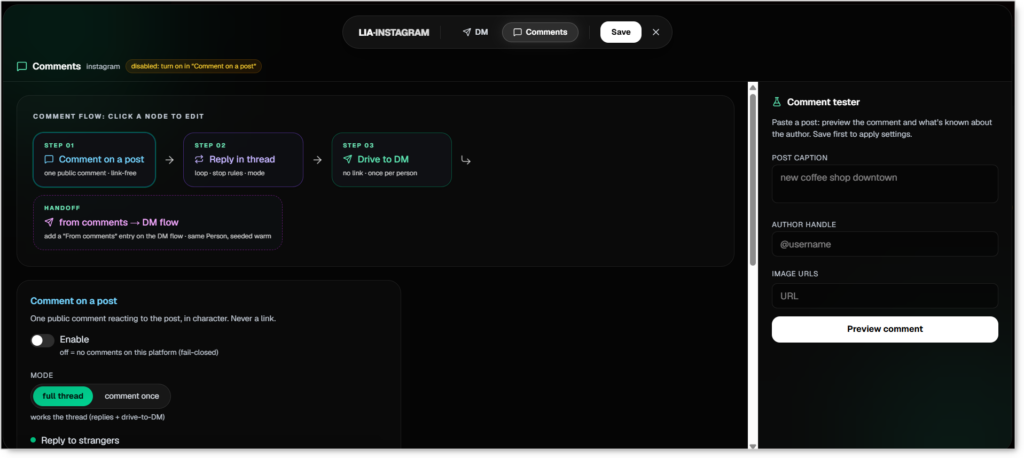
Switch the header to Comments. This is the step most people miss.
The comment flow runs in three steps, plus a handoff:
| Step | What it does |
|---|---|
| 01 · Comment on a post | One public comment reacting to the post, in character, link-free |
| 02 · Reply in thread | Works the replies underneath her comment |
| 03 · Drive to DM | Invites the person into DMs. No link, once per person |
| Handoff | Seeds a “From comments” entry on the DM flow as the same Person, already warm |
Click Comment on a post and set:
- Enable — 🚨 off by default, and fail-closed. Off means no comments on this platform at all. This is the switch Onimator depends on.
- Mode —
full threadworks replies and drive-to-DM.comment onceposts a single comment and stops. - Reply to strangers — replies to anyone in the thread, not just the post author. On by default.
- Graduate commenters → leads — a warmed commenter becomes a Lead in the DM funnel. On by default.
- Allow links in comments — off by default. Leave it off. Public links are the number one shadowban trigger.
- Comment instruction — the comment’s goal, for example “open a friendly, specific comment that earns a profile visit; no pressure, no link.”
- Comment style — extra style applied to every comment. Her persona voice still applies on top.
Click Save in the engine header when you are done.
Get the Connector Token
Open the API tab on the Character and click CREATE API KEY.

A dialog appears with the token and a COPY button.
ftc_wn3p92••••••••••••••••••••••••••Tf6k
Shown once. Copy it before you close the dialog. If you lose it, use ROTATE API KEY to issue a new one, then update it in Onimator.
Each token is one Character. There is no separate character ID, and the same token works for every platform that Character runs on.
Part 2 · Connect FluidTalk in Onimator
Global Settings
- Open Global Settings in the IGBot sidebar
- Stay on the General section and scroll to AI Providers
- Tick Enable FluidTalk
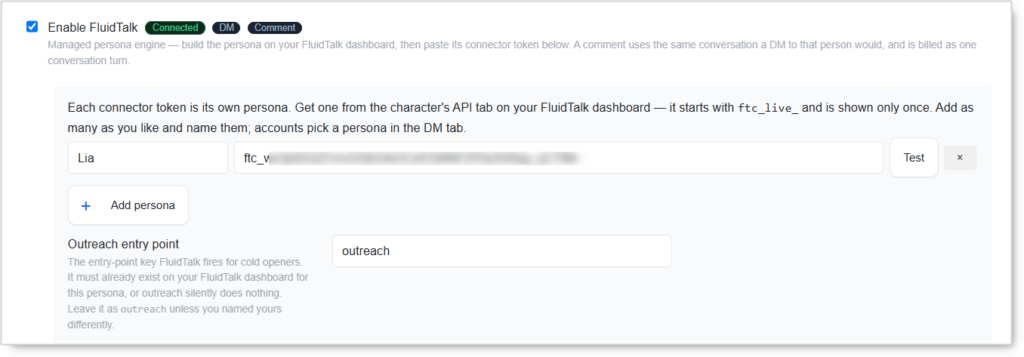
The row carries badges showing status and which surfaces it powers: DM and Comment. It reads Not configured until a token is saved, then Connected.
Add a persona
Each connector token is its own persona.
| Field | What to enter |
|---|---|
| Persona name | A name you choose, for example Lia |
| Token | The ftc_... token you copied |
Click Test. A success dialog confirms “FluidTalk token is valid.”
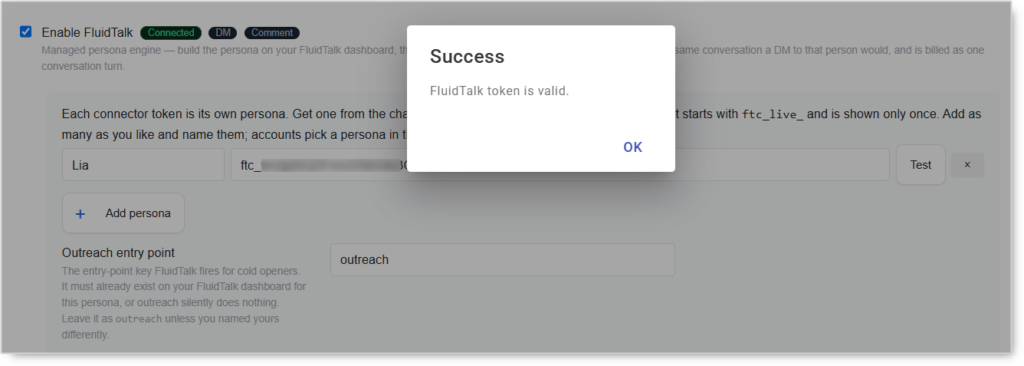
Always name the persona. Leave it blank and the account picker shows
Persona 1, which is workable with one persona and unusable with four.
Use + Add persona for each additional Character. Accounts choose between them on the DM tab.
Outreach entry point
Default: outreach
The entry-point key FluidTalk fires for cold openers. It must already exist on the FluidTalk dashboard for this persona, or outreach silently does nothing. Leave it as outreach unless you named yours differently.
TO VERIFY: confirm this key maps to the Cold Outreach node on the Character’s DM flow, and whether that node’s name has to match exactly.
Let the comment AI see the post photo
Sends a picture of the post alongside the caption, so comments can talk about what is actually in the image rather than guessing from the text. Costs noticeably more per comment.
This is the default for every account. Accounts with Override Global Settings on use their own Comment-tab setting instead.
Click Save Settings Changes at the top right.
Part 3 · Configure the Account
Open the account’s settings from Devices → your device → the account row.
TO VERIFY: confirm the gear icon in the ACTION column is the route into account settings.
The DM Tab
Turn DM on

Enable Direct Message is the master switch and is off by default. Nothing sends until it is on.
Pick a mode
Five modes, all off by default, each with its own daily limit:
| Mode | What it does |
|---|---|
| DM New Followers | Messages users as soon as they follow |
| DM Specific Accounts | Messages a hand-picked username list |
| Targeted DM Campaign | One unique pre-paired message per username |
| Reply to DMs | Turn-by-turn scripted conversation |
| AI Live Chat | Sweeps the whole unread inbox with AI replies |
Turning on AI Live Chat turns off Reply to DMs. They cover the same conversations.
Choose FluidTalk
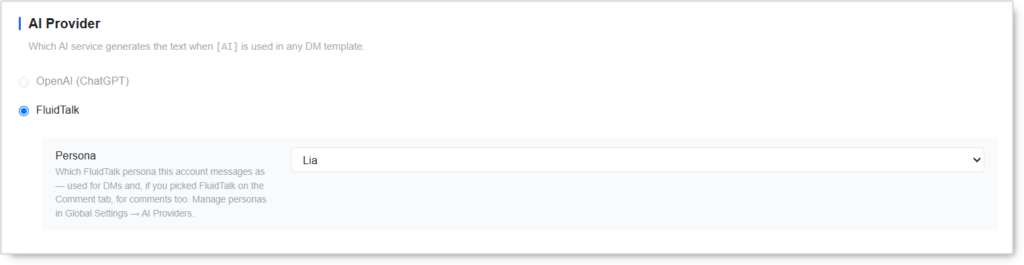
Scroll to AI Provider and select FluidTalk, then pick your Persona from the dropdown.
This governs every [AI] placeholder used anywhere on this account, in any DM template. The persona you pick here is also used for comments, if you select FluidTalk on the Comment tab.
TO VERIFY: whether the AI Live Chat Prompt field still applies under FluidTalk. The Comment tab greys out its equivalent field and says it does nothing. The DM tab does not. Until confirmed, define personality on the FluidTalk dashboard and leave this field alone.
AI Live Chat rules

Defaults:
| Setting | Default | What it does |
|---|---|---|
| Live Chat limit per day | 100 |
Max AI replies per day from this mode |
| Re-scan wait | 10s |
Pause after a sweep before re-checking |
| Response window | 30s |
How long to wait in an active chat for their next message |
| Max replies per user per day | 30 |
Hard stop per person |
The Comment Tab
Turn commenting on

Enable Comment is the master switch. When on, the bot comments on posts from the method below using your comment text or an AI-generated comment. The pill on the right reads COMMENT ON once it is active.
Pick at least one comment method
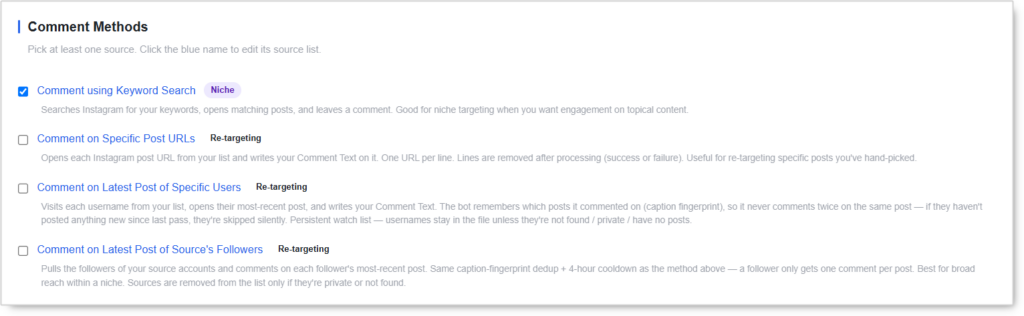
Nothing runs without a source. Tick at least one, and click the blue name to edit its list.
- Comment using Keyword Search (Niche) — Searches Instagram for your keywords, opens matching posts and comments. Best for topical engagement.
- Comment on Specific Post URLs (Re-targeting) — Comments on each post URL in your list, one per line. Lines are removed after processing, success or failure.
- Comment on Latest Post of Specific Users (Re-targeting) — Opens each username’s most recent post and comments. Never comments twice on the same post, and skips silently if they have posted nothing new.
- Comment on Latest Post of Source’s Followers (Re-targeting) — Pulls your source accounts’ followers and comments on each follower’s latest post. Broadest reach within a niche.
Prefer keyword-search targeting over broad lists, and keep daily limits very low. Commenting is higher-risk than liking and Instagram blocks comment spam fast.
Put [AI] in the comment box
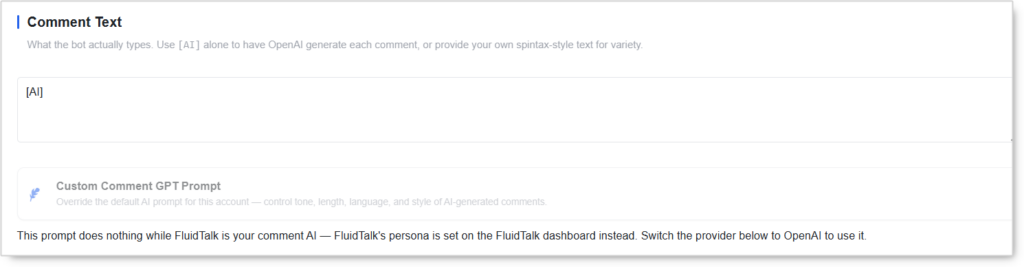
In Comment Text, enter [AI] on its own.
This is the trigger. Static text in that box means no AI runs at all, whichever provider you selected.
The Custom Comment GPT Prompt below it is greyed out under FluidTalk, and Onimator says so directly. Her personality comes from the FluidTalk dashboard instead.
Choose FluidTalk
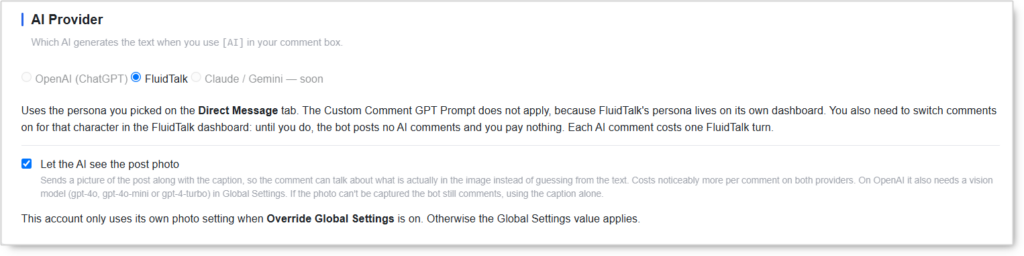
Under AI Provider, select FluidTalk. Options are OpenAI (ChatGPT), FluidTalk, and Claude / Gemini (listed as soon).
It uses the persona you picked on the DM tab. Each AI comment costs one FluidTalk turn.
Remember the FluidTalk side. Comments must also be switched on for that Character in the FluidTalk dashboard. Until they are, the bot posts no comments and you pay nothing.
Let the AI see the post photo
Sends the post image alongside the caption. If the photo cannot be captured, the bot still comments using the caption alone.
This account only uses its own photo setting when Override Global Settings is on. Otherwise the Global Settings value applies.
Troubleshooting
Every FluidTalk failure is quiet. Work down this list.
| Symptom | Cause | Fix |
|---|---|---|
| No comments at all | Comments not enabled for the Character | FluidTalk → Character → Platforms → click the platform → Comments → Enable |
| No comments, provider is set | [AI] missing from the comment box |
Put [AI] in Comment Text |
| All replies stopped | FluidTalk wallet empty | Top up. A red banner shows on the dashboard |
| She never sends the link | The lead has not crossed the gates yet | Working as designed. Adjust chat length or gate thresholds in Engine Settings |
| She has no link to send | No Funnel Map arrow, and no link on the platform row | Draw the route, or fill the row’s Link or Username |
| Cold outreach does nothing | Entry point key does not exist on FluidTalk | Match the key in Global Settings to the Character’s entry node |
| One lead gets several replies | Dedup off, several accounts on one persona | Enable one-reply-per-lead on the Platforms tab. Pro plan or higher |
| She skips some comment replies | She judged the reply not worth answering | Working as designed |
| Test says valid, still nothing | Instagram not selected as a platform on the Character | Add it on the Platforms tab |
Safety & Best Practices
Never allow links in comments
Off by default and it should stay off. Public links are the strongest shadowban trigger on Instagram. Let her drive people to DMs, and hand the link over there.
Fill the Knowledge tab properly
Anything she does not know, she may invent, and she will do it confidently. Prices, offers, availability and personal details are where this bites. Read your transcripts periodically. AI mistakes produce no error, so the only way to catch them is to look.
Keep DM limits low
FluidTalk does not change Instagram’s tolerance. DM is still the most blocked action on the platform. Start at 5 to 15 a day on a fresh account and grow over a week.
One persona across many accounts
Two rules. Turn on one reply per lead across accounts so a lead is not answered three times by the same person. And stagger your accounts so they never run in the same hours on one device.
Watch the wallet
Every DM turn and every comment is metered. Comments with the photo option on cost noticeably more. An empty wallet stops replies without any signal inside Onimator.
Let her pace herself
Multiple short messages with pauses is what makes her read as human. Leave Max bubbles per reply alone unless you have a reason.
Conclusion
- Build once on FluidTalk, connect with one token, assign per account
- Comments need two switches, one on each side, and the FluidTalk one is off by default
[AI]in the comment box is what actually triggers generation- Name your personas, or the account picker is unreadable
- Draw the Funnel Map arrow, or she has nowhere to send anyone
- SAVE is enough. PUBLISH is for the marketplace
- Every failure is silent. Check FluidTalk first
Implementation Tip: Start with one Character on one account. Enable DMs only, AI Live Chat off, Reply to DMs on, limit at 10 a day. Watch her transcripts for two days and fix her Voice and Knowledge based on what she actually said. Only then enable comments, and only in comment once mode until you trust her. Add more accounts to the persona last, with dedup on.
Also Available on Other Platforms
FluidTalk is not IGBot-only. The same Character and the same connector token also power AI conversations on:
- Tinder
- Bumble
- Snapchat
- TikTok
Add the platform on the Character’s Platforms tab so it gets its own engine, then connect the token in that bot’s Global Settings the same way. One Character can run every surface at once, and she stays the same person across all of them.
Tutorials & Support
- Telegram Support: Contact Onimator Support