
To schedule an Instagram story with a link sticker, open the account's Post tab in IGBot, click Add Scheduled Post, add your media, set Post Type to Story, and fill in the Link sticker URL field that appears. Add optional Sticker text, pick a date and time, and save. At that time the bot taps a clickable link sticker onto the story and shares it.
Onimator is the software that drives the real Instagram app on Android phones, cloud phones and emulators, and IGBot is its Instagram module. The link sticker is part of IGBot's Post Scheduling Tool, so it works alongside everything else in the composer: AI captions, music, location and tagging. Written for version 16.8.7.
What does the link sticker do?
It puts a tappable link on a scheduled story. Anyone who views the story can tap the sticker and go straight to your URL.
That makes stories a traffic channel rather than just a way to stay visible. You can point viewers at a landing page, an offer, a new post or a link-in-bio page, and have it go out on schedule across every account you run.
Both fields are optional. Leave Link sticker URL blank and the story publishes without a sticker, exactly as before.
What do you need before you start?
The account added in IGBot.
The Media Path set in Global Settings → General → Media Path. Scheduled media must live in the phone's media folder, and if the path isn't set, the story fails at publish time.
The media for your story, an image or a video.
How do you open the Post tab?
- Click the Settings button next to your account in IGBot.
- Click the Post tab.
- Turn on Enable Scheduled Posts. The badge next to it should read SCHEDULED POST ON.
The toggle must be on. With it off, queued stories stay in the queue and never publish.
How do you schedule a story with a link sticker?
Click Add Scheduled Post under Quick Tools to open the composer, then:
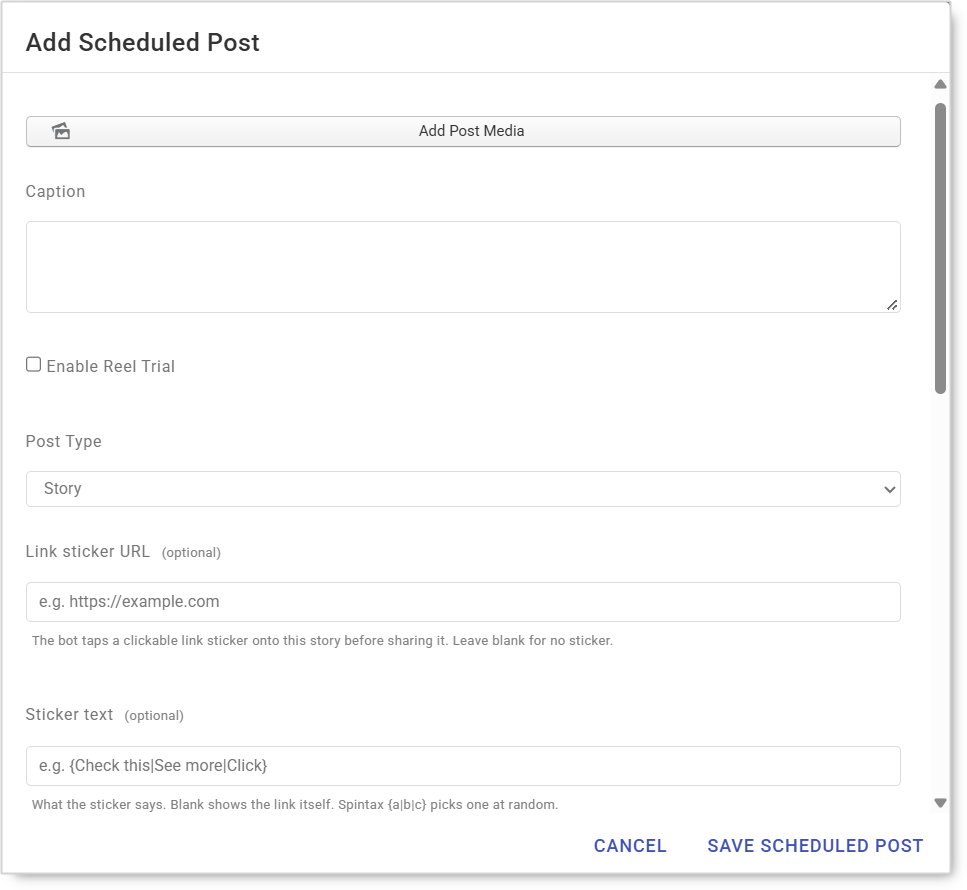
- Add Post Media. Pick the image or video for the story.
- Caption. Optional. Type it yourself, use spintax, or use
[AI]to have OpenAI write one. - Post Type → Story. The link sticker fields only appear once Story is selected.
- Link sticker URL. Paste the full link, for example
https://example.com. The bot taps a clickable link sticker onto the story before sharing it. - Sticker text. Optional. This is what the sticker says. Leave it blank and the sticker shows the link itself.
- Anything else you want. Photo uniquification, location, music and tagged people all work the same way as for any scheduled post. See the next section.
- Date and Time. When the story should go out.
- Click Save Scheduled Post.
The story joins the account's Scheduled Posts List, where you can filter by type (Story) and status (Unpublished or Published) to confirm it's queued.
How do you vary the sticker text across accounts?
Use spintax in the Sticker text field. Write the options inside braces, separated by a pipe, and the bot picks one at random for each story:
{Check this|See more|Click}
Use spintax whenever the same link goes out on several accounts. A dozen accounts posting identical sticker text on the same day is an easy pattern to spot. Spintax gives each story its own wording while the link stays the same.
Which optional fields work on a story?
| Field | What it does |
|---|---|
| Photo uniquification | Makes a visually identical but byte-distinct copy of the photo before posting. Photos only. It has no effect on video stories |
| Location | Adds a location tag |
| Music | Adds a track by name |
| Random music selection | Scrolls the search results a little and picks a random track instead of the one you typed |
| Music Volume | Track volume, 100 by default |
| Tag People | Usernames to tag, separated by commas |
For the full list of composer fields, including Enable Reel Trial and the Custom Caption GPT Prompt, see the Post Scheduling Tool guide.
Safety & Best Practice
Turn on Photo uniquification for photo stories you share across accounts. Each account then uploads its own distinct file instead of the same one.
Don't put a link on every story. An account whose every story is a link reads as promotional. Mix link stories with plain ones.
Check the link before you save. The bot posts exactly what's in the field, so a typo goes live on every story that uses it.
Keep new accounts on plain stories at first. Start posting on day one, but add link stickers once the account has some history. See How to Warm Up Instagram Accounts at Scale.
Common Issues
There's no Link sticker URL field. Post Type is still set to Post or Reels. Switch it to Story and the field appears.
The story never published. Enable Scheduled Posts is off, or the Media Path isn't set in Global Settings → General → Media Path.
The sticker shows the raw link. Sticker text is blank. Add text, or spintax, to replace it.
Photo uniquification made no difference. The story is a video. Uniquification only works on photos.
FAQ
Can Onimator post an Instagram story with a link?
Yes. In IGBot's Post Scheduling Tool, set Post Type to Story and fill in Link sticker URL. The bot adds a clickable link sticker to the story before sharing it.
Is the link sticker required on scheduled stories?
No. Both Link sticker URL and Sticker text are optional. Leave the URL blank and the story publishes without a sticker.
What does the sticker say if I leave the text blank?
It shows the link itself.
Can I use different sticker text on different accounts?
Yes. Use spintax such as {Check this|See more|Click} in the Sticker text field, and the bot picks one option at random for each story.
Tutorials & Support
- Post Scheduling Tool: every composer field explained
- How to Schedule Posts Using CSV
- Post Scheduler (OniHelper)
- Global Settings Instruction Manual
Conclusion
Set Post Type to Story, paste the link, add sticker text (with spintax if the link goes out on several accounts), choose a date and time, and save. The bot handles the rest.